Law firm
The mobile app for a law firm.
When your business type is Law firm, the mobile app organises the work around cases. Clients are called Clients and the tabs at the bottom are Events, Cases, Clients and Settings. For how the app changes with the business type, see Screens by business type.
The Cases tab
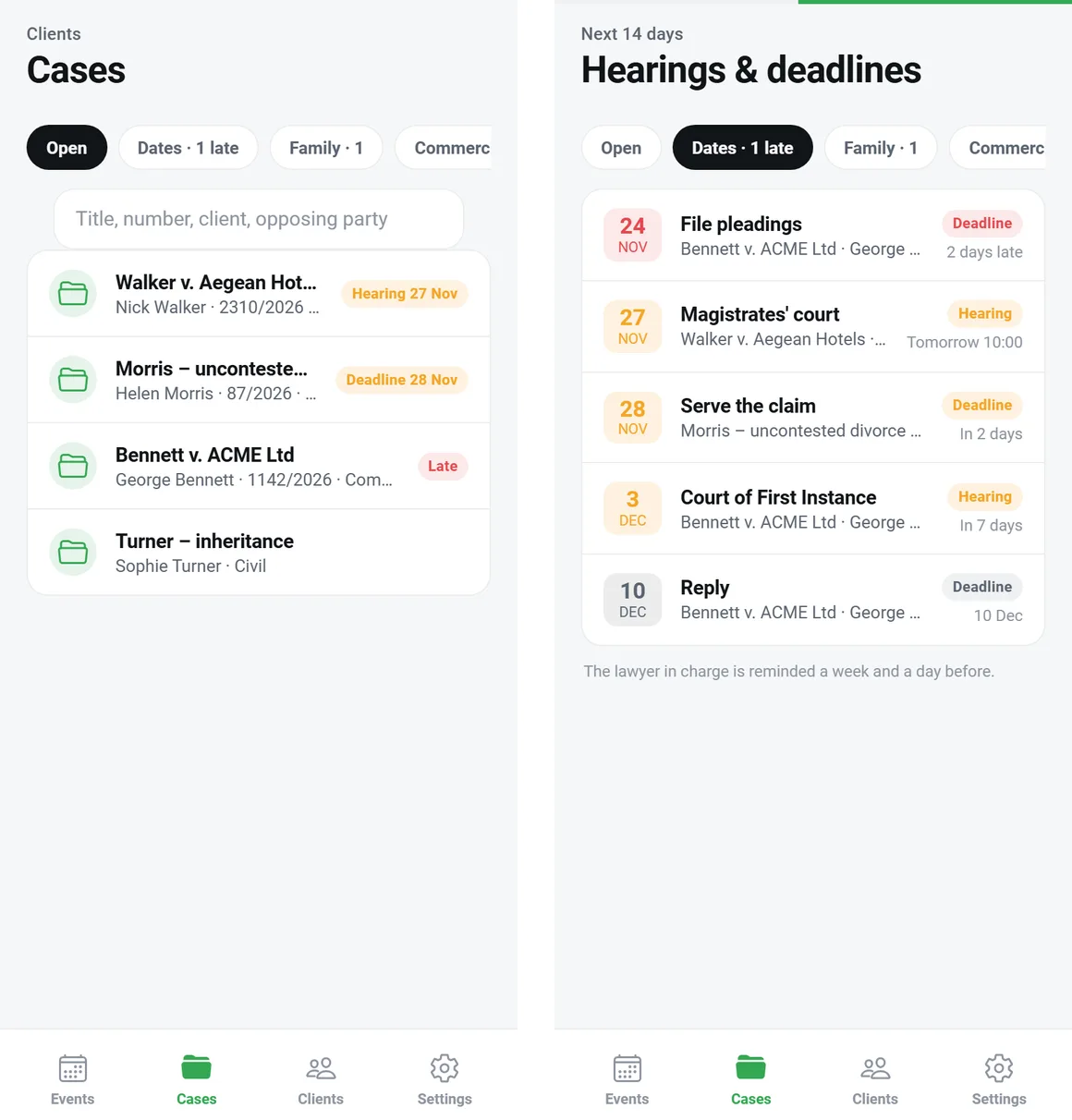
It shows the firm's open cases. Each case shows its title, the client, the case number and the area of law. On the right you see its next date, for example Hearing 27 Nov, or Late when a deadline has passed without being marked done.
- Open: all open cases.
- Dates: every hearing and deadline in the next 14 days, plus the ones that passed without being done. The button also says how many are late.
- One button per area of law, with the number of cases, e.g. Commercial · 1.
- Closed: the cases you have closed.
In the search box, type a title, a case number, a client's name or the opposing party.
In the dates, red means the date has passed and amber that it is within a week. Tap a date to open its case.
A case
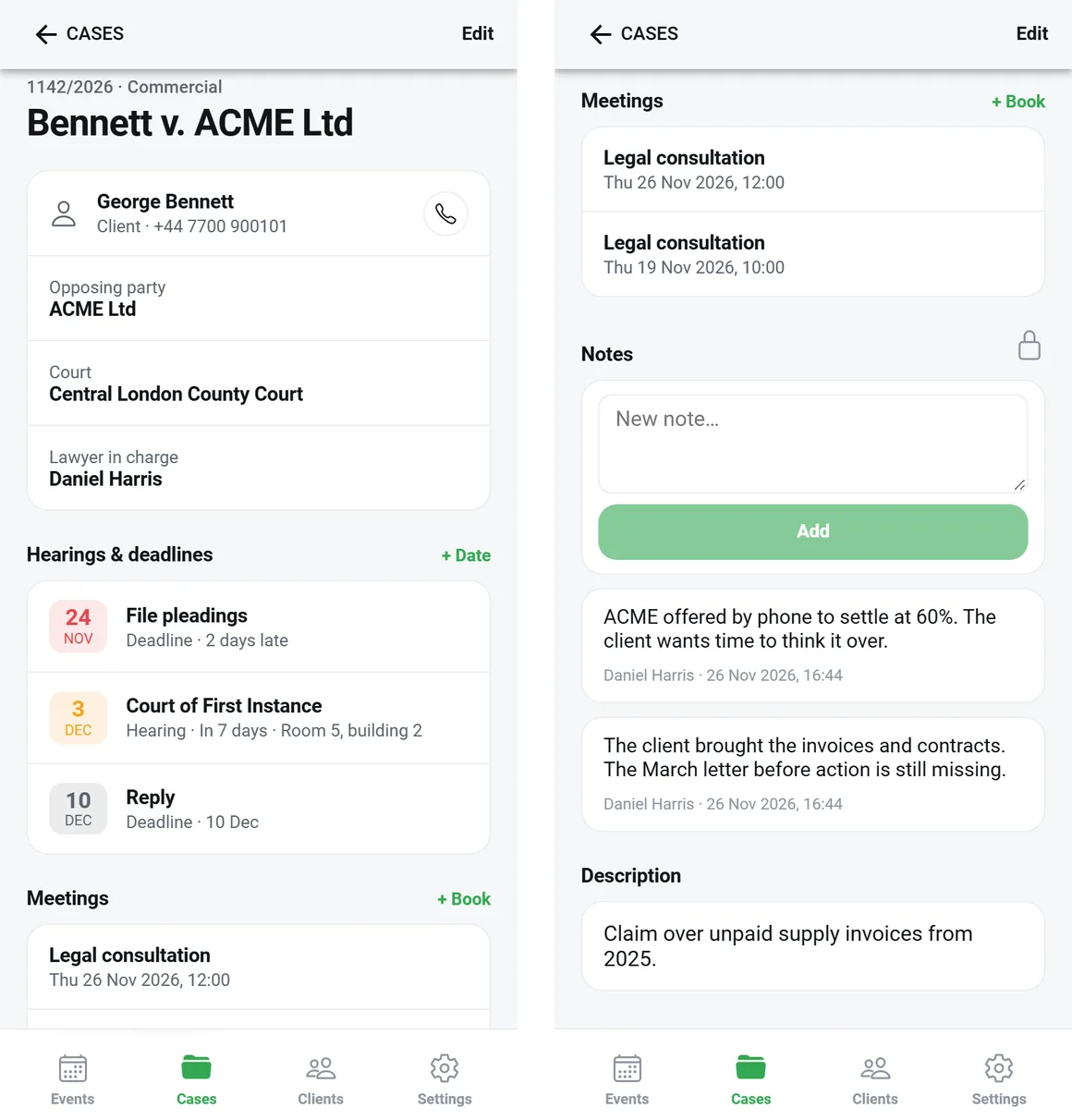
Tap a case to see:
- the client, with a call button when they have a mobile number. Tap them to open their page,
- the opposing party, the court and the Lawyer in charge,
- the Hearings & deadlines, nearest first,
- the Meetings with the client about this case,
- the Notes and the Description.
Tap a date to Mark done or Edit it. Dates that are done are tucked under Done and no longer show as late.
+ Book books a new meeting with the client, which goes straight into this case.
Notes are for the firm only. Only users who manage appointments can see and write them. Type the note and tap Add. Tap a note to Edit or Delete it.
Edit, top right, changes the case details. There you also find Close the case, Reopen and Delete case.
A new case
You open a case from the client's page or from a meeting:
- On the client's page, under Cases, tap + New.
- In an appointment, tap the case line and choose New case from this meeting…. The meeting goes into the new case.
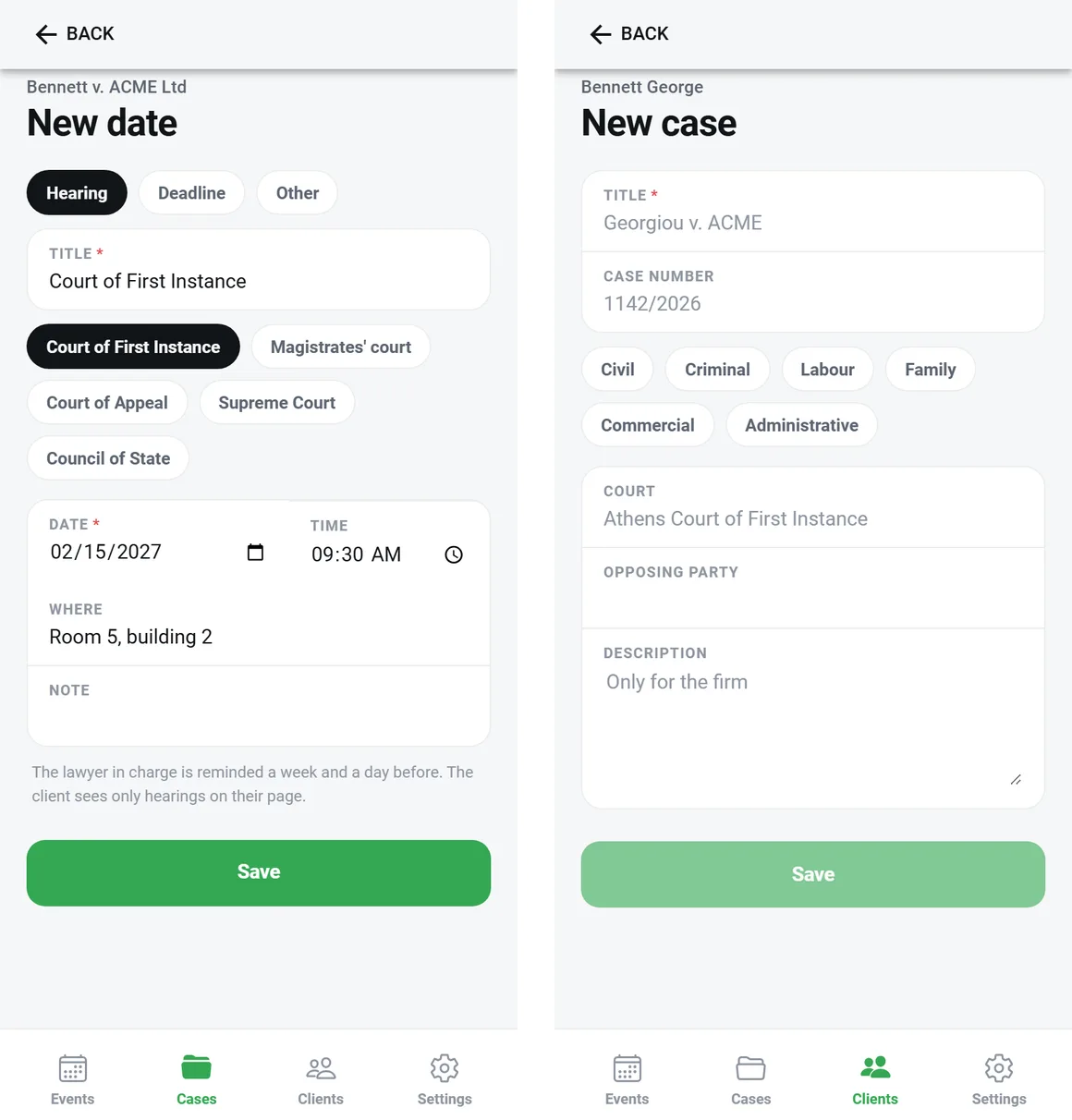
- Type the Title, e.g. "Bennett v. ACME Ltd". It is the only required field.
- Fill in the Case number and pick the area of law.
- Add the Court, the Opposing party and a Description if you like. The description is for the firm only.
- If the firm has more than one lawyer, choose the Lawyer in charge. Otherwise, whoever opens the case is in charge.
- Tap Save.
A new hearing or deadline
- In the case, tap + Date.
- Choose Hearing, Deadline or Other.
- Type a title or tap a ready one, such as Court of First Instance or File pleadings.
- Set the Date and, if you like, the Time, Where and a Note.
- Tap Save.
Reminders for the lawyers
For every hearing and deadline of an open case, the lawyer in charge is reminded a week before and a day before. The reminder comes as a notification in the app, a notification on the phone and an email. If the case has no lawyer in charge, or they have left the firm, the users who manage users get it instead. Dates marked done are not reminded. Clients are never sent these reminders.
Meetings and cases
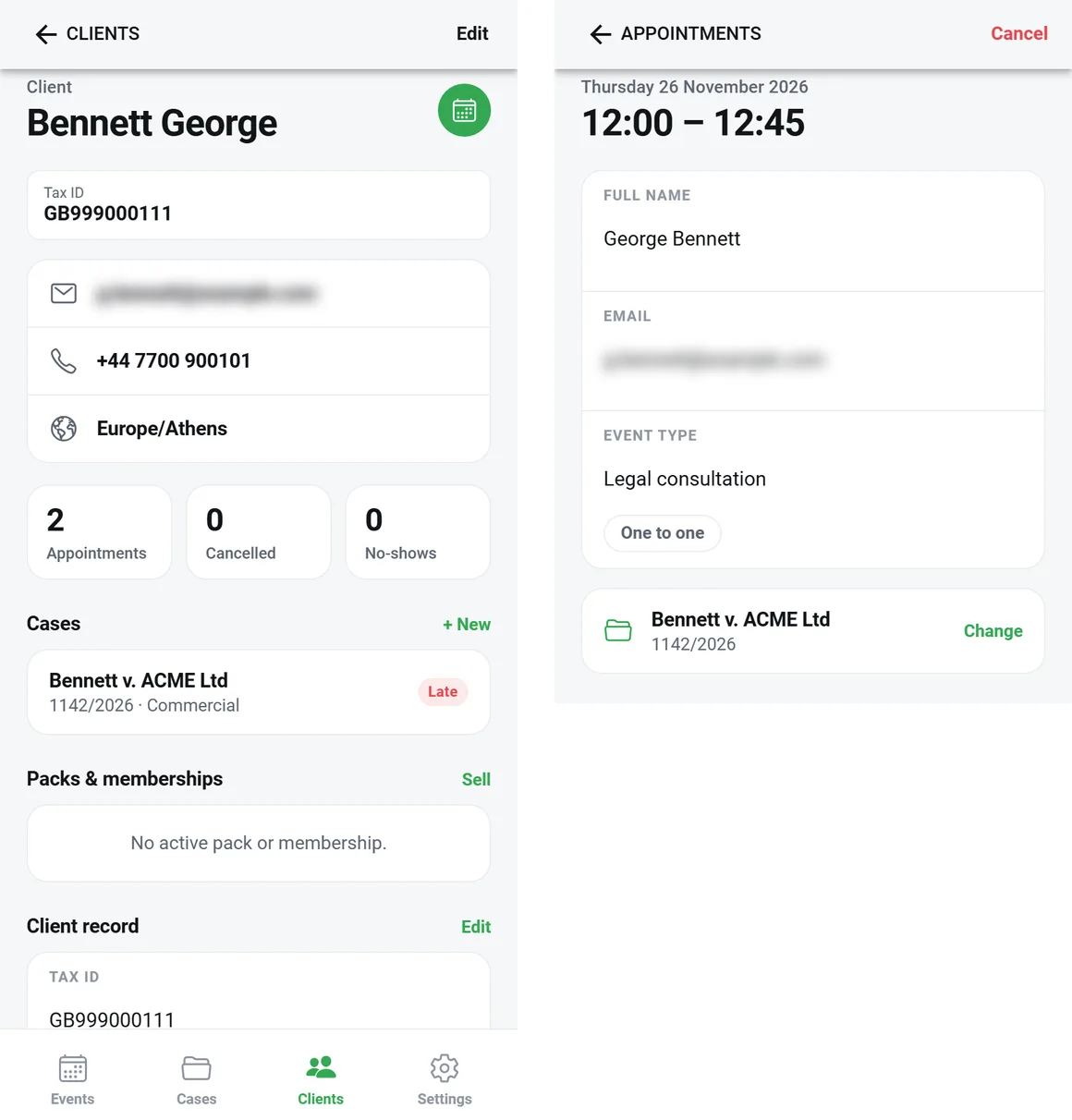
When you book an appointment for a client who has exactly one open case, the appointment goes into that case on its own. The appointment shows its case. Tap Change to pick another open case of the client, open a new one, or choose None.
The client's page
The client's tax ID is shown at the very top. Further down, under Cases, are all their cases, open ones first, each with its next date. The rest of the page is as described in Clients on your phone.
What the client sees
On their client page, the client sees their cases, with the case number and whether it is In progress or Closed. For each case they also see the next hearing, with its date, time and place. They do not see deadlines, notes or the description.
Who can do what
- The Cases tab is shown to users who can see clients.
- Cases, dates and notes are opened and changed by users who manage appointments.
For appointments, new appointments and settings, see Appointments on your phone, New appointment from your phone and Settings on your phone. For the app in general, see The mobile app.