Car service
The mobile app for a car service garage.
When your business type is Car service, the mobile app organises the work around the vehicles. The tabs at the bottom are Workshop, Events, Vehicles, Clients and Settings. For how the app changes with the business type, see Screens by business type.
The Workshop tab
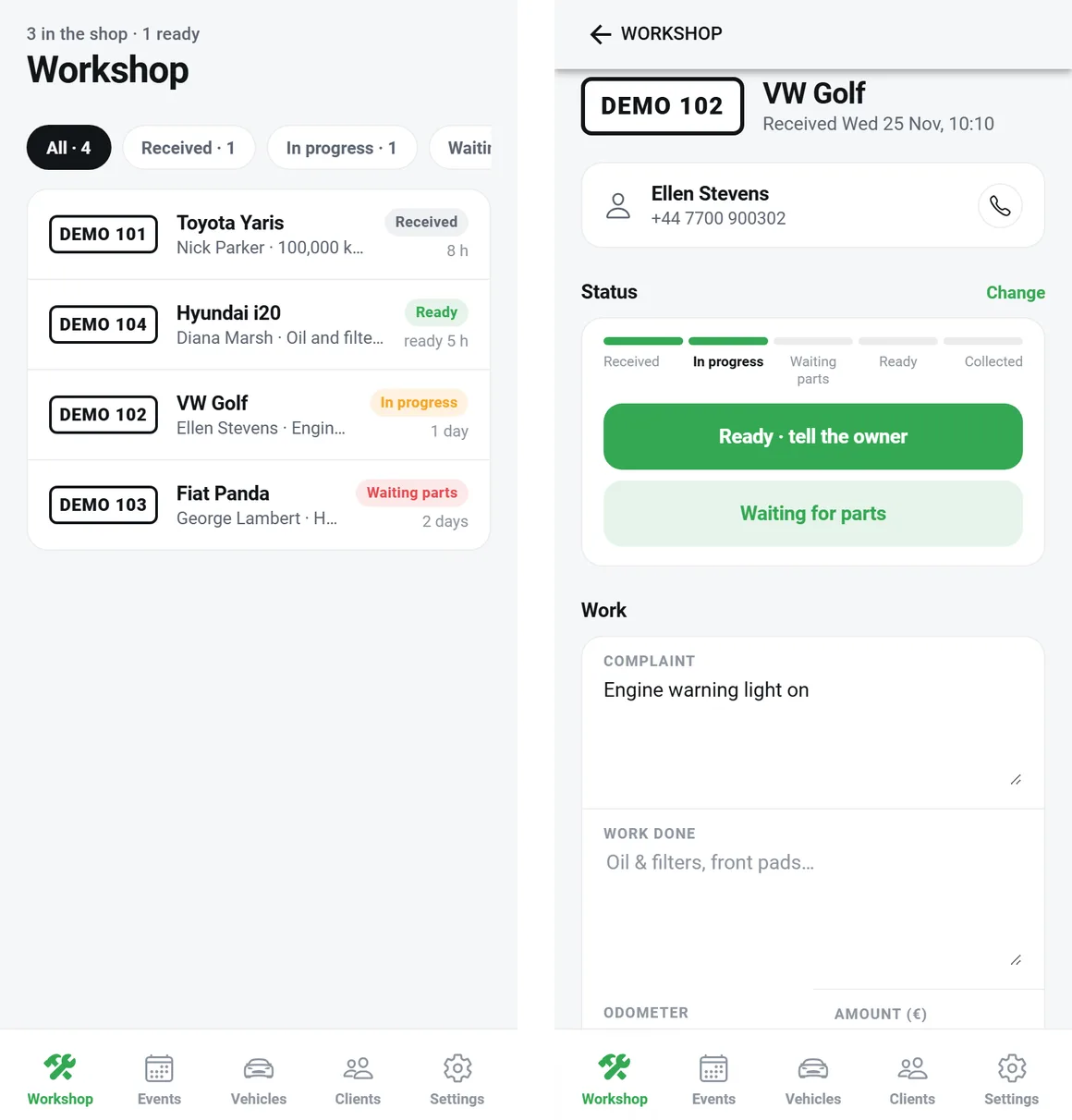
It shows the cars that are in the workshop right now. Each job goes through these stages:
- Received: the car has arrived,
- In progress: work has started,
- Waiting parts: you are waiting for parts,
- Ready: the owner can collect it,
- Collected: the owner has taken it.
The top line says how many cars are in the shop and how many are ready. The buttons filter the list by stage, with counts. Each car shows the plate, the model, the owner, the complaint, the stage and how long it has been in the shop, or how long it has been ready.
Receiving a car
A job opens when the car is brought in:
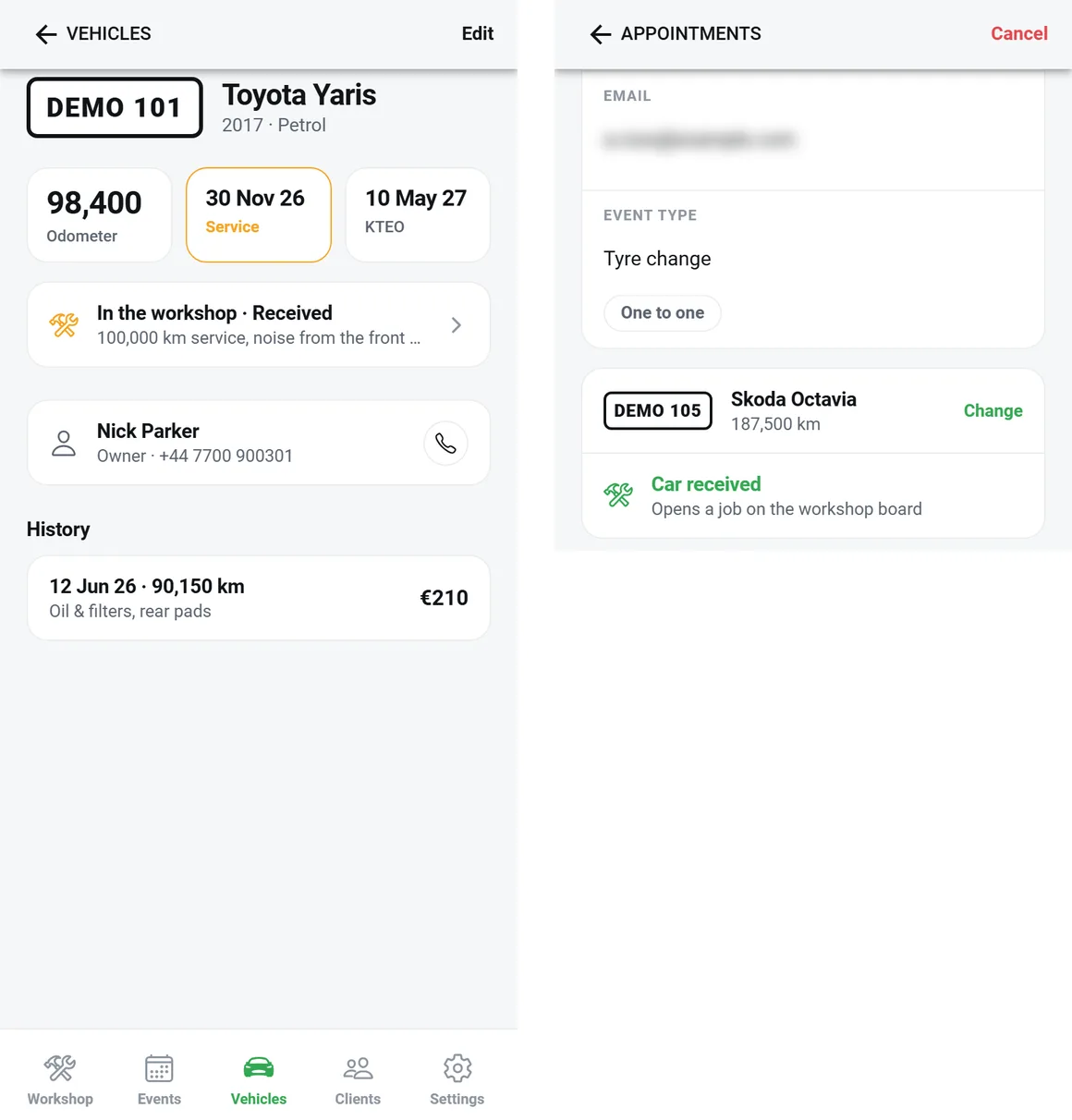
- From the appointment: tap Car received. The job opens with the appointment's vehicle and, if the client described the problem when booking, with the complaint filled in.
- From the vehicle's page: tap + New job, for a car that came in without an appointment.
The appointment also shows the vehicle. If none is set, tap Which vehicle? and pick one of the client's vehicles or New vehicle…. Change switches the vehicle.
A job
Tap a car in the Workshop. You see the owner, with a call button, and the Status, with buttons for the next step:
- Start work,
- Waiting for parts,
- Ready · tell the owner,
- Collected by the owner.
Change moves the job to any stage, including Cancelled.
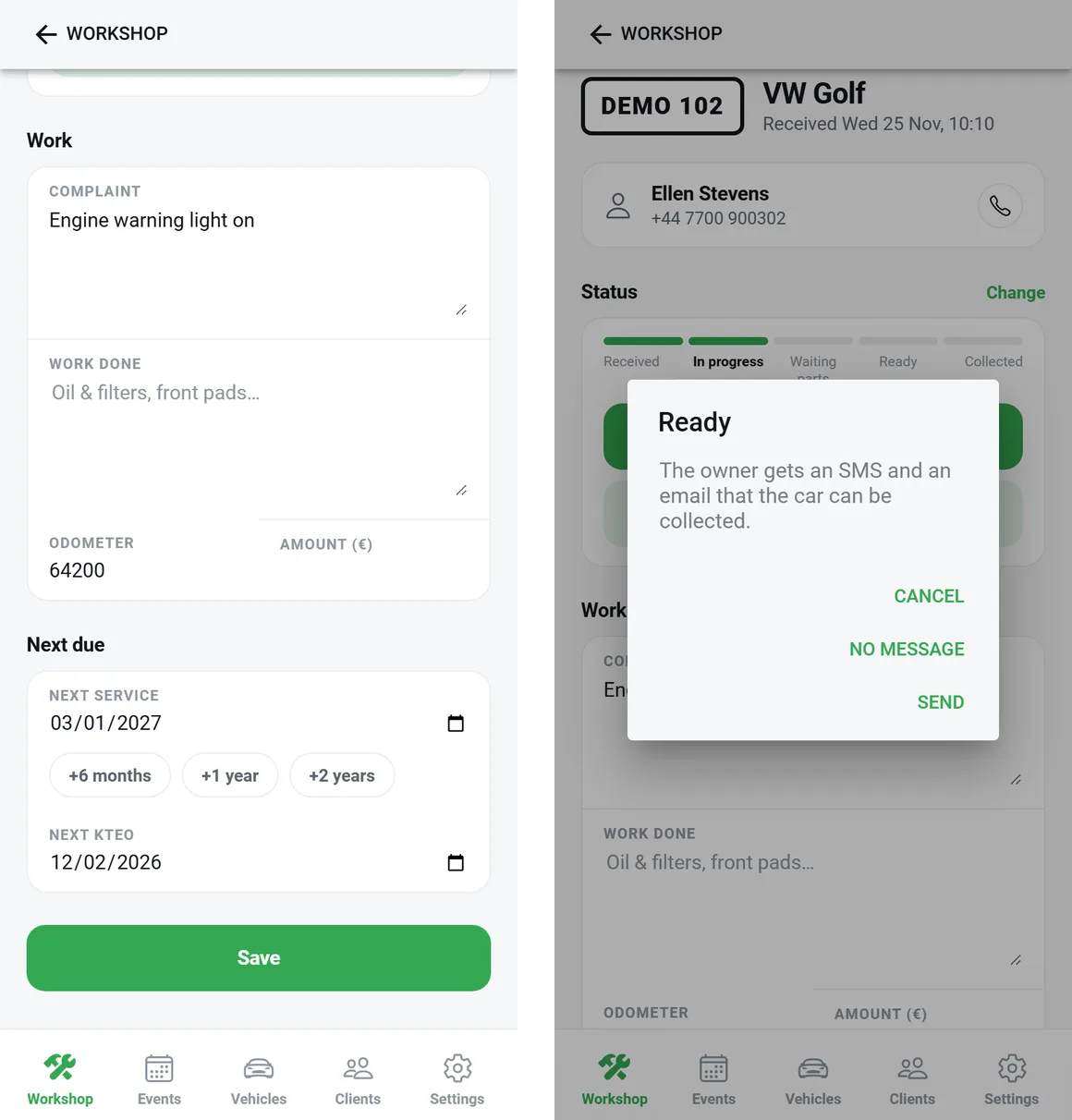
Under Work, fill in the Complaint, the Work done, the Odometer and the Amount (€). Under Next due, set the dates for the next service and the next KTEO, or tap +6 months, +1 year or +2 years. Tap Save.
The vehicle's odometer only goes up: it always keeps the highest reading.
Ready: the owner is told
When you tap Ready · tell the owner, the app asks whether to send a message. With Send, the owner gets an email and a text that the car can be collected, with the amount if you filled it in. The text is sent if you have set up SMS sending. With No message, the car becomes ready without telling anyone. The owner is told once per job. After that, the job shows The owner was told with the time.
The Vehicles tab
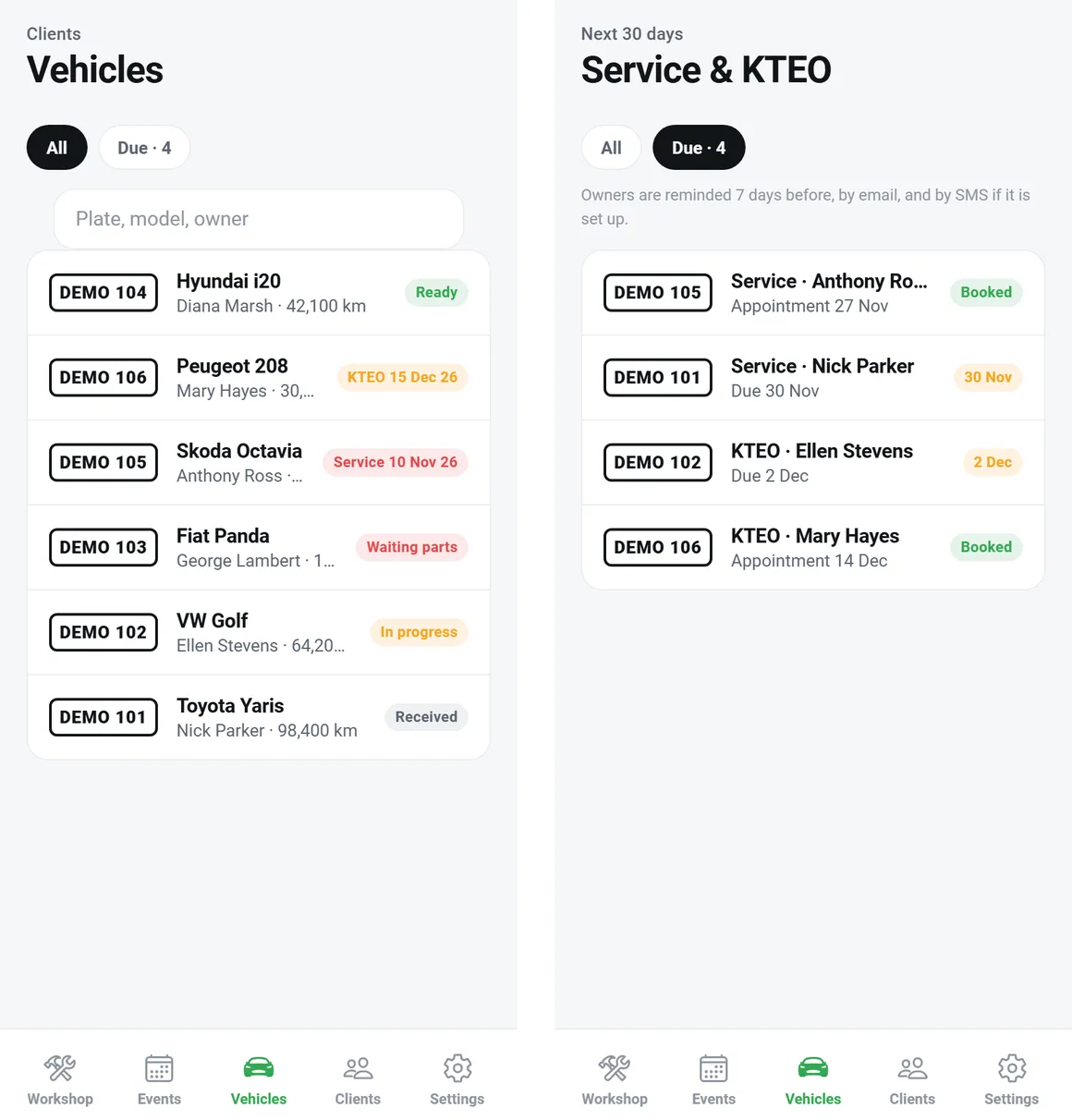
All lists every client vehicle. In the search box, type part of the plate, the model or the owner. On the right you see the stage if the car is in the workshop, otherwise the next service or KTEO.
Due lists the services and KTEO checks of the next 30 days, and those already overdue. Those with an appointment booked show Booked. Tap one for Open vehicle, Book an appointment, Text the owner or Call. The text opens ready in your phone's messages app, with your booking link.
Reminders for owners
A week before the next service or KTEO, the owner gets a reminder by email and, if you have set up SMS sending, by text. For a date that passed within the last month without a reminder, the reminder goes out straight away. Each date is reminded once. If the car already has an appointment booked, no reminder is sent.
A vehicle
Tap a vehicle to see its odometer, the next service and KTEO, any open job, the owner, the upcoming appointments and the History of jobs done, with the odometer and the amount.
Edit, top right, changes the Plate, Make / model, Year, fuel, Odometer (km), VIN, the service and KTEO dates and the Notes. Turn off Active for a car that was sold.
A new vehicle
A client can have several vehicles. When they book and type the plate, the app finds that vehicle of the client or adds it on its own. Without a plate, if they have one vehicle, the appointment is for that one.
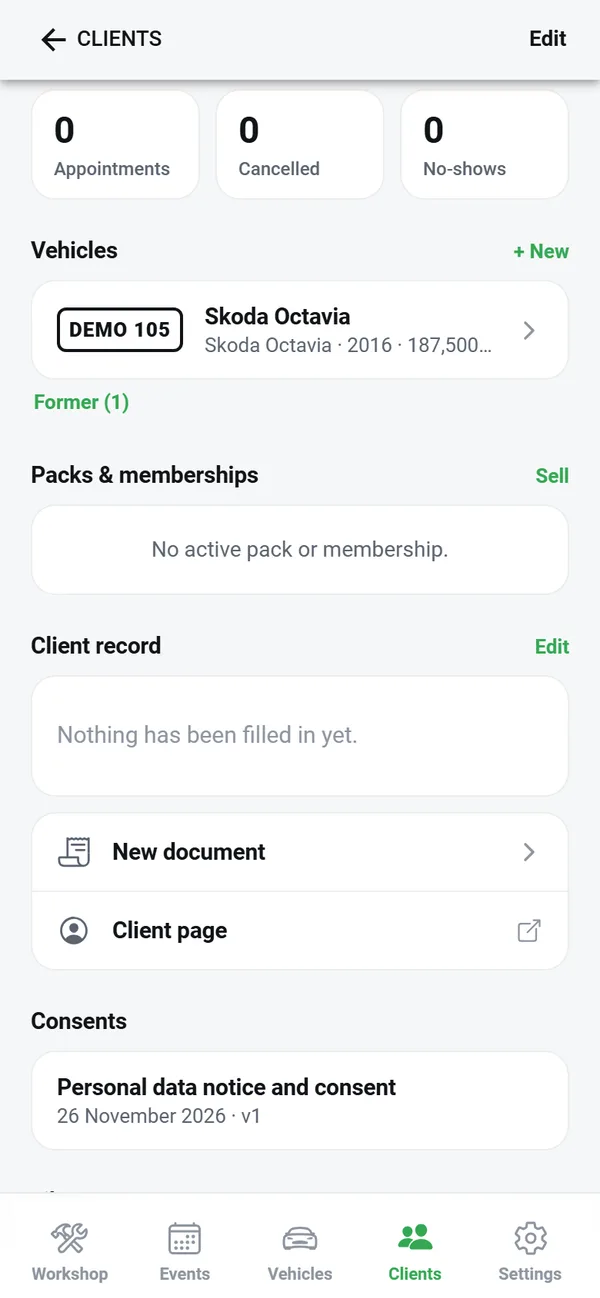
To add a vehicle yourself, open the client's page and, under Vehicles, tap + New. Fill in the plate or the model and tap Save.
The client's page
Under Vehicles are the client's vehicles, with the stage if one is in the workshop. Inactive ones are under Former. The rest of the page is as described in Clients on your phone.
On their client page, the client sees their vehicles, where the job stands, when the next service and KTEO are due, and the history of jobs.
Who can do what
- The Workshop and Vehicles tabs are shown to users who can see clients.
- Vehicles are added and changed by users who manage clients.
- Jobs are opened and moved on by users who manage appointments.
For appointments, new appointments and settings, see Appointments on your phone, New appointment from your phone and Settings on your phone. For the app in general, see The mobile app.