Physiotherapist
The mobile app for a physiotherapy practice.
When your business type is Physiotherapist, the mobile app has the tabs Events, Courses, Patients and Settings. Your services are under Settings. A patient's page shows the diagnosis, how their pain has changed, the record of each session and their home exercise programme.
Appointments and the client page work as for any business. See Appointments on your phone and Clients on your phone. For the other business types, see Screens by business type.
Courses
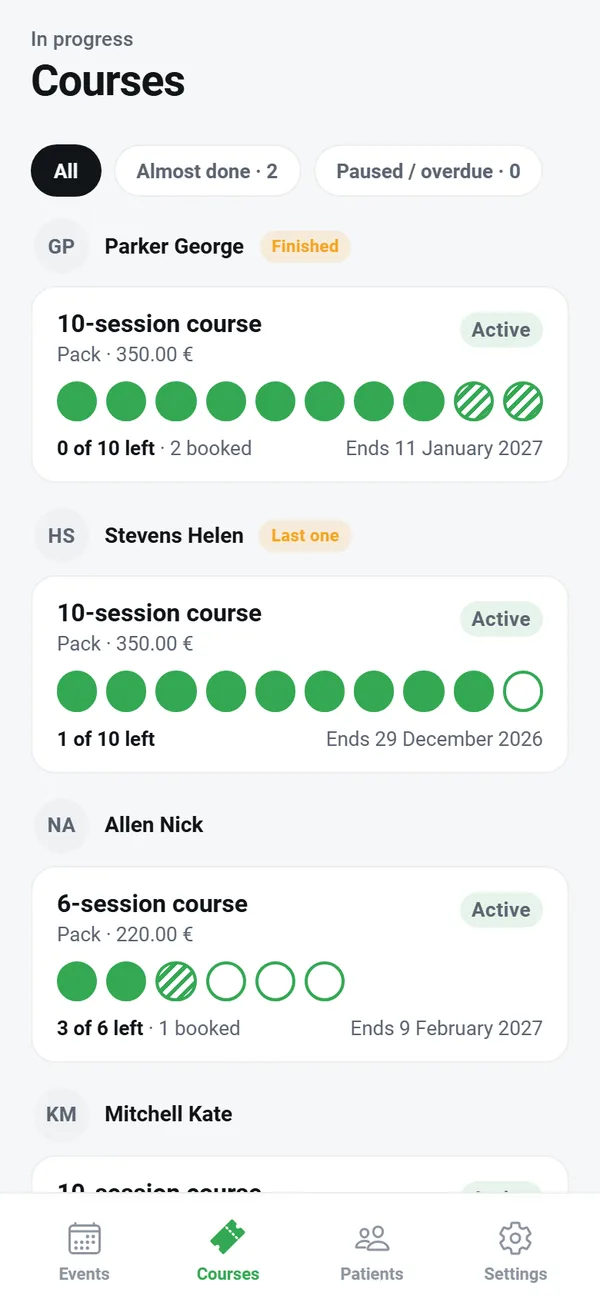
The Courses tab lists every course of sessions in progress, for all patients, with the ones closest to the end first.
- The patient's name is above each course. Tap it to open their page.
- Each circle is one session: filled for sessions done, striped for sessions booked, empty for sessions left. Below it you see how many are left, how many are booked and when the course ends.
- Last one means one session is left, and Finished means none are. That is the time to talk about the next course.
- The filters All, Almost done and Paused / overdue show you only what needs attention.
- Tap a course for its details, its history and its payment.
You sell courses from the patient's page, under Packs & memberships. See Sell and manage a client's packs. The tab is there on plans with memberships, for users who may view packs.
The patient's page
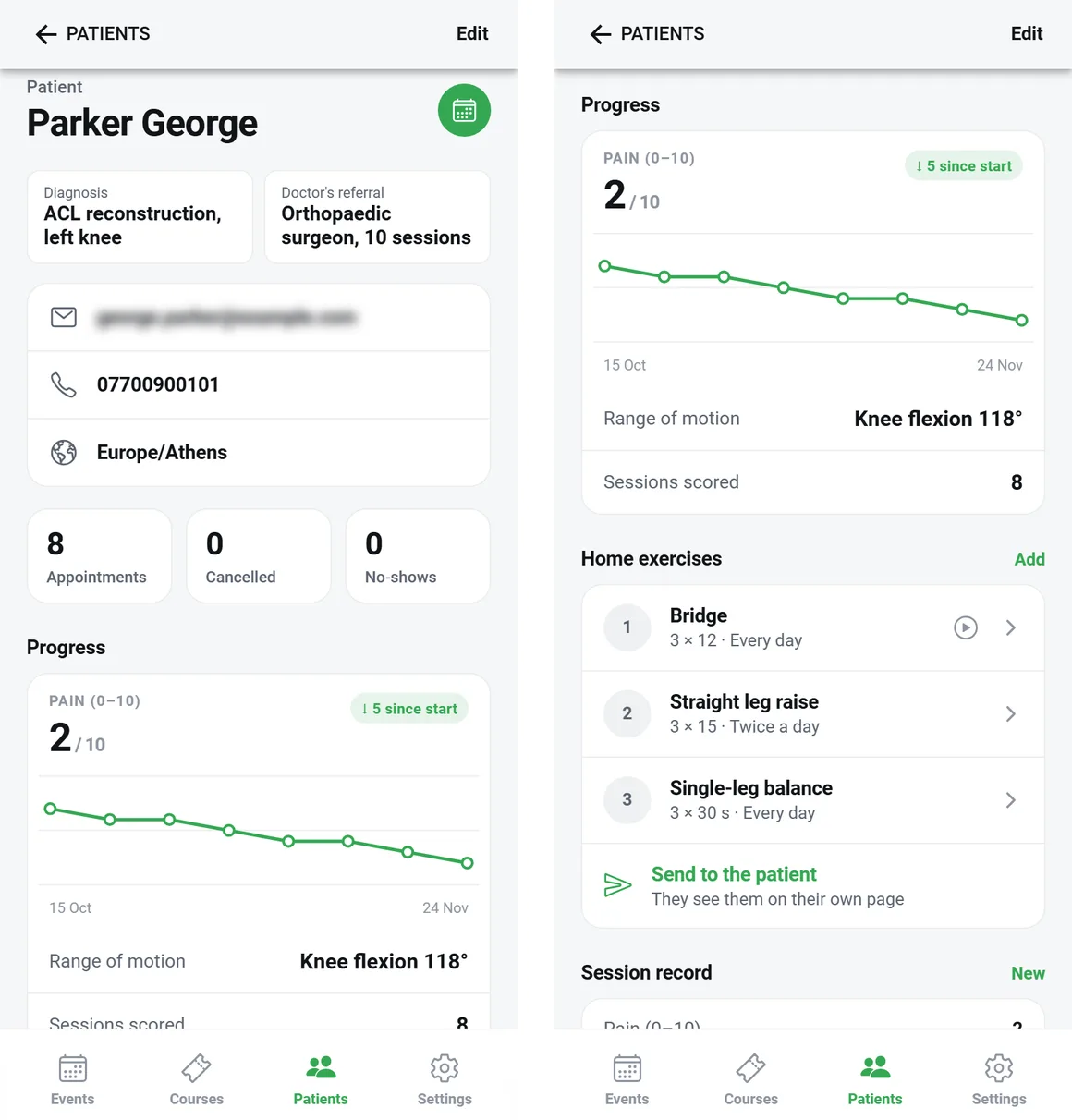
At the top of the page you see the Diagnosis and the Doctor's referral, when they are filled in on the patient. If you add a client field for allergies and the patient has an answer, it shows in red above everything else.
Further down, Progress shows the pain score from the session records:
- the pain at the last session, on the 0–10 scale,
- how much it has changed since the start. Green means the pain went down,
- a line with the last 16 sessions,
- the latest Range of motion and how many sessions were scored.
Session record
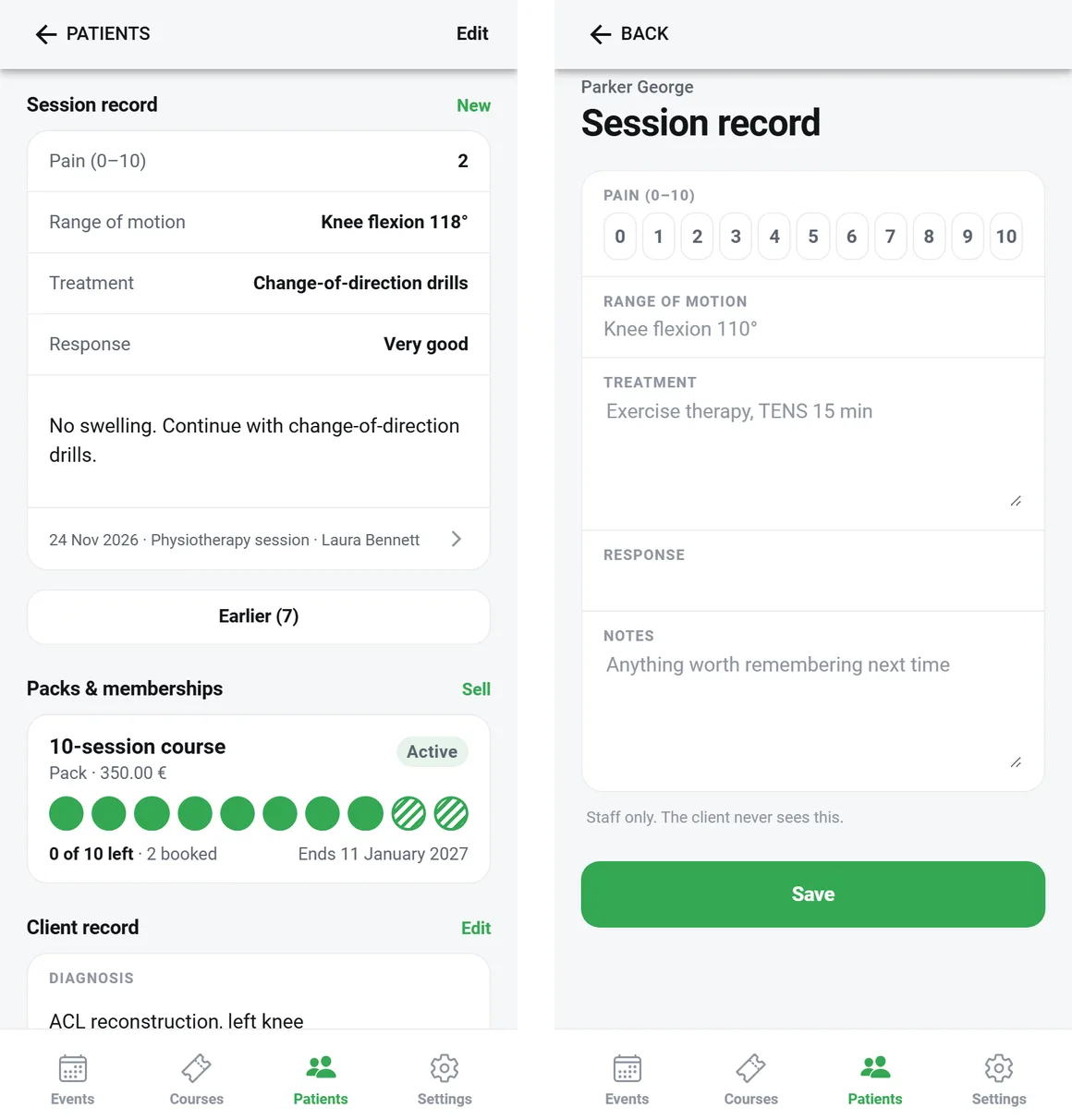
After each session you write down what was done. The patient never sees these notes.
- Open the appointment and tap Record it under Session record. The note is linked to that appointment. You can also tap New on the patient's page.
- Tap a number for Pain (0–10). Tap it again to clear it.
- Fill in Range of motion, Treatment, Response and, if you like, Notes.
- Tap Save.
Each record starts empty, because today's pain is not last week's. On the patient's page the latest record is open. Earlier ones are under Earlier.
- Session records are read by the users who see patients, the owner and admins. Other users, such as the front desk, only see how many there are.
- A record can be changed or deleted by the person who wrote it, or by anyone who manages clients.
Home exercises
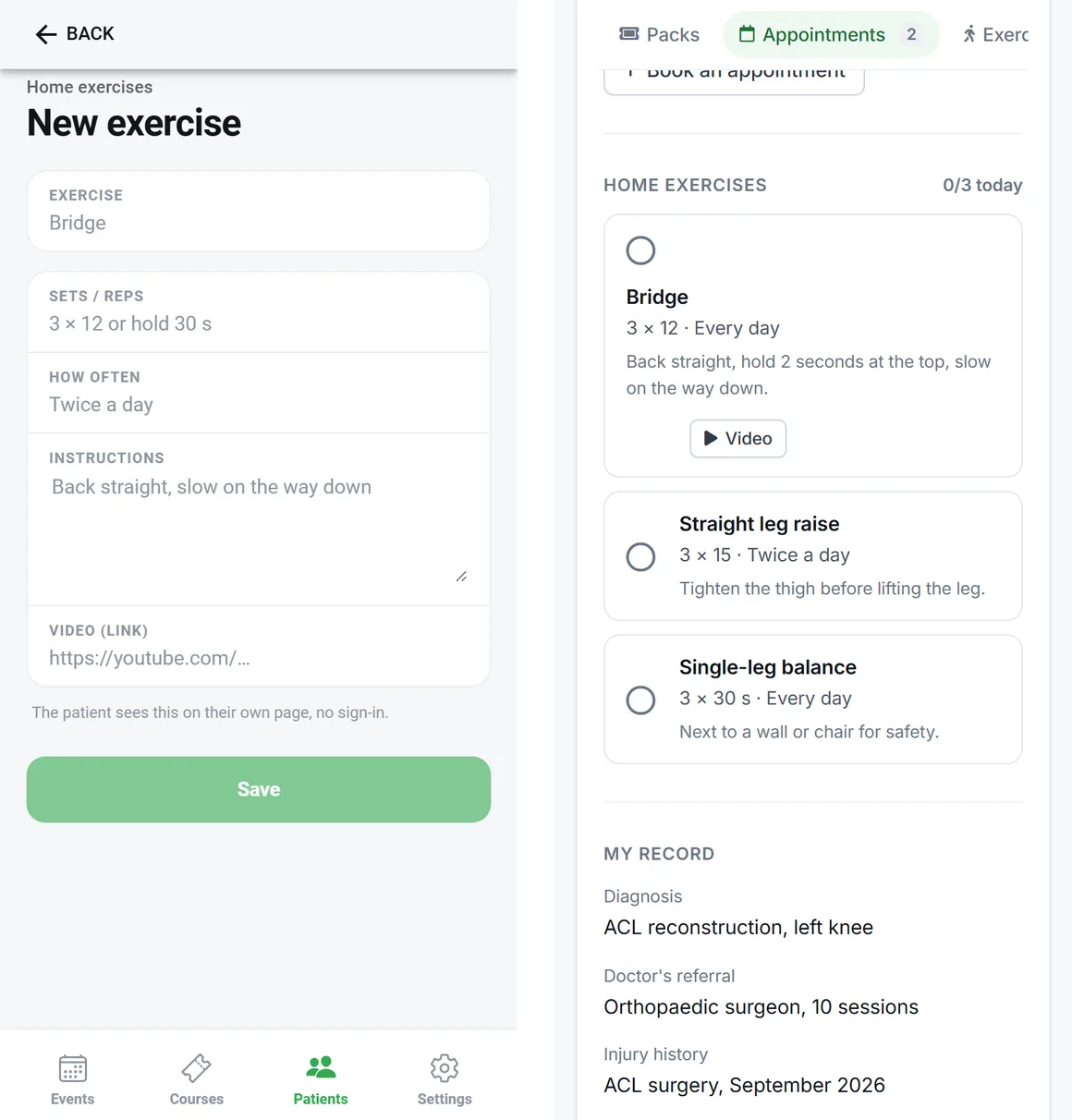
On the patient's page, Home exercises holds the programme you give them. The patient sees it on their own page, without signing in.
- Tap Add.
- Type the Exercise. If you have given it to another patient before, it shows below. Tap it to fill in the rest.
- Fill in Sets / reps, How often, Instructions and, if you like, a Video (link).
- Tap Save.
Tap an exercise to Edit, Move up, Move down or Stop it. Stopped exercises stay under Stopped and come back with Back in the programme. A programme holds up to 30 exercises.
Send to the patient sends them the link to their page. If they have a mobile number, your phone's SMS app opens with the message ready. Otherwise your phone's share sheet opens. On their page the patient sees the exercises with the instructions and the video, and ticks off the ones done today. The ticks stay on their own device and are not sent to you.
Exercises are added by users who may manage appointments. Sending them needs a plan with the client page. See The client page.
Signatures before the appointment
If an event type asks for terms or consents, the app shows you who has not signed yet:
- An upcoming appointment shows Not signed yet, with the forms still missing. Tap Send.
- On the Patients tab, the pencil button at the top right opens Consents to sign, with the appointments of This week, 14 days or 30 days. Tap one to Send the link by SMS, Share the link…, Call, or open the appointment or the patient.
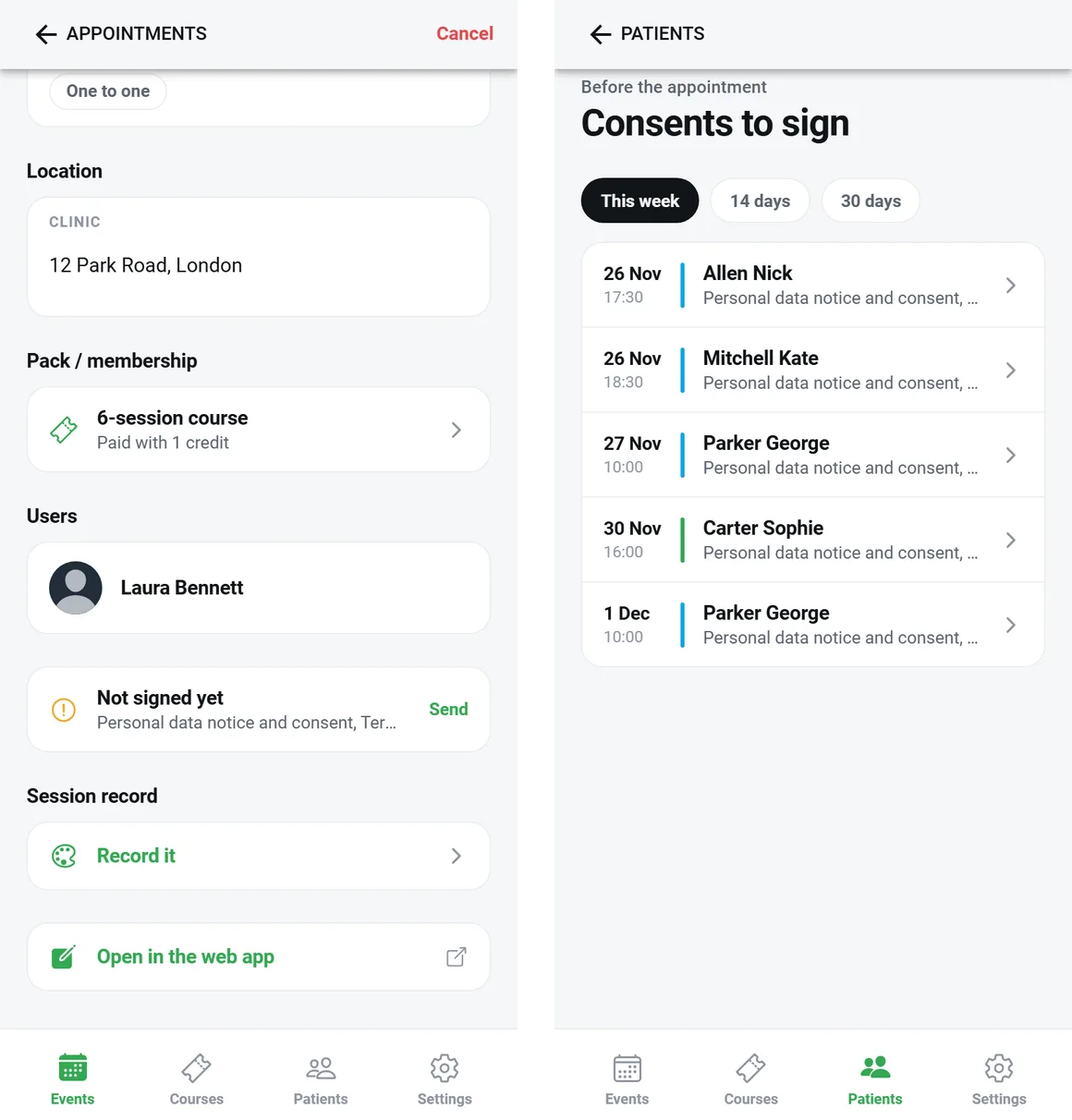
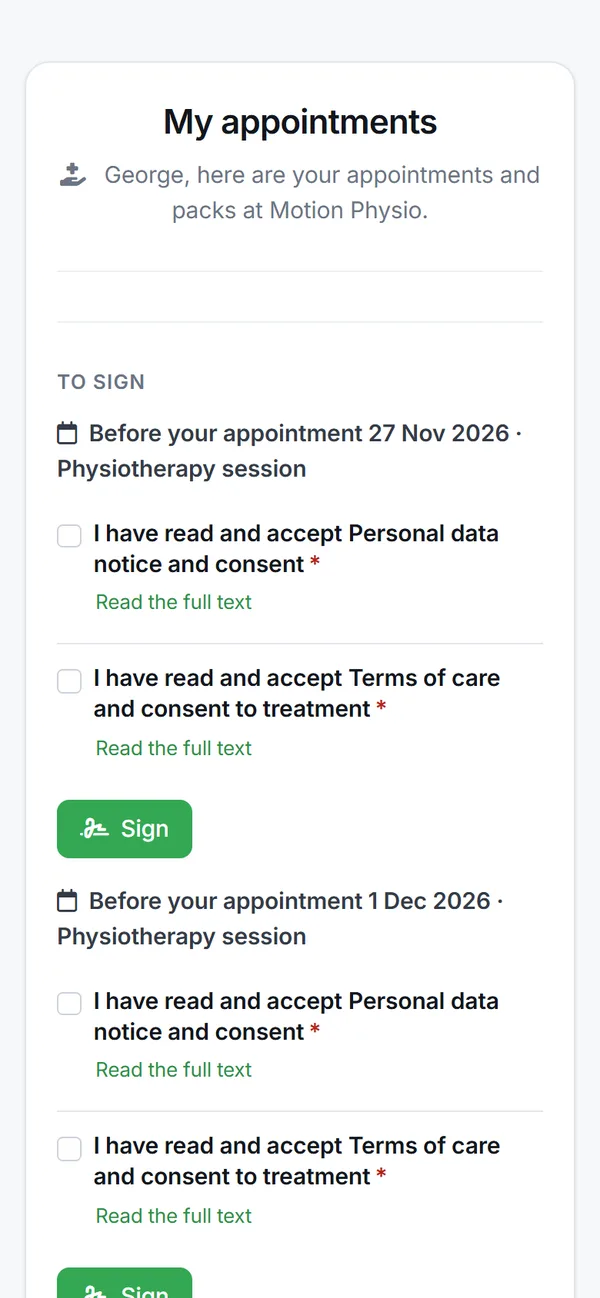
The message tells the patient which forms to sign before their appointment and carries the link to their page. There they read the forms, accept them and tap Sign. The app never signs anything itself.
Without the client page on your plan there is no link to send. The list still shows who has not signed. For terms and consents, see An overview of terms and consents.