Yoga and pilates
The mobile app for a yoga or pilates studio.
When your business type is Yoga / Pilates, the mobile app opens on the day's classes. From there you see who has booked, check people in and manage the waitlist. Start with the overview of the screens by business type.
The tabs
- Classes: the day's classes and their bookings.
- Events: the bookings one by one, as described in Appointments on your phone.
- Clients: your client list.
- Settings: the app's settings, as in Settings on your phone.
What a class is
A class is a group event type at a given time. Its places are the type's Maximum number of seats, for example 6 for reformer or 10 for a mat class. The class times come from the instructor's schedule, just as on the booking page, so a class with no bookings yet still shows in the list. You set the type up on the web, with Create a new event type.
The times on the booking page start at the beginning of the schedule and are as far apart as the class is long. For a 60-minute class at 18:00, put for example 18:00 to 19:00 in the schedule.
The Classes tab
Pick a day of the week at the top, with the arrows for the previous or next week. Under the days you see how many classes the day has and how many places are booked. Each class shows:
- the time and the length,
- its name, the instructor and the bookings, for example 6/6, with a bar that turns red when the class is full,
- on the right, the free spots or Full, and how many are waiting,
- for a class that has taken place, how many came, for example ✓ 4/5.
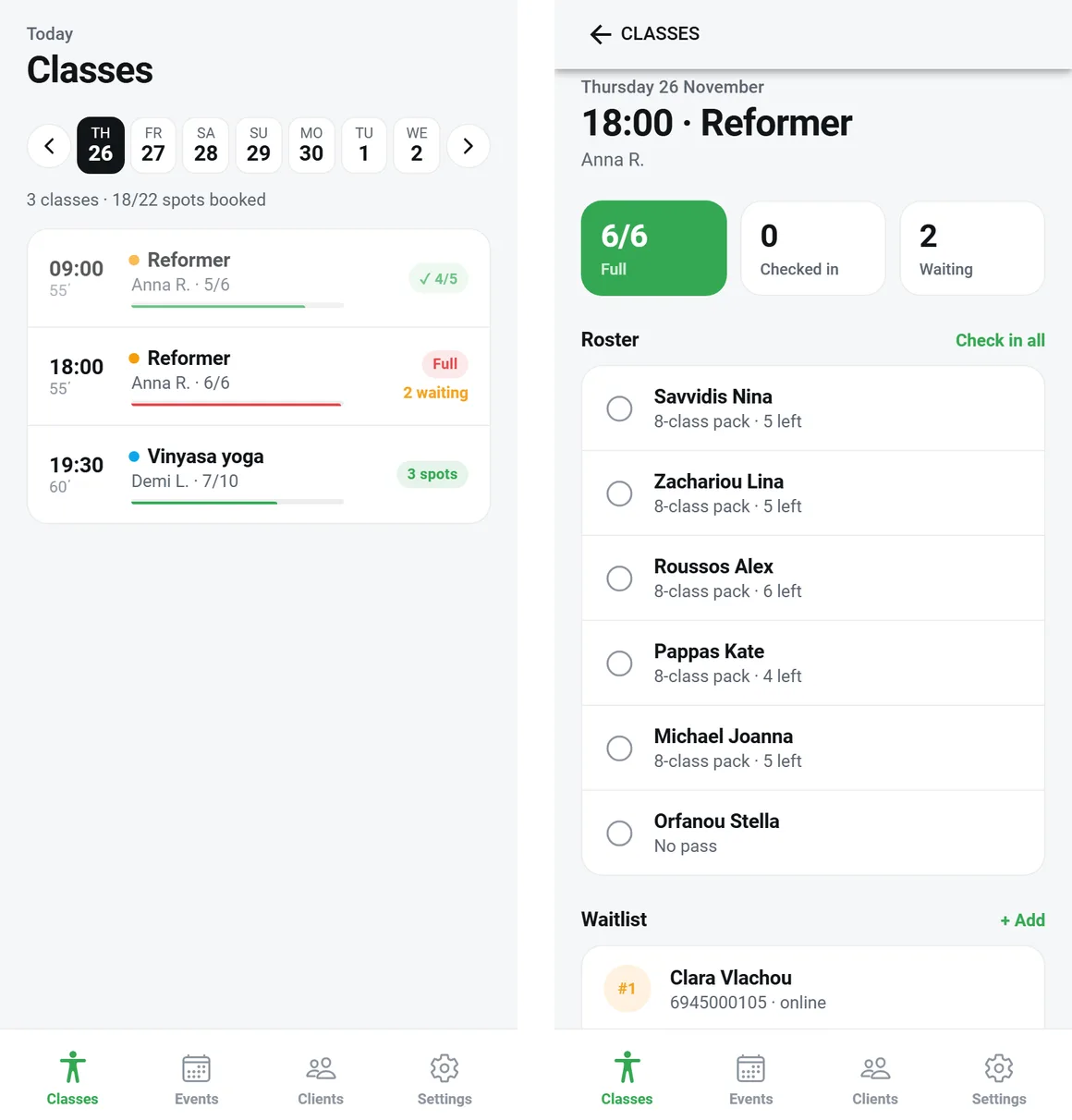
A class: roster and check-in
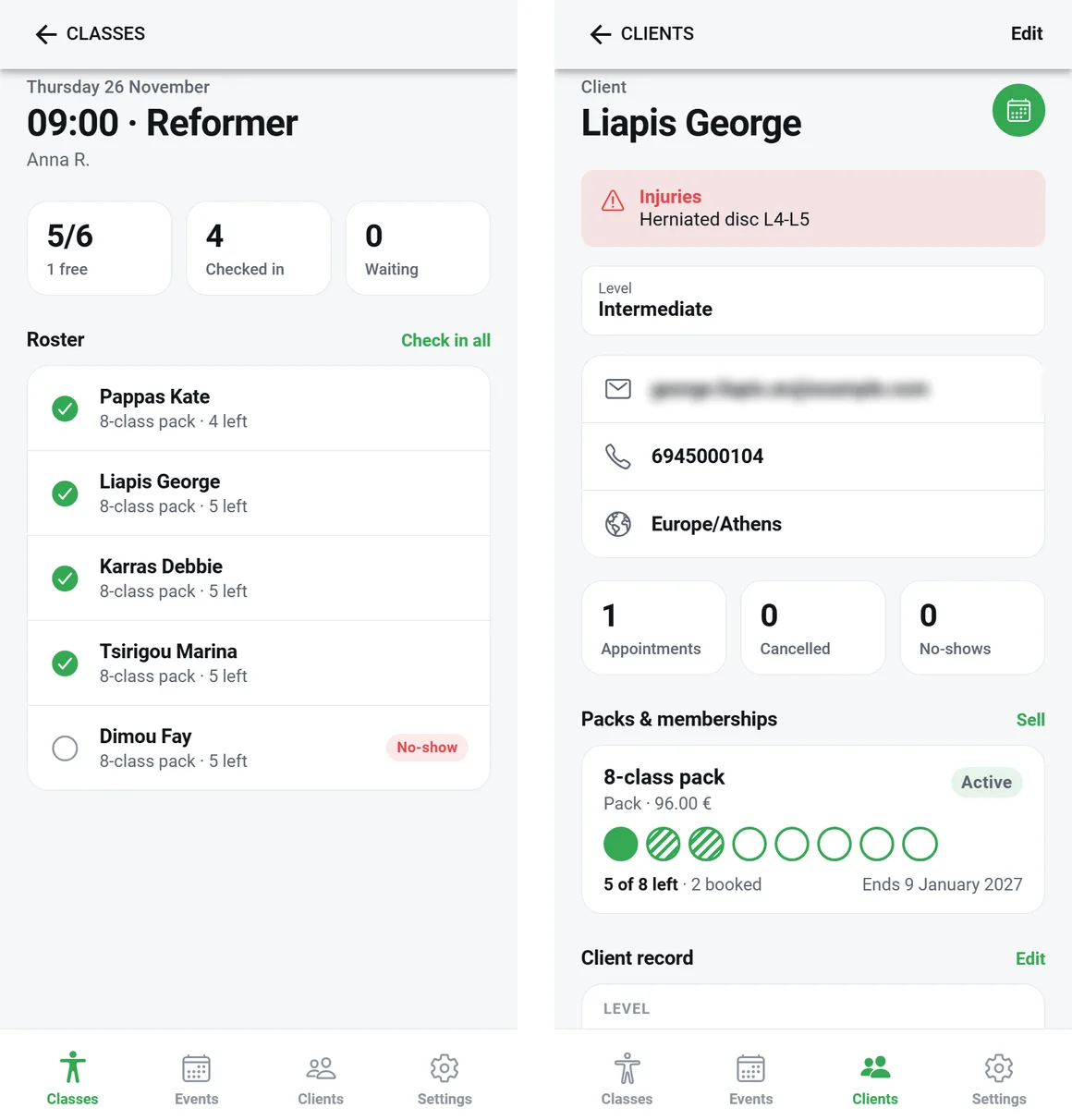
Tap a class. At the top you see the bookings, how many are Checked in and how many are Waiting. In the Roster, each name shows the member's pack and how many classes are left on it, or No pass.
- Tap the circle next to a name to check them in. Tap it again to undo.
- Check in all checks everyone in at once.
- Tap a name for Open member, Open booking and Call. Once the class has started, anyone not checked in also gets Mark no-show.
- When there is a free spot and the class has not started, + Book a member in books a member into it.
Check-in only records that they came. A class is taken off the pack when it is booked and given back if the booking is cancelled, as described in Sell and manage client packs.
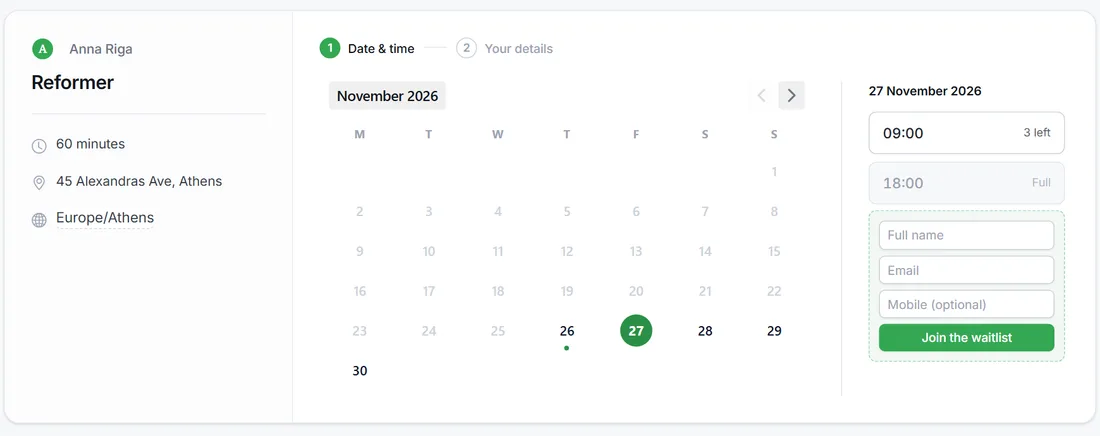
The waitlist
When a class is full, the booking page shows the time as Full with the waitlist form underneath. The client enters their full name, email and, if they like, a mobile number, and taps Join the waitlist. They are told their place in the queue straight away.
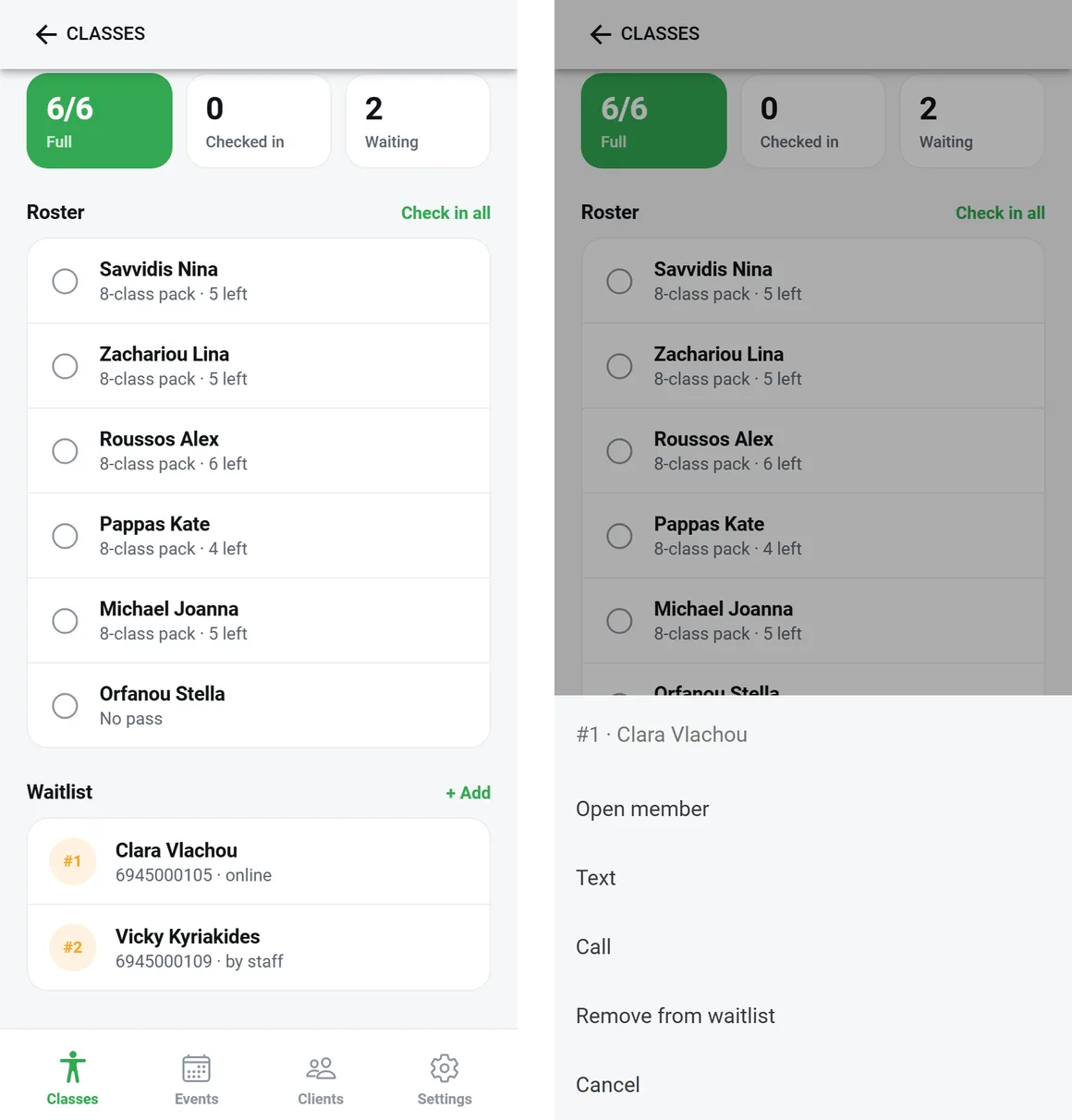
In the app, the class's Waitlist section shows the order, the phone number and where each person joined: online or by staff.
- + Add lets you search for a member and put them on the list.
- Tap a name for Open member, Text, Call or Remove from waitlist. When there is a free spot, Book them in shows too.
When a booking is cancelled or moved and a spot opens in a class that has not started, everyone waiting gets an email headed "A spot opened" with the link to book. If they gave a mobile number and the business sends SMS, they get a text too. Nobody is booked automatically: whoever books first gets the spot. Anyone who books the class comes off the list. For texts see Send SMS to your clients.
The client's page
On top of what Clients on your phone describes:
- anything in the Injuries field shows in a red box at the very top. The same goes for fields about pregnancy or allergies,
- the Level shows right under the name,
- their Packs & memberships, with the classes used and the ones booked.
Who can do what
Anyone who can see appointments sees the Classes tab. Check-in, Mark no-show, booking a member in and changes to the waitlist need permission to manage appointments. The waitlist is only available for the Yoga / Pilates business type.