Accountant
The mobile app for an accounting office.
When your business type is Accountant, the mobile app helps you collect your clients' documents before each deadline. The tabs at the bottom are Events, Paperwork, Clients and Settings. For how the app changes with the business type, see Screens by business type.
The Paperwork tab
Each deadline, e.g. "Tax return 2026", has a list of the documents you need and the clients it concerns. Each client has their own list and a state:
- missing (e.g. 2 missing): they still owe documents,
- Ready: you have everything, only the filing is left,
- Filed: the work is done.
The tab shows the Current and the Closed deadlines. Each deadline shows its date, the days left and a progress bar with how many are filed, how many are ready and how many have documents missing. The label turns amber in the last 14 days and red once the deadline has passed.
Tap a deadline to see its clients. The Missing docs, Ready, Filed and All buttons filter the list. For clients who still owe documents, the missing ones are listed too. With many clients, a search by name, phone or VAT number appears.
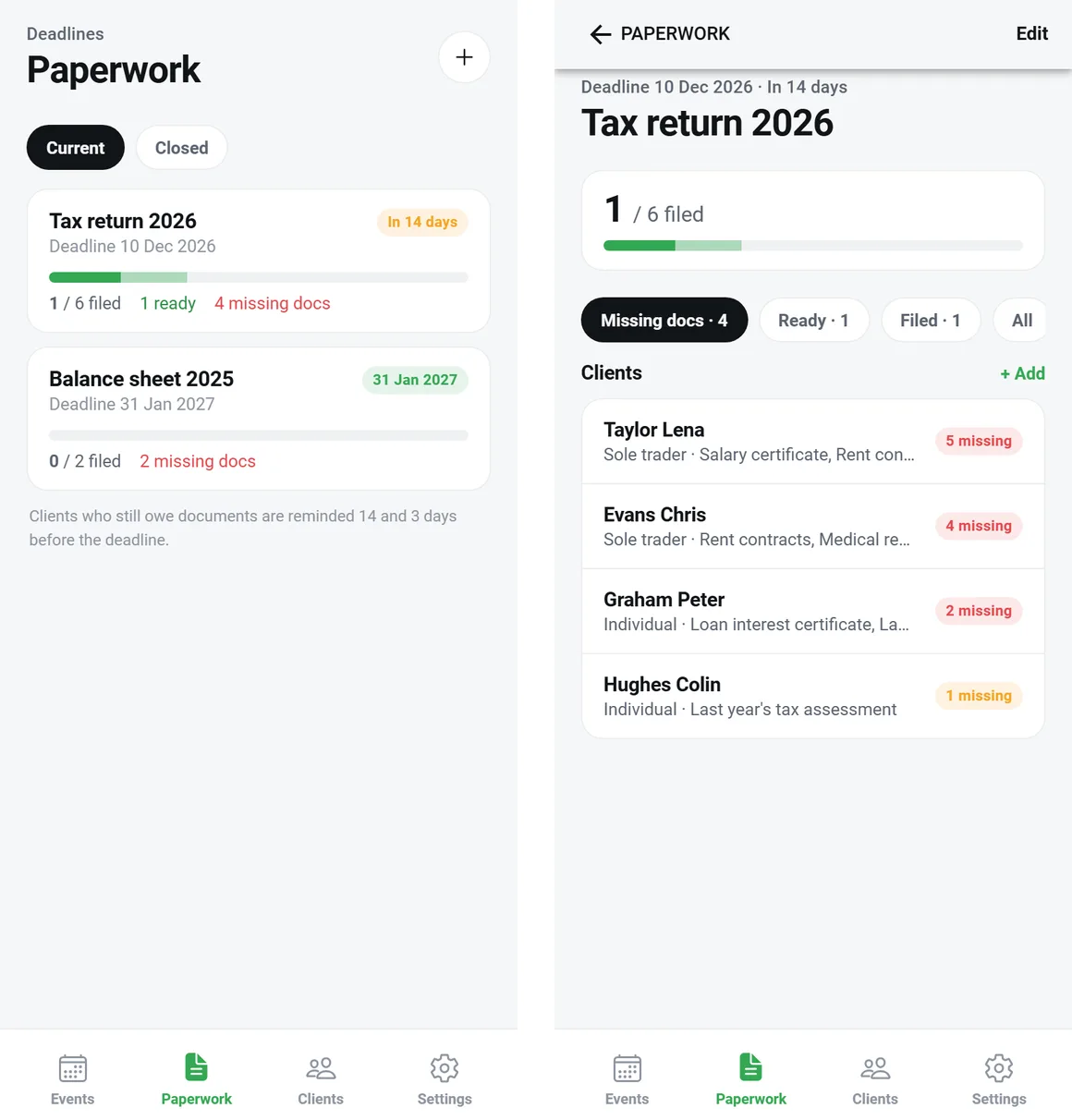
A new deadline
- In the Paperwork tab, tap + at the top right.
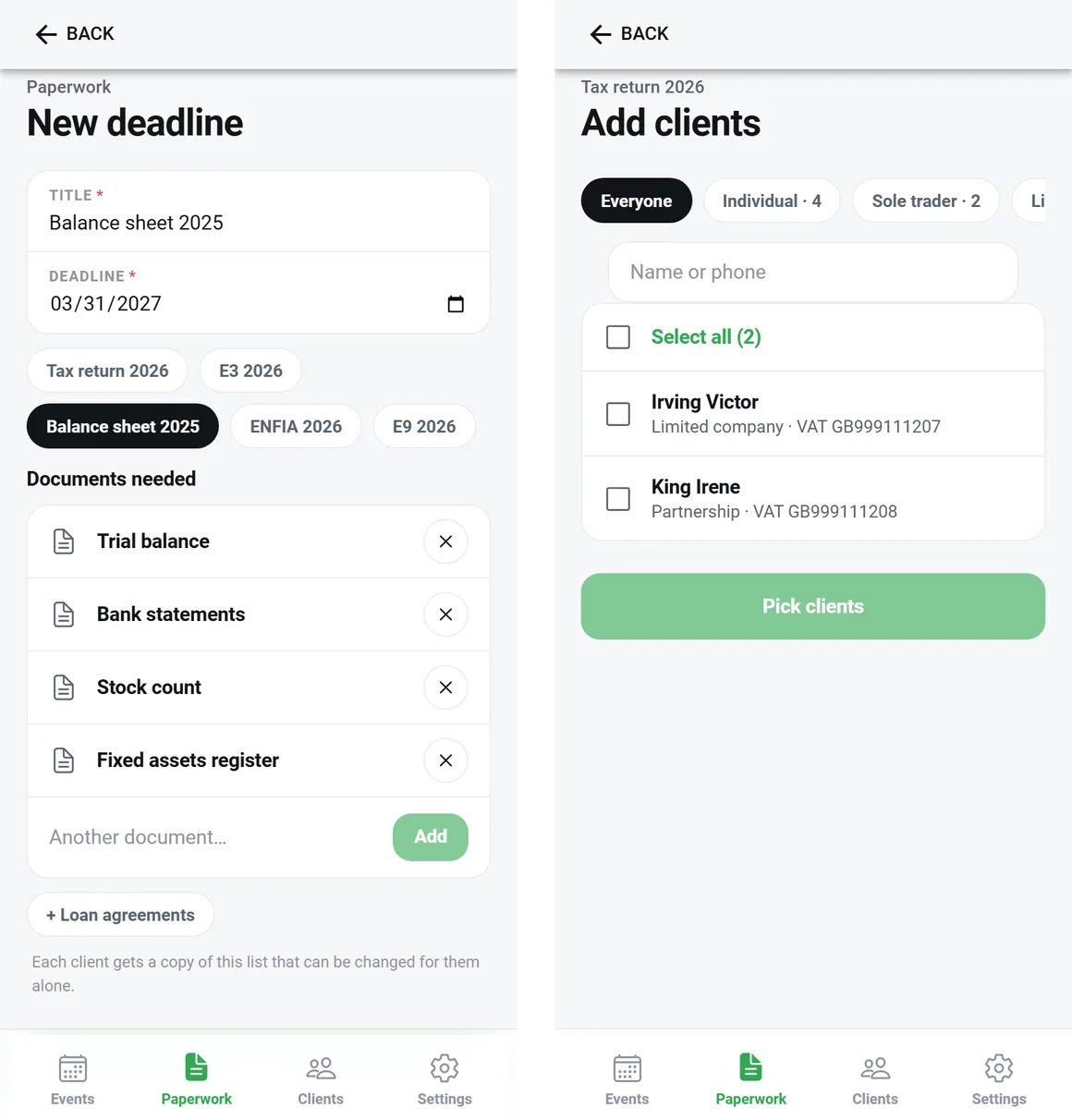
- Type the Title or tap a ready one, such as Tax return, E3, Balance sheet, ENFIA or E9. A ready title also brings a first list of documents.
- Set the date under Deadline.
- Under Documents needed, remove what does not apply with ×, tap the suggestions marked +, or type another document and tap Add.
- Tap Save.
Each client gets a copy of this list. If you later change the deadline's list, the change applies to clients you add from then on. A single client's list is changed on their own page.
Edit, inside the deadline, changes the title, the date and the list. There you also find Close the deadline, Reopen and Delete.
Adding clients
- Inside the deadline, tap + Add.
- The buttons at the top filter clients by business form, e.g. individuals for the tax return or companies for the balance sheet.
- Pick clients, or tap Select all.
- Tap Add.
The list only shows clients who are not in the deadline yet. You can also add a client from their page, with + Deadline.
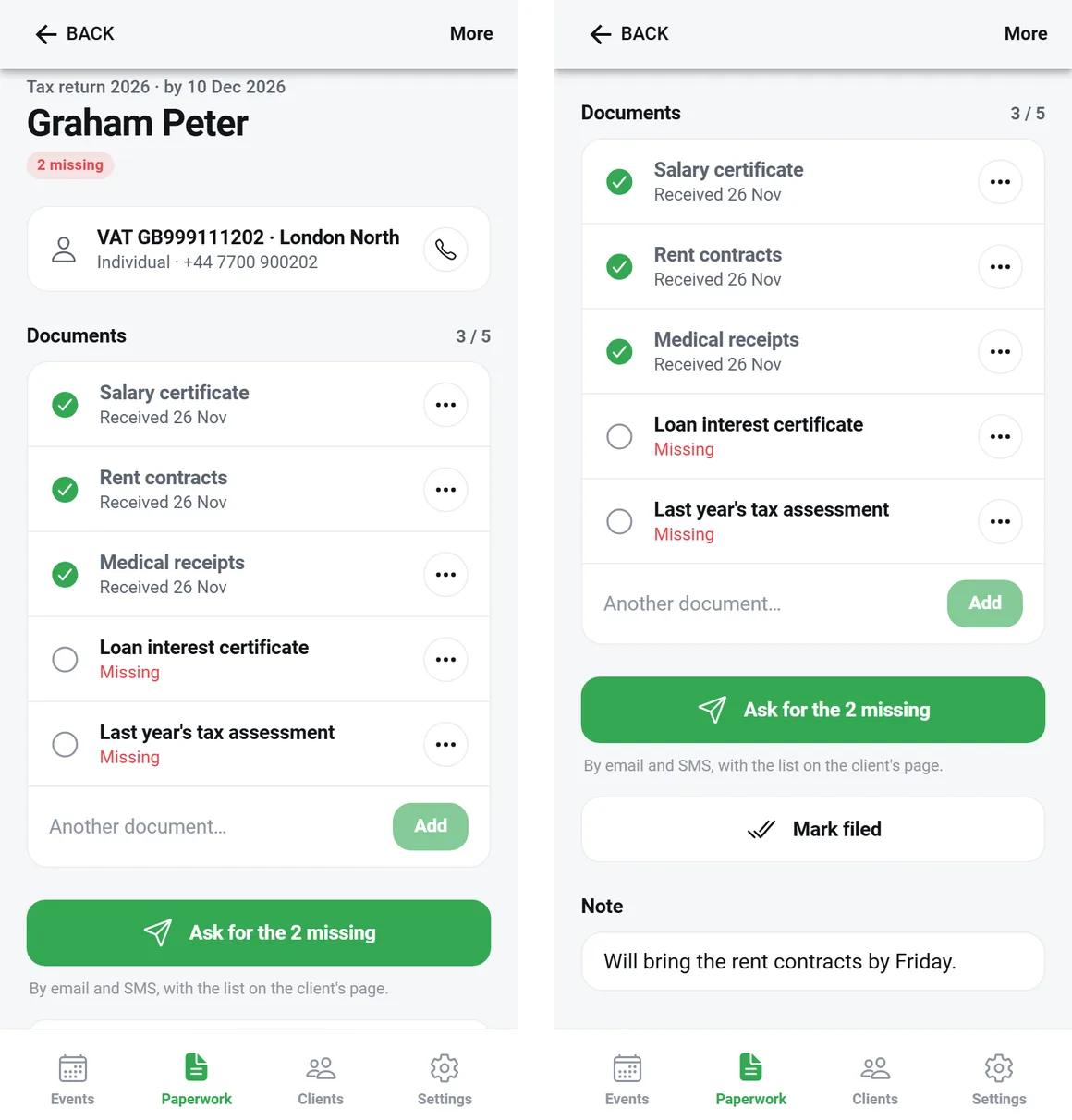
A client's documents
Tap a client inside the deadline. At the top you see their VAT number, tax office, business form and mobile, with a call button.
- Tap a document when you receive it. It shows Received with the date. Tap again to undo.
- The three dots on a document let you Rename or Remove it. Another document… adds one more, for this client only.
- While documents are missing, the Ask for button sends the client the list of what is missing. Below it you see when you last asked.
- When you have filed, tap Mark filed. Undo takes it back.
- The Note is for the office. The client does not see it.
More, at the top right, opens the client's page or takes them out of the deadline.
What the client receives
When you ask, the client gets an email with the deadline's title and date and the documents still missing. If you have set up SMS sending and they have a mobile number, they also get a text. Both link to the list on their client page.
The app also reminds on its own 14 days and 3 days before the deadline, everyone who still owes documents and has not been filed. At the same time, the users who manage users get a notification with how many clients still owe documents. Closed deadlines send no reminders.
On their page, the client sees their current deadlines, the date, and which documents you already have and which are missing.
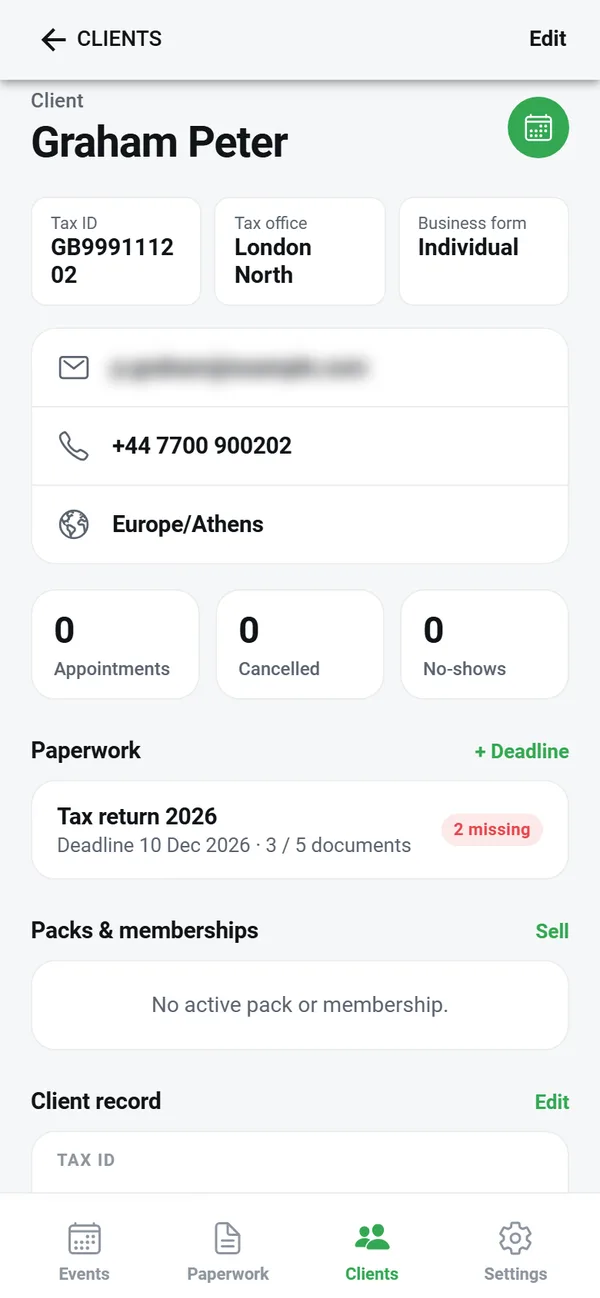
The client's page
The tax ID, tax office and business form are shown at the very top. Further down, under Paperwork, are the client's deadlines, with how many documents you have. + Deadline puts them in a current deadline. The rest of the page is as described in Clients on your phone.
Who can do what
- The Paperwork tab is shown to users who can see clients.
- Deadlines, documents, requests and filings are changed by users who manage clients.
For appointments, new appointments and settings, see Appointments on your phone, New appointment from your phone and Settings on your phone. For the app in general, see The mobile app.