Psychologist
The mobile app for a psychologist.
When your business type is Psychologist, the mobile app opens on your week. Most clients come at the same time every week, so you see the week's sessions, who has not booked their next one, and which notes are missing. Session notes lock behind your phone's Face ID or fingerprint, and notifications show no names. For how the app changes with the business type, see Screens by business type.
The tabs
- Week: the week's sessions, and the clients with no next session.
- Events: the list and the calendar. See Appointments on your phone.
- Clients: your clients. See Clients on your phone.
- Settings: your services, your account and the organization. See Settings on your phone.
The week
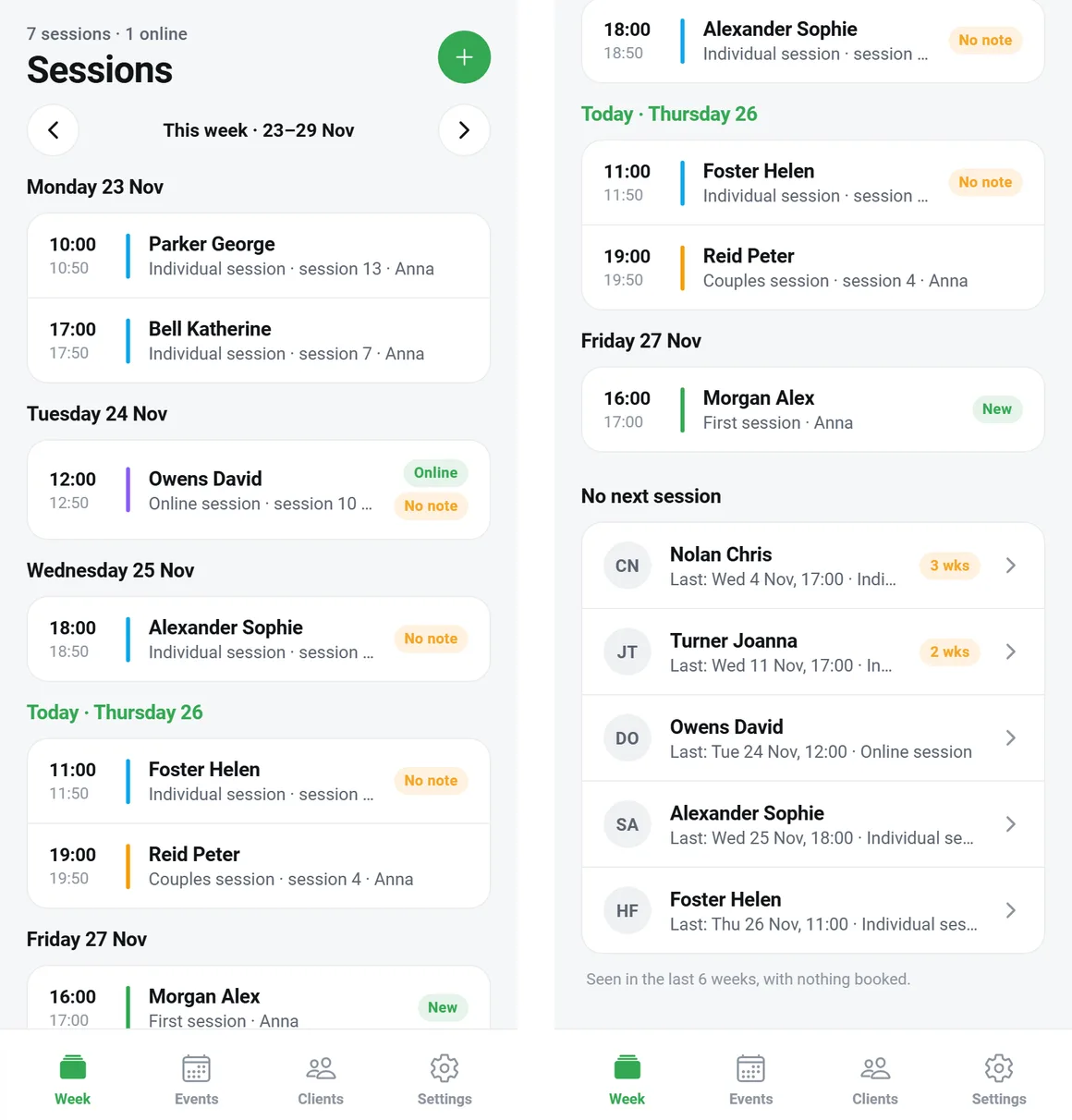
The Week tab shows the sessions from Monday to Sunday, day by day. The arrows move to the previous or next week. Tap the dates in the middle to come back to this week. At the top you see how many sessions the week has and how many are online.
For each session you see:
- the time, the event type and its number, for example session 13. Only sessions that took place count, not cancelled ones or no-shows.
- New, if it is their first session.
- Online, if it is on Google Meet, Zoom or Teams.
- No note, for a past session you have not written a note for.
- No-show, if you marked it as one.
Further down, No next session lists everyone seen in the last 6 weeks who has nothing booked, with their last session. From 2 weeks on, a label shows how many weeks it has been. That way you notice a weekly client dropping out of the rhythm before the gap becomes a month.
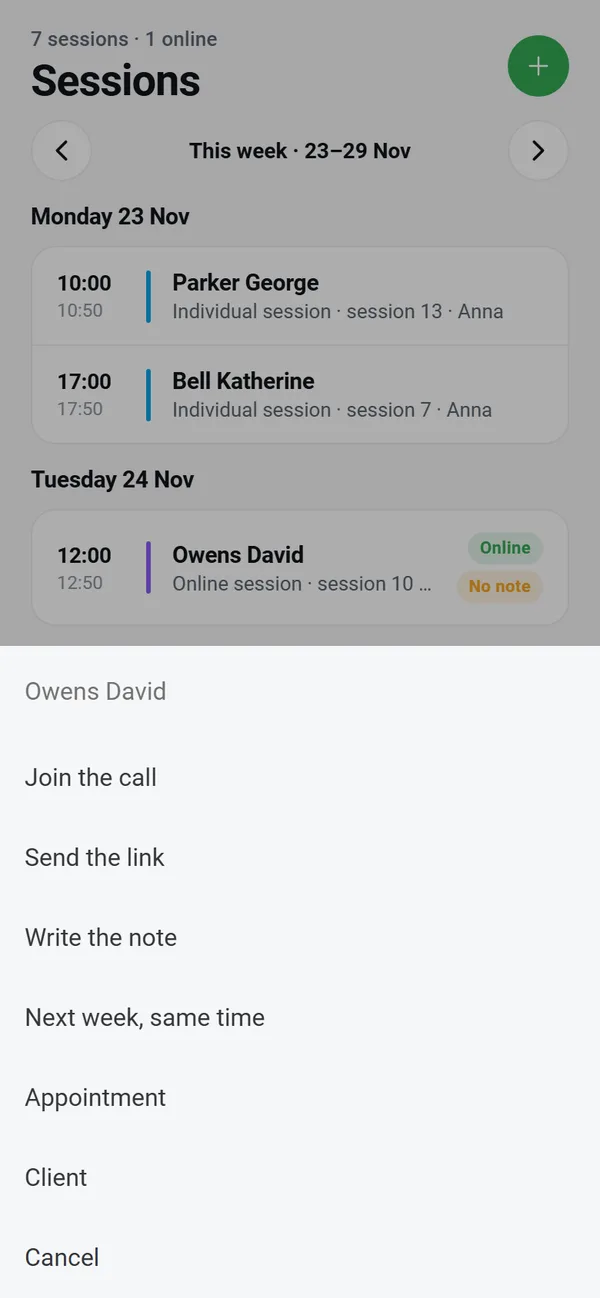
Tap a session to:
- Join the call, if it is online,
- resend the client their link with Send the link. Your phone's messaging app opens, or the share sheet if there is no mobile number.
- write the note with Write the note,
- book the next one with Next week, same time. A new appointment opens with the client, the service, you, and the same time a week later. If that time is taken, the form tells you.
- open the Appointment or the Client.
Tap someone under No next session to book their usual slot, call them, or text them from your phone.
The owner and admins see every therapist's sessions. Other users see their own.
The client record
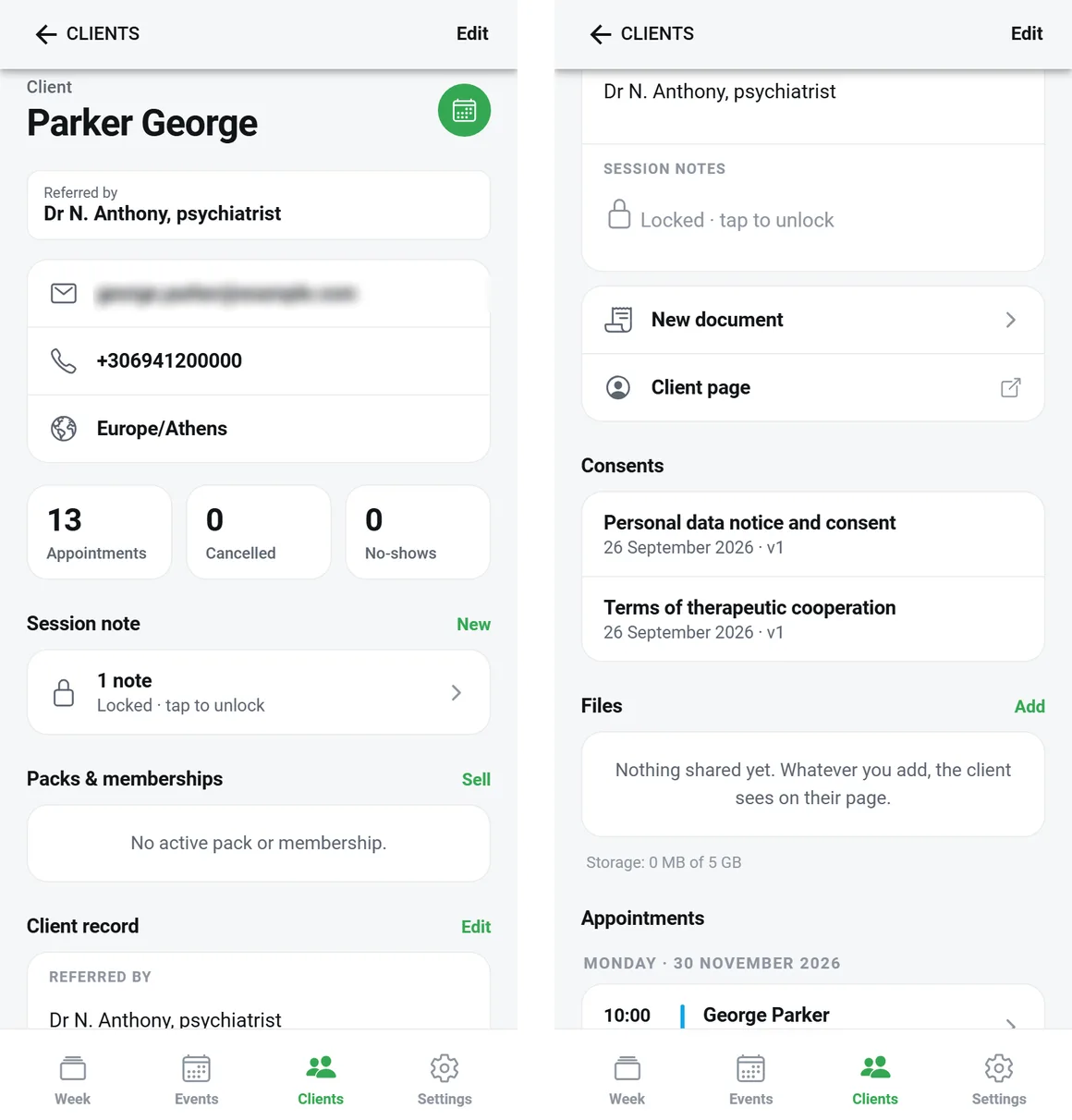
At the top of the record is Referred by, when filled in. Further down:
- The Session note section shows how many notes there are, locked.
- The record's Session notes field locks with them.
- The Consents section shows what they have signed and when.
Locked notes
Session notes stay locked even on an unlocked phone. If you hand your phone to someone to look at the calendar, they do not see your notes.
- Tap Locked · tap to unlock.
- The phone asks for Face ID, a fingerprint or its passcode.
- The notes stay open for 5 minutes. They lock again if you leave the app.
Only the notes lock. The calendar and the other screens stay open as usual. On a phone with no screen lock at all, the notes open without a check.
To write a note, open the session and tap Record it in the Session note section, or Write the note from the week. The fields are Themes, Interventions, Homework and For next time. Every note starts blank.
The client never sees your notes. Only those who hold sessions, the owner and admins can read what they say. Reception with only the clients area sees that they exist, not what they say.
Terms before the first session
The Psychologist business type comes with two documents to sign once: the personal data notice and the Terms of therapeutic cooperation. The client signs them when booking online, or on their own page before the session.
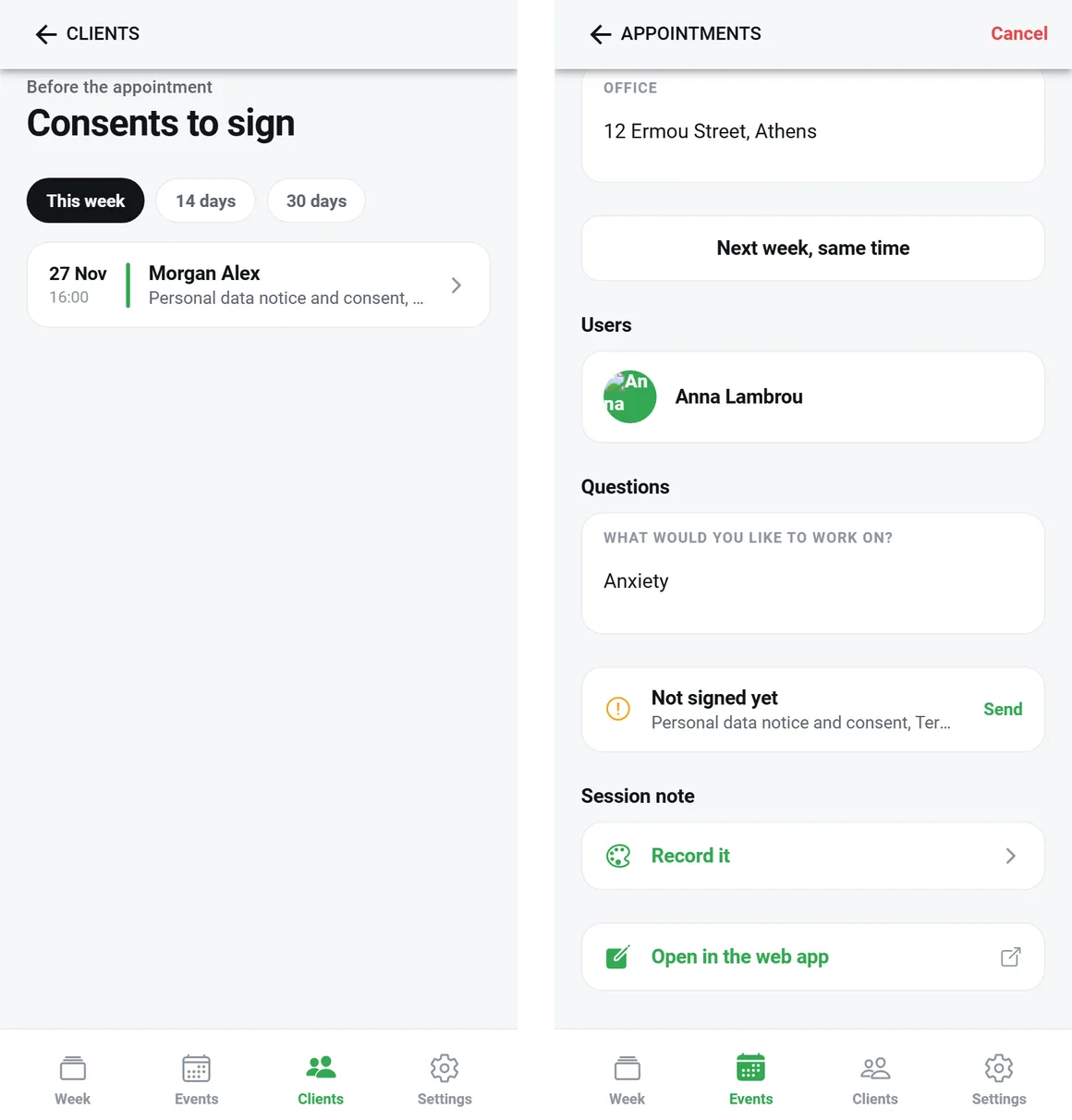
For an appointment you booked yourself, the appointment page reads Not signed yet. Tap Send to send them the link to their page by SMS or the share sheet, with a ready message saying what to sign and before which appointment.
Everyone who still has to sign is on the Clients tab, behind the icon at the top: Consents to sign lists the appointments of the week, the next 14 or the next 30 days that are waiting for a signature. Tap one to send the link, call, or open the appointment.
The link exists on plans that include the client page. See The client page.
Notifications without names
Push notifications on your phone, for a new, moved or cancelled appointment, show only the client's initials, the time and the date, for example "G.P. · 10:00 30/11/2026". They never show the full name or the kind of session. Only the push changes. Under Notifications inside the app, in Settings, the text is complete.