Dentist
The mobile app for a dental practice.
When your business type is Dentist, the mobile app has a waiting room, a dental chart on every patient record, treatment plans for work over several visits, and a list of patients due for a check-up. For how the app changes with the business type, see Screens by business type.
The tabs
- Waiting: today's patients and where each one is.
- Events: the list and the calendar. See Appointments on your phone.
- Plans: the treatment plans in progress, for every patient.
- Patients: your clients, each with their dental chart and plans. See Clients on your phone.
- Settings: your services, your account and the organization. See Settings on your phone.
The waiting room
The Waiting tab lists today's appointments in time order, with the event type and the dentist. It works as it does for a doctor:
- Tap Arrived when the patient gets there. The label reads Waiting with the minutes they have waited.
- Tap Call in when you call them to the chair.
- Tap Done when you finish.
If the patient answered Yes to the booking question "Are you in pain right now?", their row has a red Pain label, so you see them first. The Dentist business type sets this question up for you.
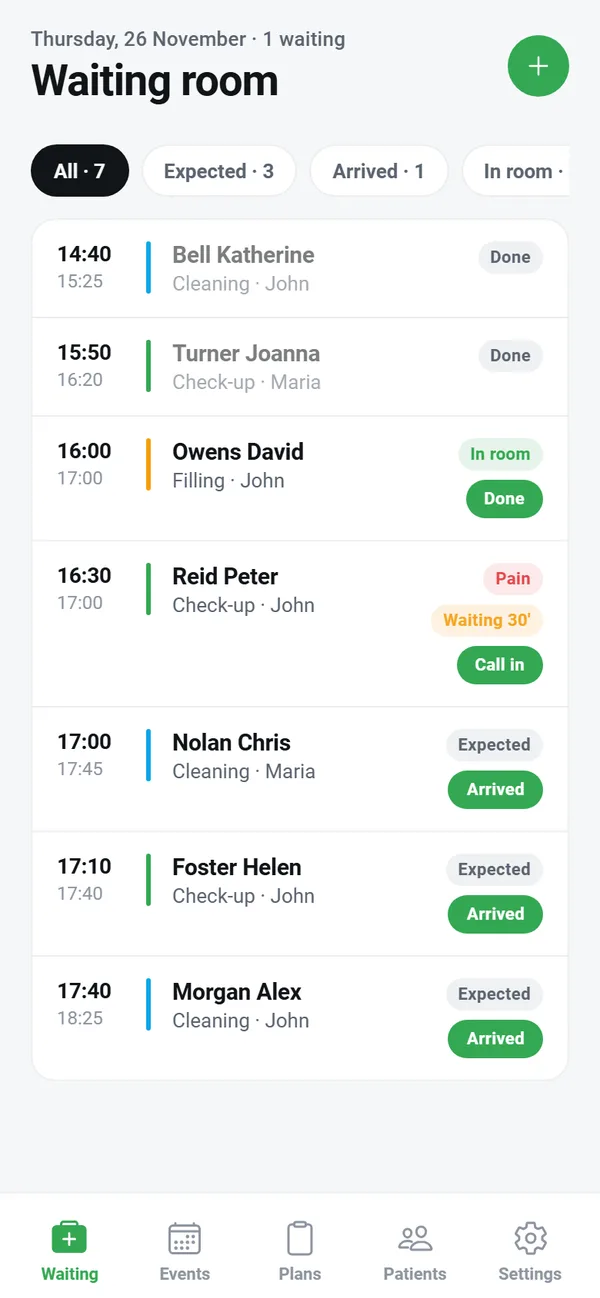
The filters at the top, the refresh every 30 seconds and the choices when you tap a row are the same as for a doctor. See Doctor. The owner and admins see everyone's patients. Other users see their own.
The dental chart
On the patient record, below the contact details, is the Dental chart. Teeth use FDI numbering and are laid out as you face the patient: the patient's right is on the left. Each tooth shows its latest state with a symbol: Caries, Filled, Root canal, Crown, Implant or Missing.
Above the chart, any Allergies show in red, and the AMKA and Insurance fund in small boxes.
To record something on a tooth:
- Tap the tooth. Its state shows, with who recorded it and when.
- Pick the new state. Add a Note if you like, for example the surfaces.
- Tap Record.
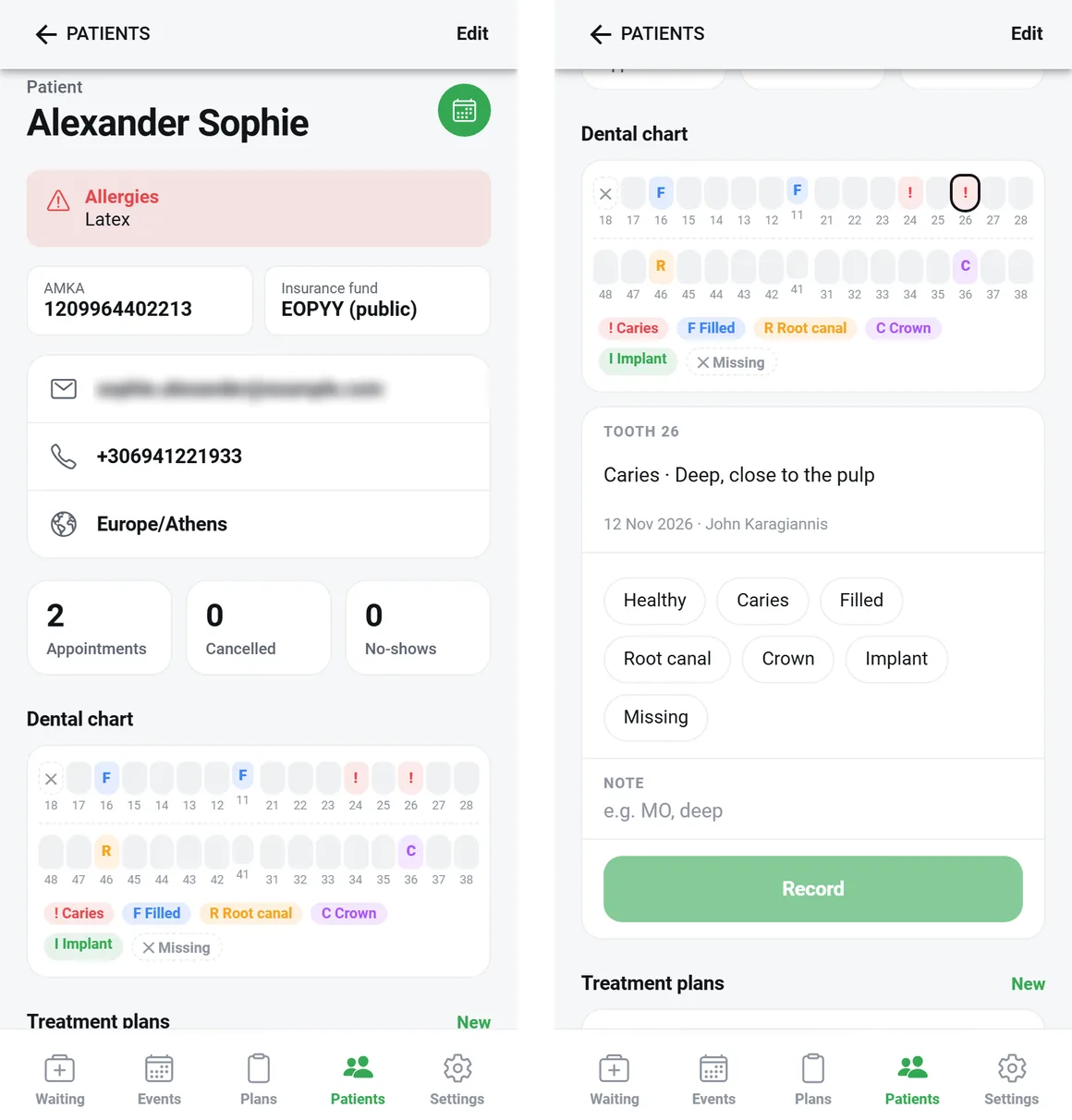
Nothing is ever deleted. A mistake is corrected with a new mark, and the tooth's History keeps them all. Only those who see patients, the owner and admins can see the chart, and anyone allowed to manage appointments can mark it. A user who only has the clients area, such as reception, only sees that it is there.
Treatment plans
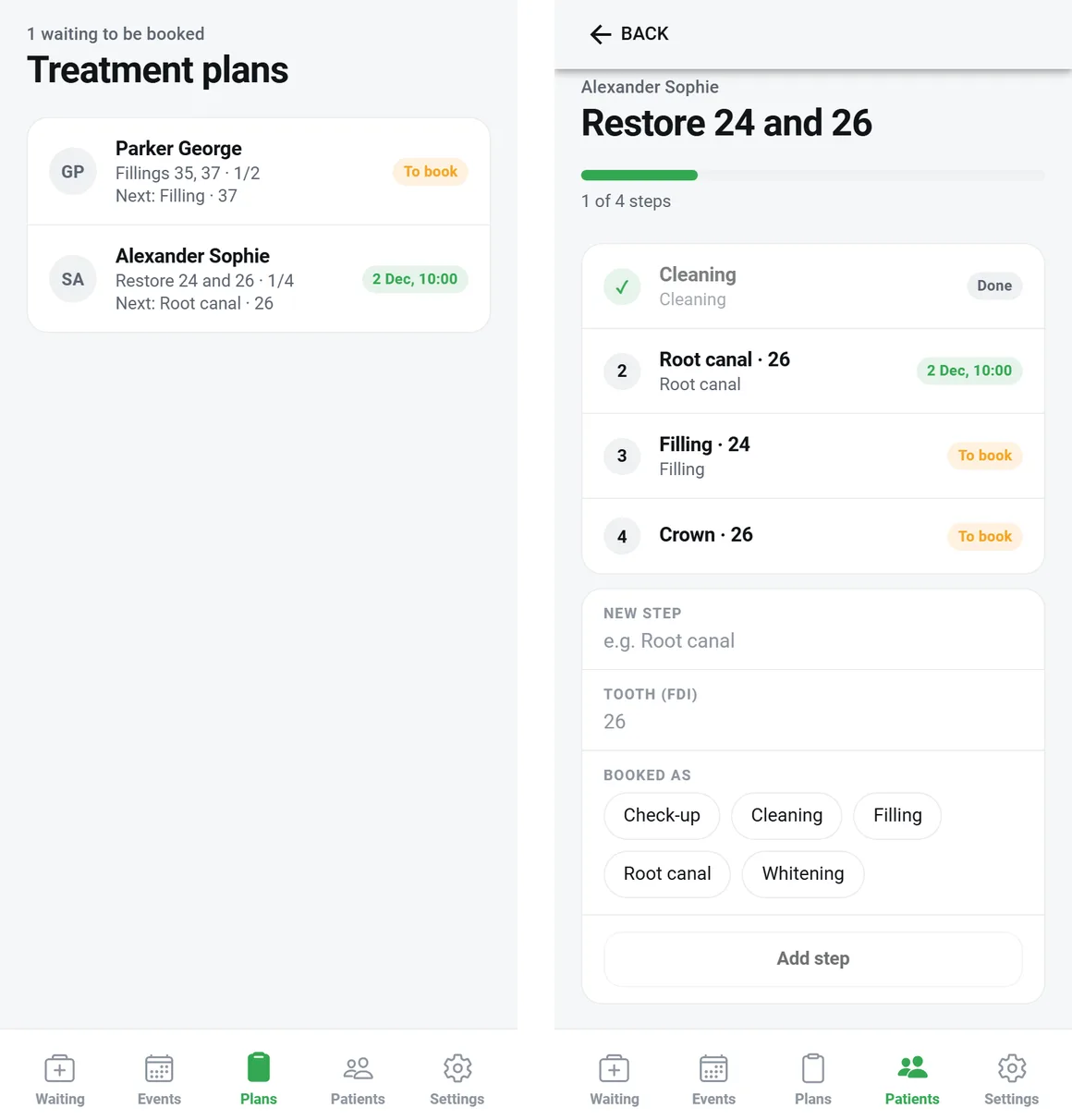
For work over several visits, make a plan with the steps in order. For example: cleaning, root canal on 26, filling on 24, crown on 26.
- On the patient record, in the Treatment plans section, tap New.
- Enter a Title.
- For each step, write what will be done, the Tooth (FDI) if it is about one tooth, and pick under Booked as the service it will be booked as. Tap Add step.
- Tap Create plan.
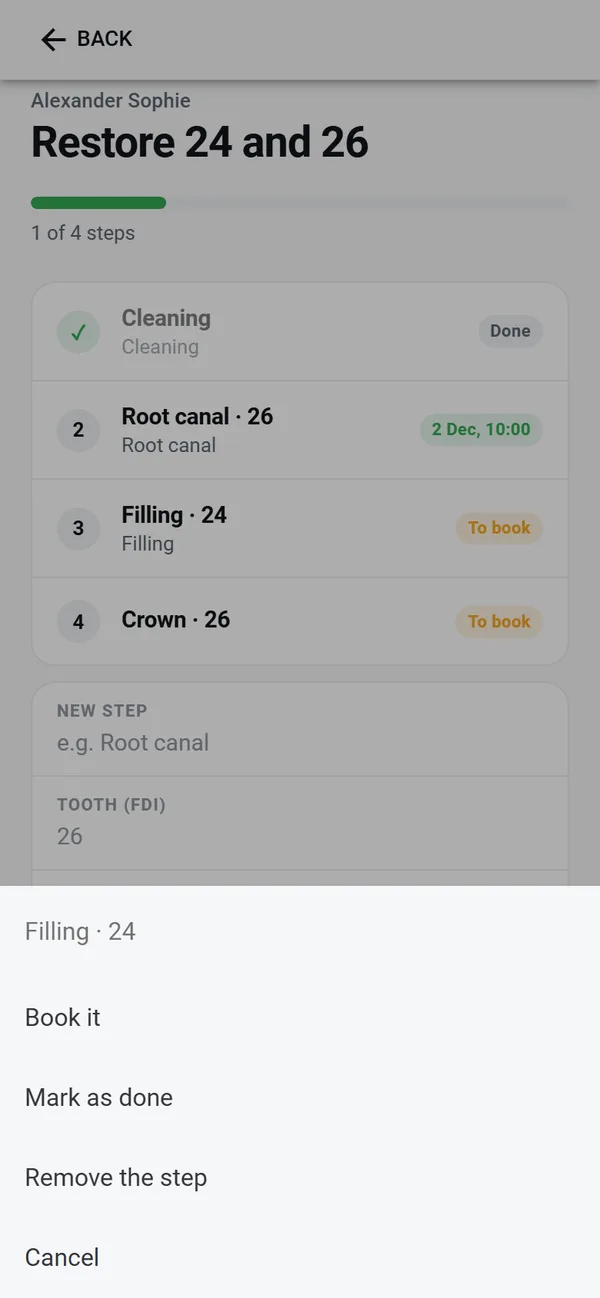
The plan shows how many steps are done and where each step stands: Done, the date and time of its appointment, or To book. Tap a step to:
- book it with Book it. A new appointment opens with the patient and the step's service. Once you book it, the appointment is tied to the step.
- mark it Mark as done, or take that back with Not done after all,
- remove it.
When every step is done, the plan completes by itself. Cancel the plan stops it and Reopen the plan opens it again.
The Plans tab lists every active plan with its next step. Those with a step waiting to be booked come first, so reception knows whom to call. Anyone who can see clients can see plans. Anyone allowed to manage appointments can change them.
Due for check-up
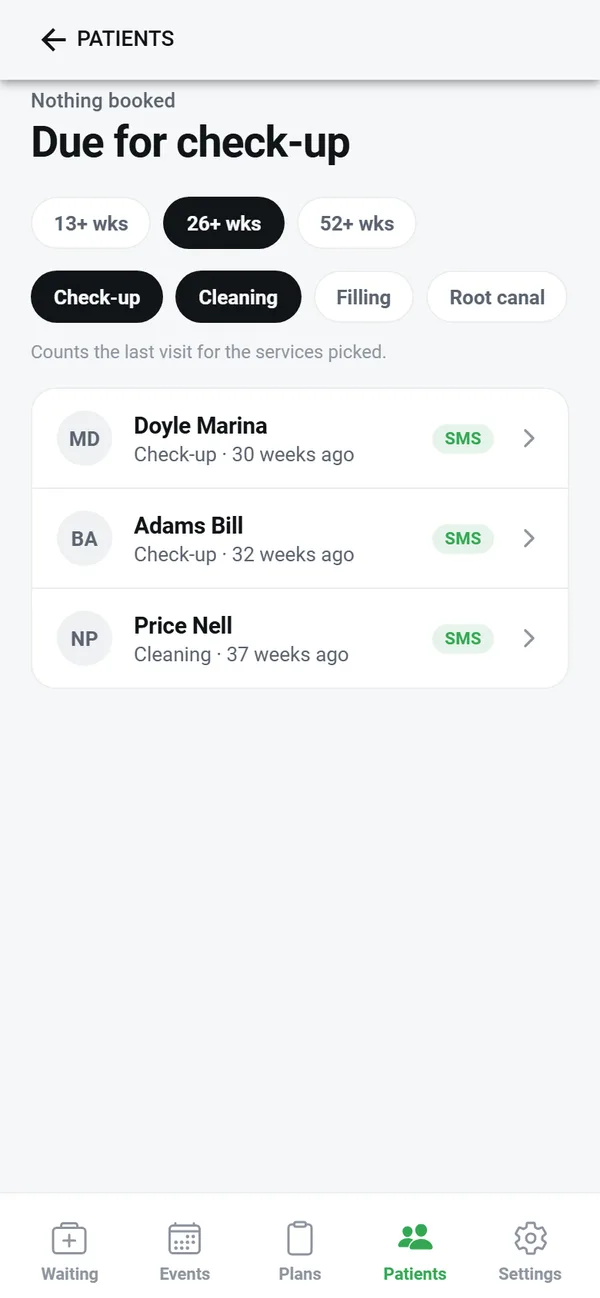
On the Patients tab, the icon at the top opens Due for check-up. It lists patients whose last visit was 26 weeks ago or more and who have nothing booked.
- 13+ wks and 26+ wks change how long ago the last visit must be.
- The services below set which visits count. Check-up and cleaning are picked to begin with. With none picked, any visit counts.
- Only visits that took place count, not cancelled ones or no-shows. Patients who have not come for over a year are left out.
Tap SMS on a patient. Your phone's messaging app opens with a ready text: how many weeks it has been since their last visit and the link to book. The message goes from your own phone, not from Kalendar. Afterwards the row reads Texted with the date. Only your phone remembers this. Tap the row for Call and the other choices.
Visit notes
After each visit, open the appointment and tap Record it in the Visit note section. The fields are Work done, Anaesthesia, Findings and Next step. Every note starts blank. The latest one shows on the patient record.
Visit notes are medical records, as for a doctor: the patient never sees them, and only those who see patients, the owner and admins can read what they say.