Doctor
The mobile app for a doctor's practice.
When your business type is Doctor, the mobile app opens on the waiting room. You see who is coming in today, who has arrived and who is in with the doctor. Patient records lead with what a doctor needs first: allergies, AMKA, insurance fund and blood group. For how the app changes with the business type, see Screens by business type.
The tabs
- Waiting: today's patients and where each one is.
- Events: the list and the calendar, as for any business. See Appointments on your phone.
- Patients: your clients. The app calls them patients. See Clients on your phone.
- Settings: your services, your account and the organization. See Settings on your phone.
The waiting room
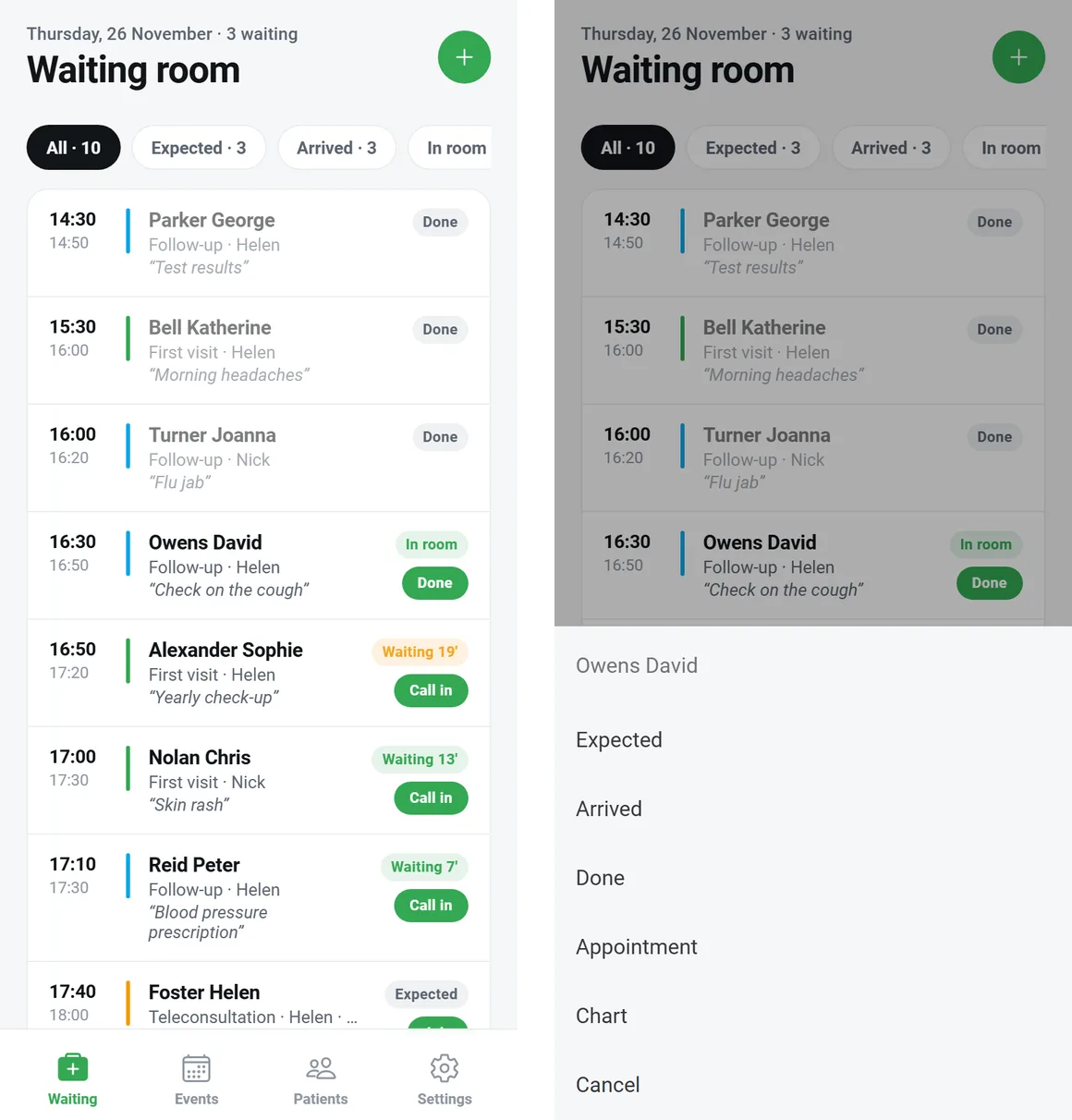
The Waiting tab lists today's appointments in time order. Cancelled ones are left out. For each patient you see:
- the time, the event type and the doctor,
- the first answer they gave when booking, usually the reason for the visit, in quotes,
- where they are: Expected, Late once 10 minutes have passed, Waiting with the minutes they have waited, In room or Done. Anyone waiting more than 15 minutes turns orange.
At the top, All, Expected, Arrived, In room and Done filter the list. The list refreshes itself every 30 seconds, so whatever reception marks on their own phone shows up on yours.
The button on the right of each row takes the next step:
- Arrived, when the patient gets there. The wait starts counting.
- Call in, when you call them into the room.
- Done, when the visit is over.
Tap the row for the other choices: move the patient back to another state, or open the Appointment or their Chart.
For a teleconsultation on Google Meet, Zoom or Teams, the button is Join. It opens the call and marks the patient as In room.
The + at the top right books a new appointment. See New appointment from your phone.
The owner and admins see every doctor's patients. Other users see only their own. The state can be changed by anyone allowed to manage appointments.
The patient record
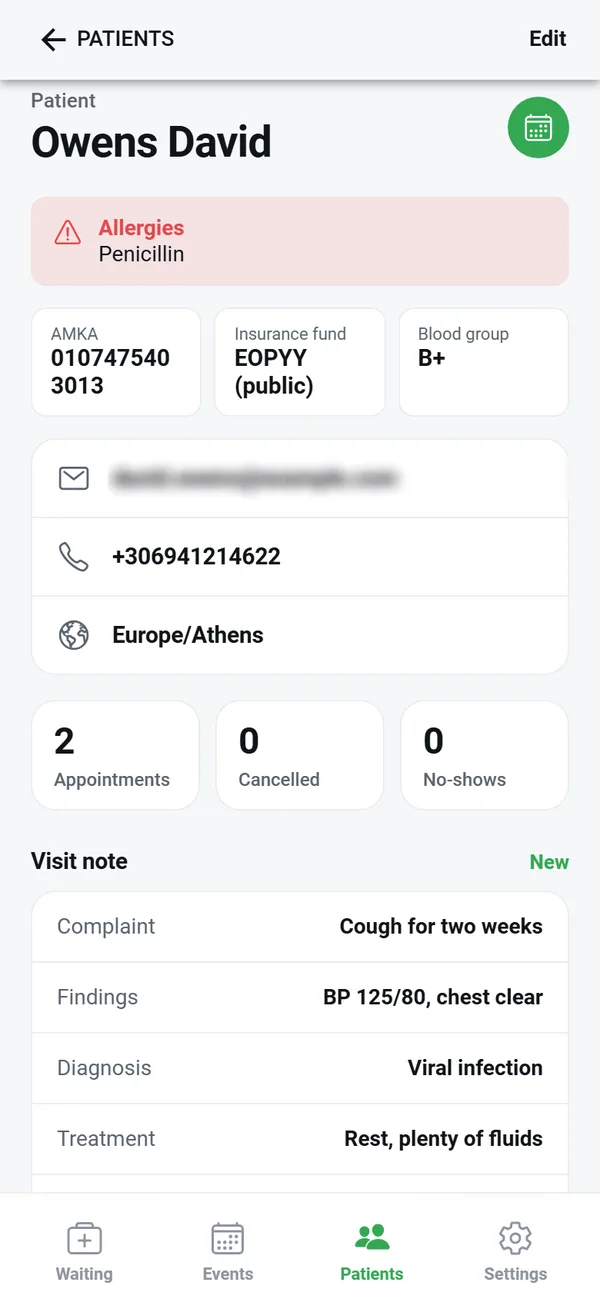
Open a patient from the Patients tab or from the waiting room. At the top you see:
- in red, their Allergies, when filled in. The warning appears for any client field with "allerg" in its name.
- in small boxes, the AMKA, the Insurance fund and the Blood group, whichever are filled in.
The Doctor business type sets these fields up for you, along with medication and medical history. The patient fills them in when booking, or you do with Edit. If your fields have other names, the boxes look for "AMKA", "insurance" and "blood" in the name.
Further down, the Visit note section shows the latest note. Older ones are under Earlier.
Visit notes
After the examination, write down what you found:
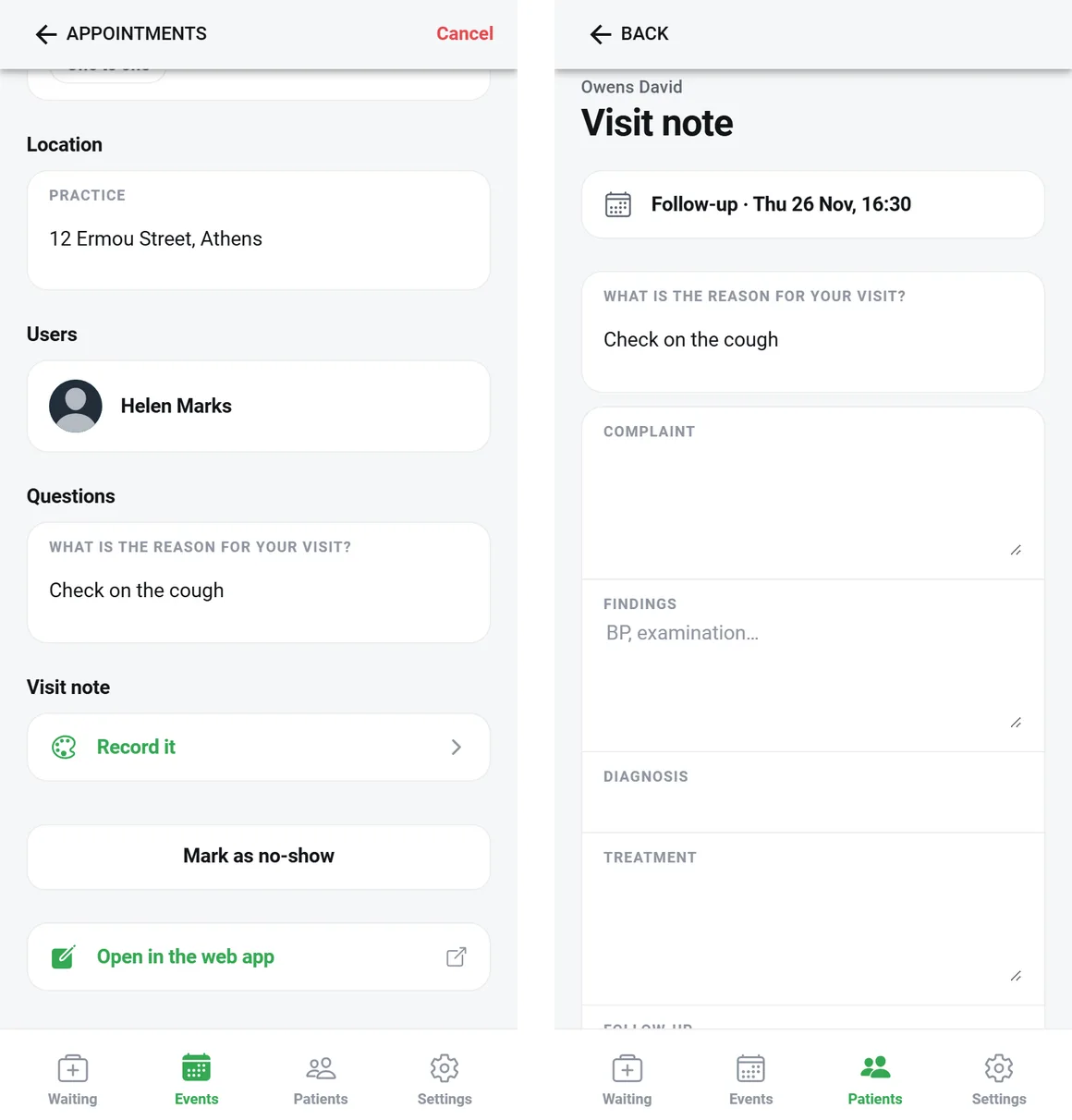
- Open the appointment, from the waiting room or the Events tab.
- In the Visit note section, tap Record it.
- Fill in what you need: Complaint, Findings, Diagnosis, Treatment, Follow-up and free Notes. The patient's booking answers are shown at the top.
- Tap Save.
Every note starts blank: last time's diagnosis is not carried into today's. For a note that is not tied to an appointment, tap New on the patient record.
Visit notes are medical records:
- The patient never sees them, not even on their own page.
- Only those who see patients can read what they say: anyone allowed to manage appointments, the owner and admins. A user who only has the clients area, such as reception, sees how many notes there are and when they were written, not what they say.
- A note can be changed or deleted by the person who wrote it, or by anyone allowed to manage clients.