Photographer
The mobile app for a photographer.
When your business type is Photographer, the mobile app has the tabs Events, Projects, Clients and Settings. Each job, such as a wedding or a baptism, is a project: from the first inquiry to delivering the photos. Your services (event types) are under Settings, in Services. For the app in general, see The mobile app and Screens by business type.
The Projects tab
Each project goes through the stages Inquiry, Booked, Shot, Editing and Delivered. A project that did not go ahead goes to Lost.
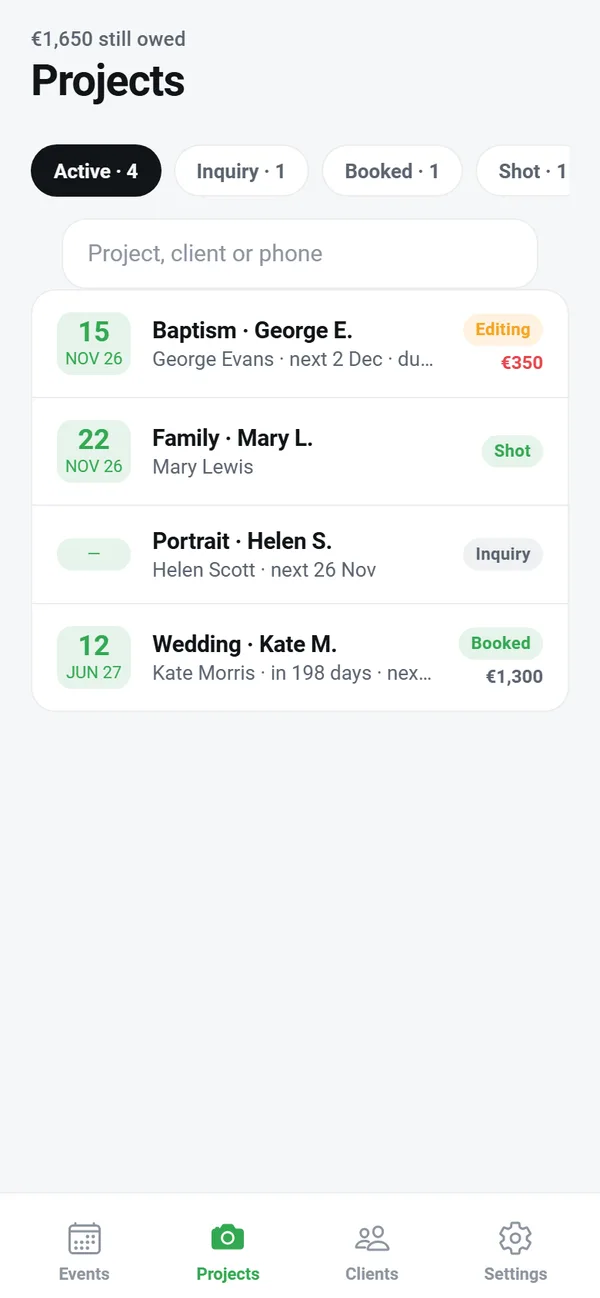
- The filters at the top show the Active projects (inquiry, booked, shot, editing) or one stage at a time, with how many there are.
- In the search, type a project, a client or a phone number.
- The event date is on the left; the stage and the balance on the right. The balance turns red when the event is 14 days away or less, or has passed.
- Above the title is the total still owed across your projects.
How a project starts
When a client books, for example a consultation from your booking page, the app opens an Inquiry by itself. It takes the kind of shoot from the booking form question about the kind of shoot, and the event date and package from the client's fields when they are filled in. The same client's next appointments join that project while it is open.
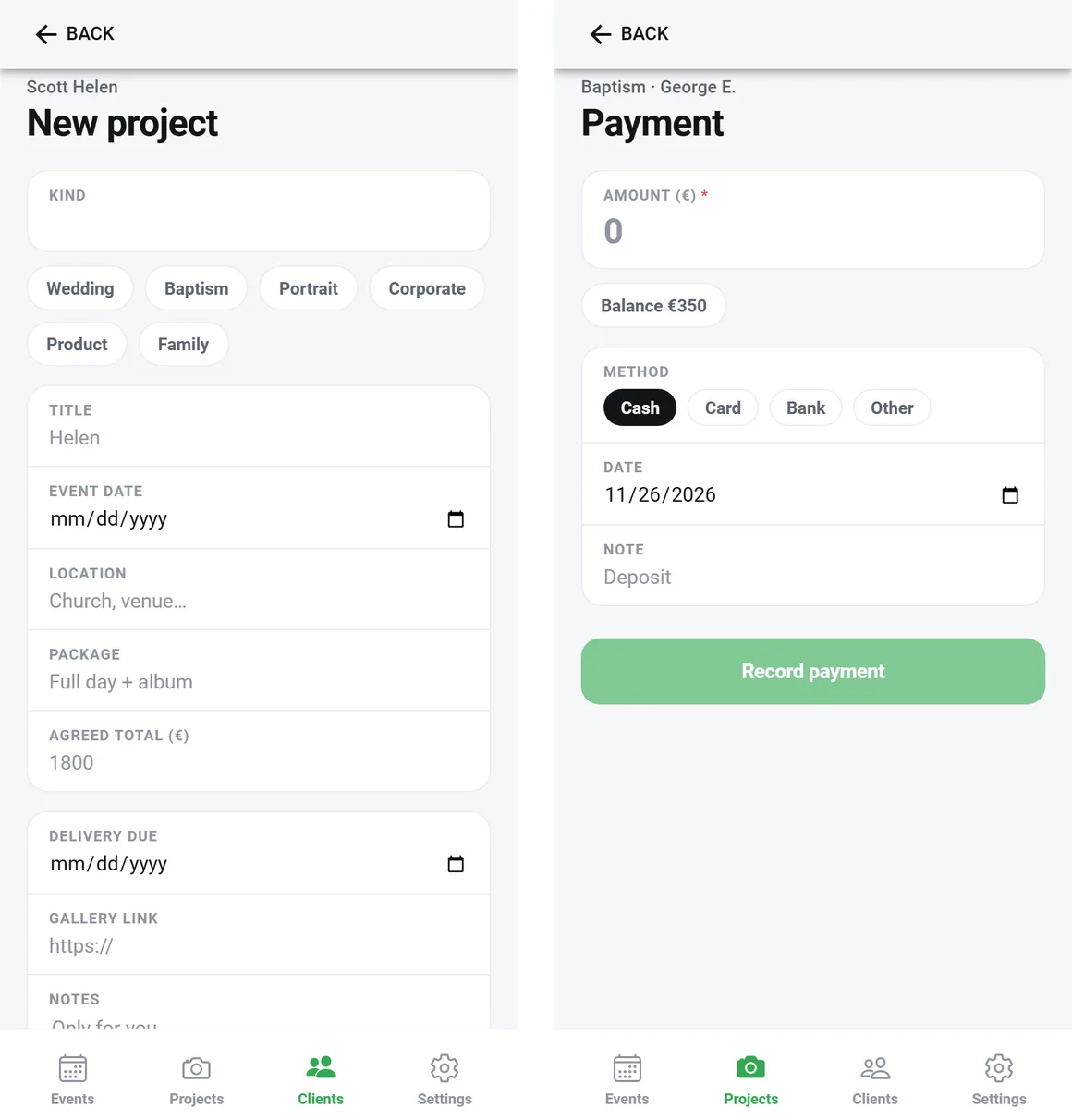
You can also start a project yourself: on the client's page, under Projects, tap + New. Choose the Kind (Wedding, Baptism, Portrait and so on) and fill in Event date, Location, Package, Agreed total (€), Delivery due, Gallery link and Notes.
A project
Open a project to see:
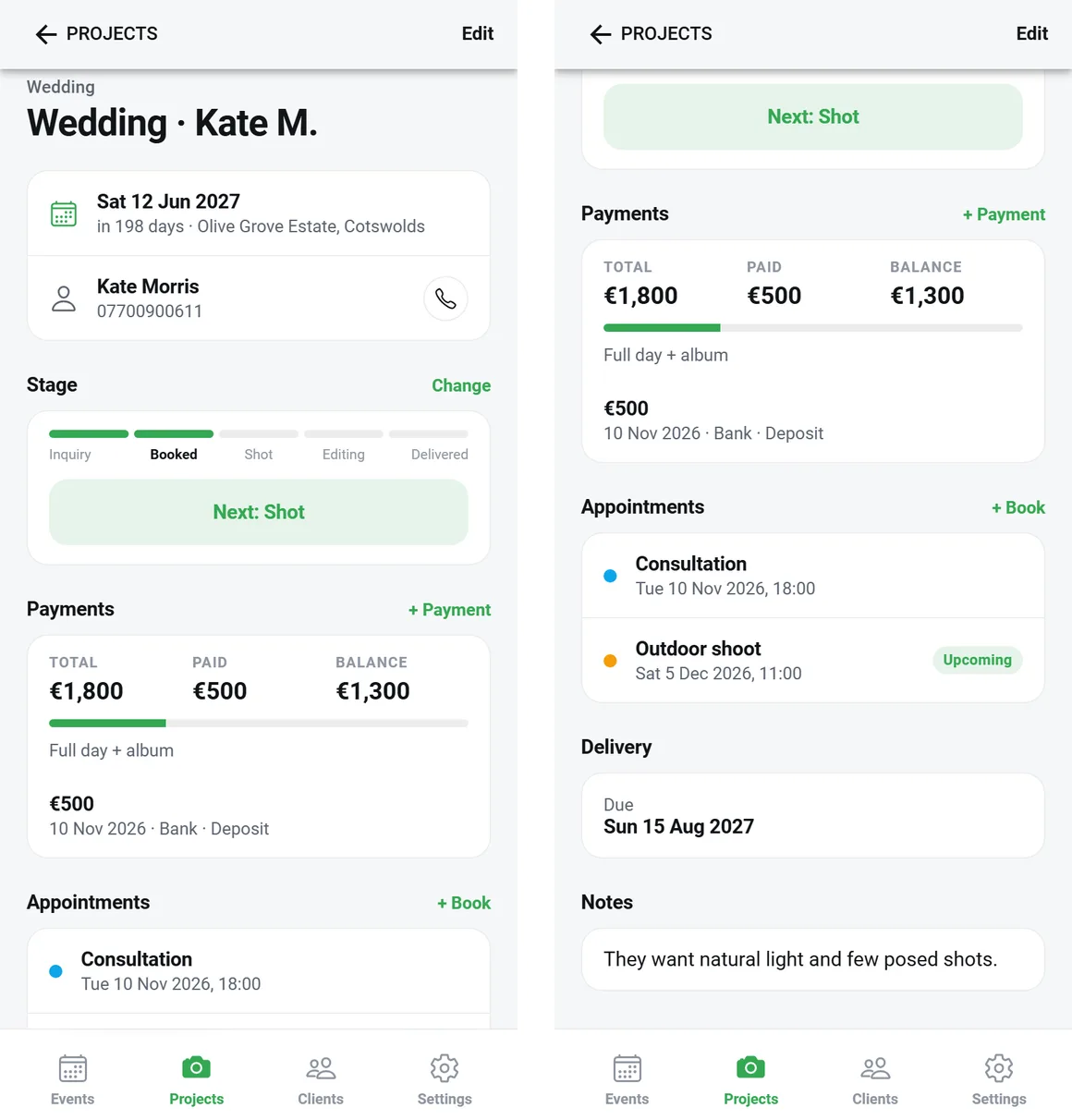
- the event day, how far away it is and where, and the client, with a call button,
- the Stage, with a Next button for the next stage. Change lets you pick any stage,
- the Payments: Total, Paid, Balance, the package and each payment,
- the project's Appointments: consultation, shoot, photo selection. + Book books the next one, already linked to the project,
- the Delivery, with its date and the gallery link, which you can open or share,
- your Notes. The client never sees them.
Payments
On the project, tap + Payment. Enter the amount or tap the balance suggested, choose Cash, Card, Bank or Other, the date and a note such as Deposit, and tap Record payment. The first payment moves an inquiry to Booked by itself.
Delivery
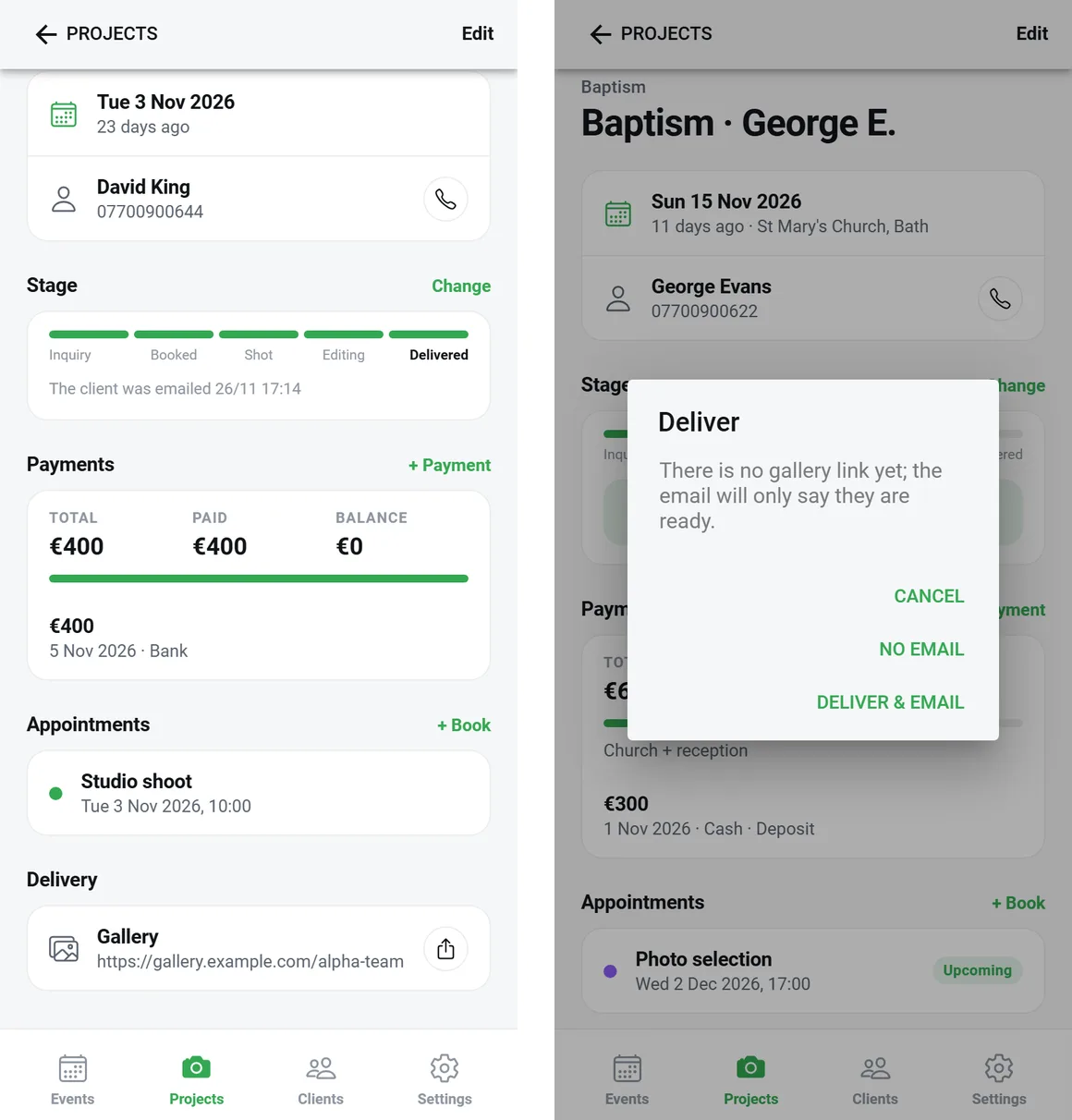
When the photos are ready, add the Gallery link with Edit at the top right, and move the project to Delivered. The app asks:
- Deliver & email: the client gets an email "Your photos are ready", with a button to the gallery, the balance if any, and the link to their page.
- No email: only the stage changes.
Without a gallery link, the email only says the photos are ready. The email goes once, and the project shows when the client was emailed.
On the appointment and the client's page
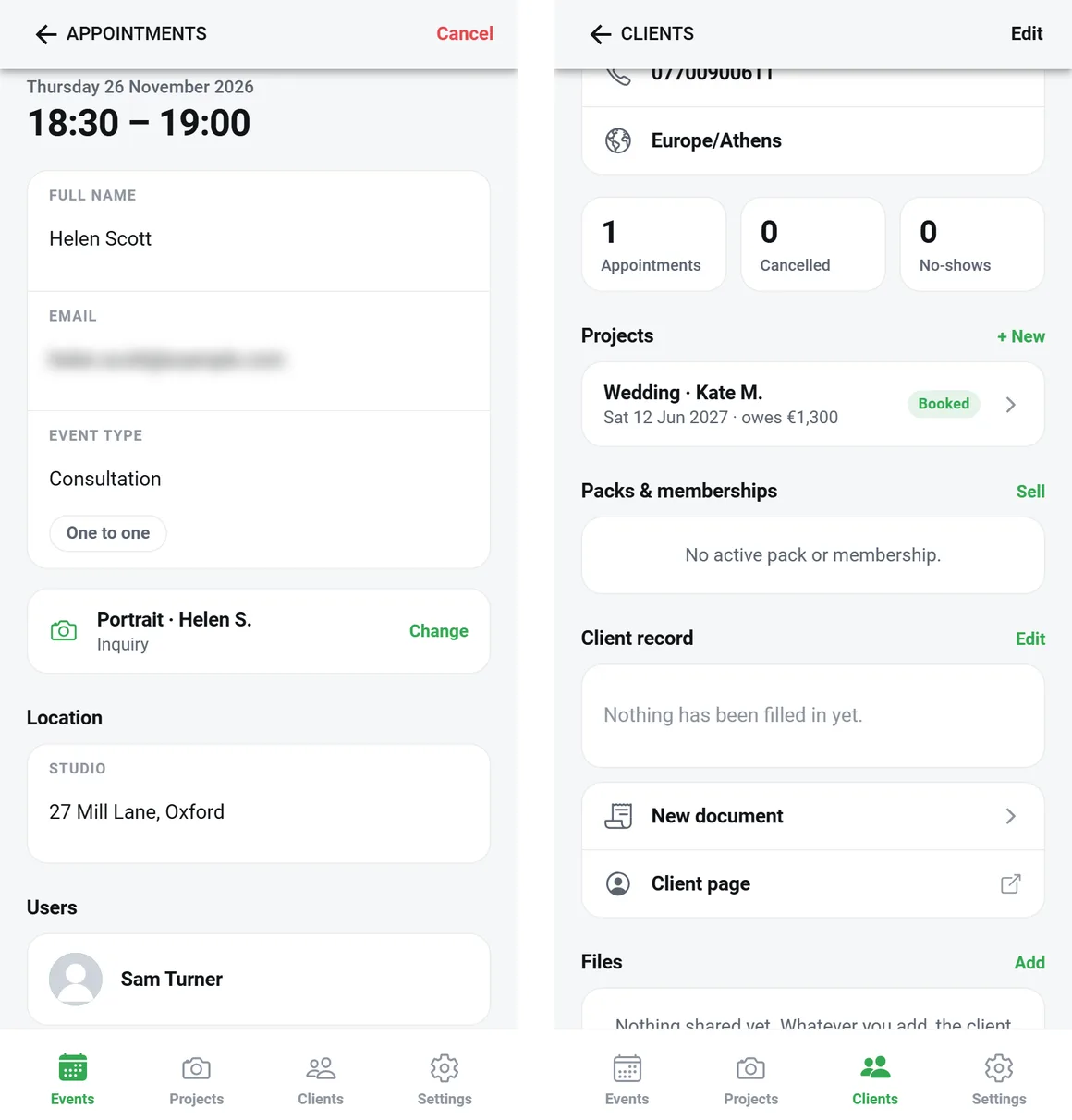
- Each appointment shows the project it belongs to and its stage. Change moves it to another project. When it is not part of one, tap Which project?.
- The client's page shows their projects, with the date and the balance.
What the client sees
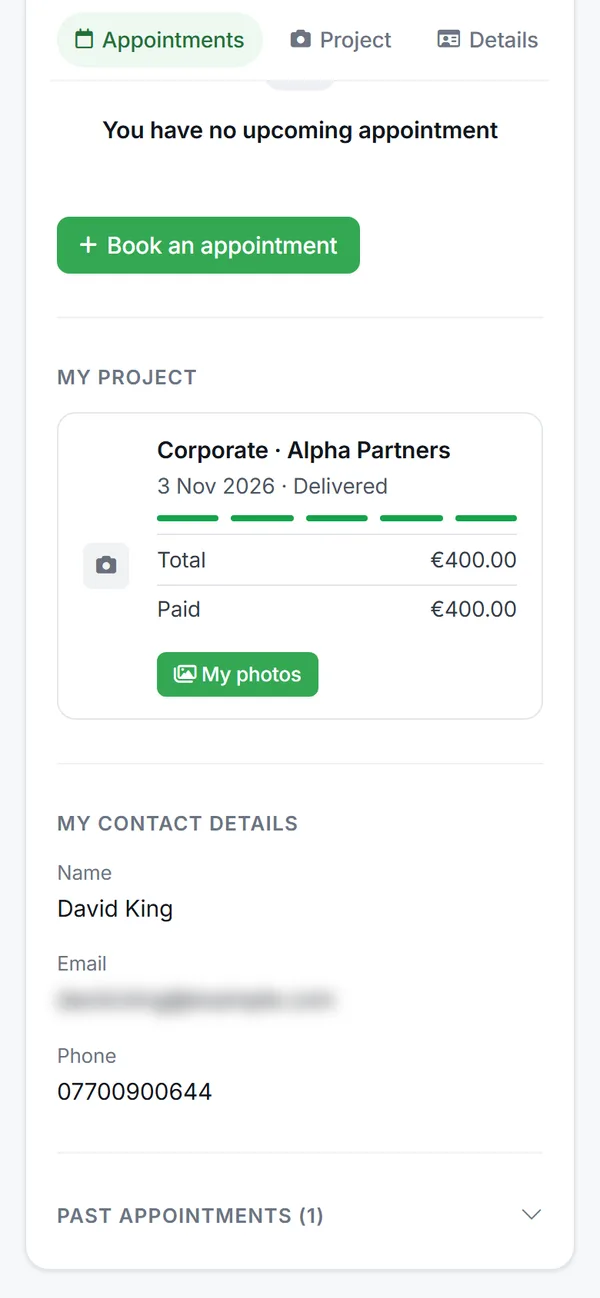
On their client page, under Project, the client sees the date, the stage, the total, what they paid, the balance and the delivery date. Once delivered, they see a My photos button to the gallery. They never see your notes.
The client page needs a plan with the client page. Projects can be changed by whoever manages appointments. For appointments in general, see Appointments on your phone, New appointment from your phone and Clients on your phone.