Real estate agency
The mobile app for a real estate agency.
When your business type is Real estate agency, each property is an event type and each appointment is a viewing. The mobile app opens on the day's route, keeps what every prospect answered and puts together the report for the owner. Start with the overview of the screens by business type.
The tabs
- Viewings: the day's viewings in order, with the route. It replaces the Events tab.
- Properties: the agency's properties. They replace the event types.
- Prospects: your client list.
- Settings: as in Settings on your phone.
Set up the first property on the web
A new agency starts with an example property. Set up your first real property on the web, like any event type, with Create a new event type:
- Leave Property viewing on. Switch it off only for services that are not about one property, for example a valuation or a meeting at the office.
- Under Property details fill in sale or rent, category, area, price or rent, size, the link to the full listing and one photo, up to 5 MB.
- Add the property's address as a location, so it shows on the confirmation and the reminder.
- Set the viewing hours, the agents and the booking questions. The example already has a required mobile number, questions about budget, financing, moving date and where they saw the ad, and the viewing agreement for each viewing.
You can add the next properties from your phone too, as copies of an existing one.
The Viewings tab
The tab shows one day's viewings in order. Use the arrows for the previous or next day, or tap Today and Tomorrow. Each viewing shows:
- the time, the property, its area and its address. Tap the address or the arrow to navigate in your phone's maps,
- the prospect and what they answered when booking: financing, when they move, budget,
- whether it is their 2nd viewing of the same property, what they answered, or No-show,
- between viewings, how long you have to get to the next one, or Same address.
The Route for the next button opens the whole route of the viewings left in your maps app, up to 9 stops. The + books a new viewing. The phone icon calls the prospect.
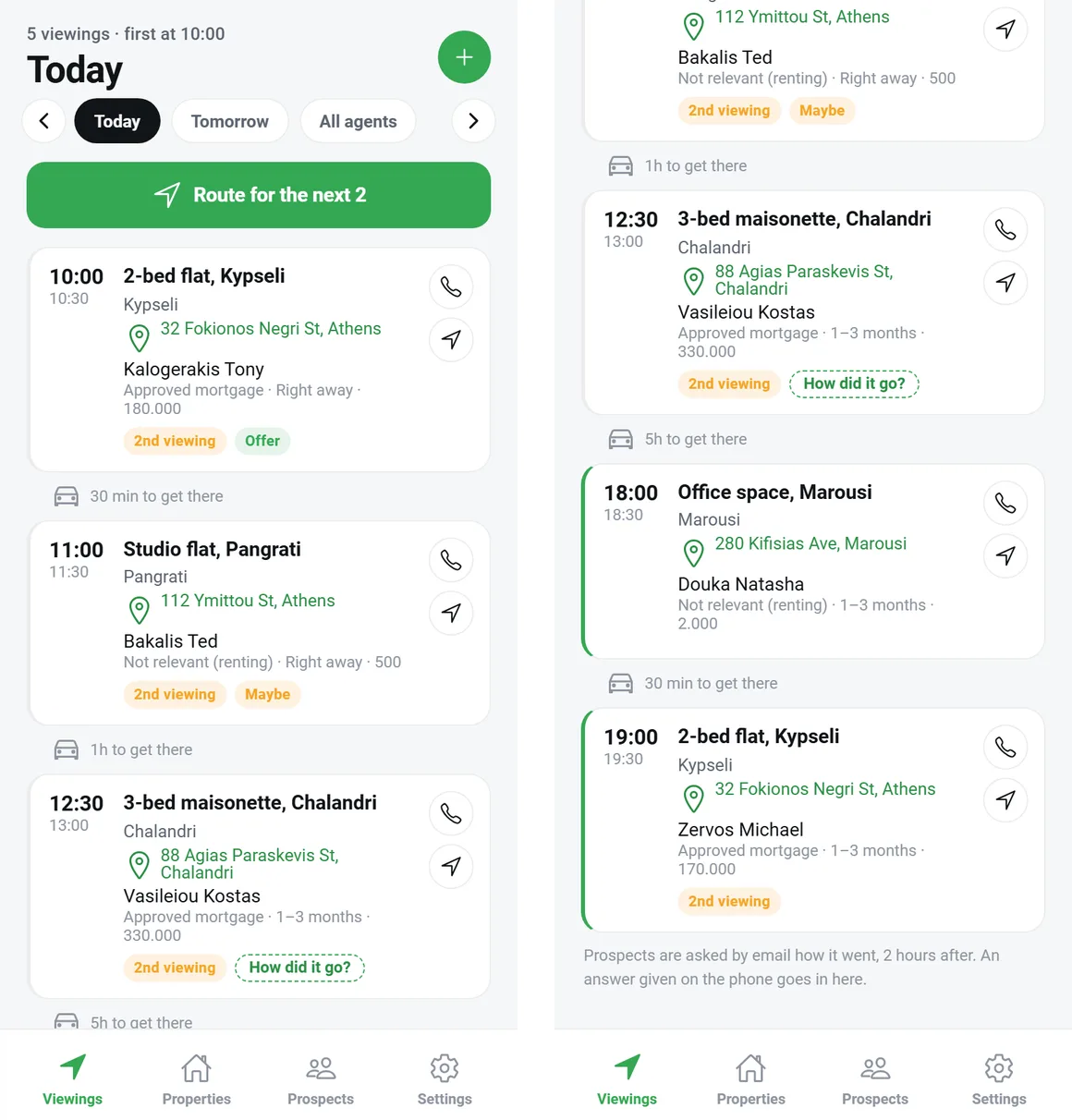
Owners and admins also get All agents, for the whole agency's viewings. Other agents see only their own.
How did it go
Two hours after a viewing ends, the prospect gets an email asking how it went, with four buttons: Not interested, Maybe, I want a second viewing and I want to make an offer. Each one opens a page where they confirm with a button. The answer is kept on the viewing. When they ask for a second viewing or want to make an offer, the agent on the viewing gets an email.
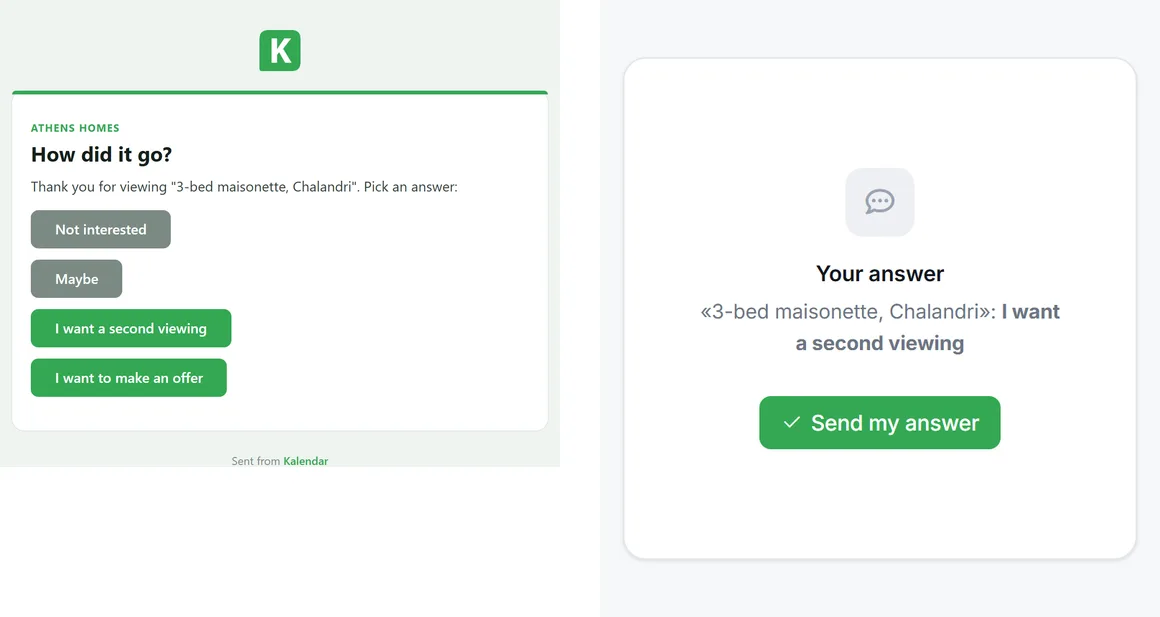
- The email is not sent for a viewing marked as a no-show, nor once two days have passed.
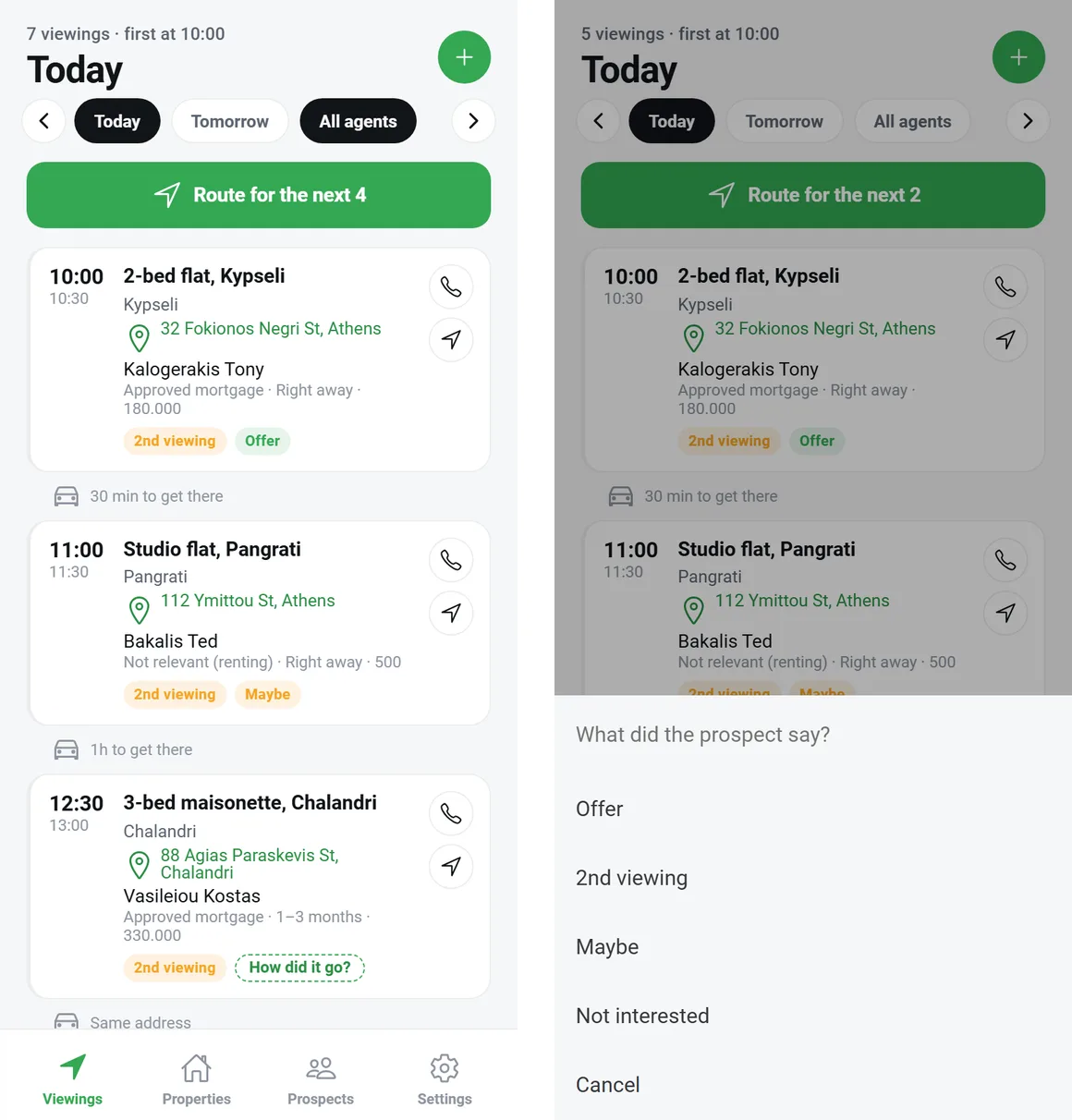
- If they told you on the phone, tap How did it go? on the viewing and pick Offer, 2nd viewing, Maybe or Not interested. The email is then not sent.
- Tap an answer already given to change or clear it.
- Switch the question off for a property with Ask "How did it go?" after the viewing.
The Properties tab
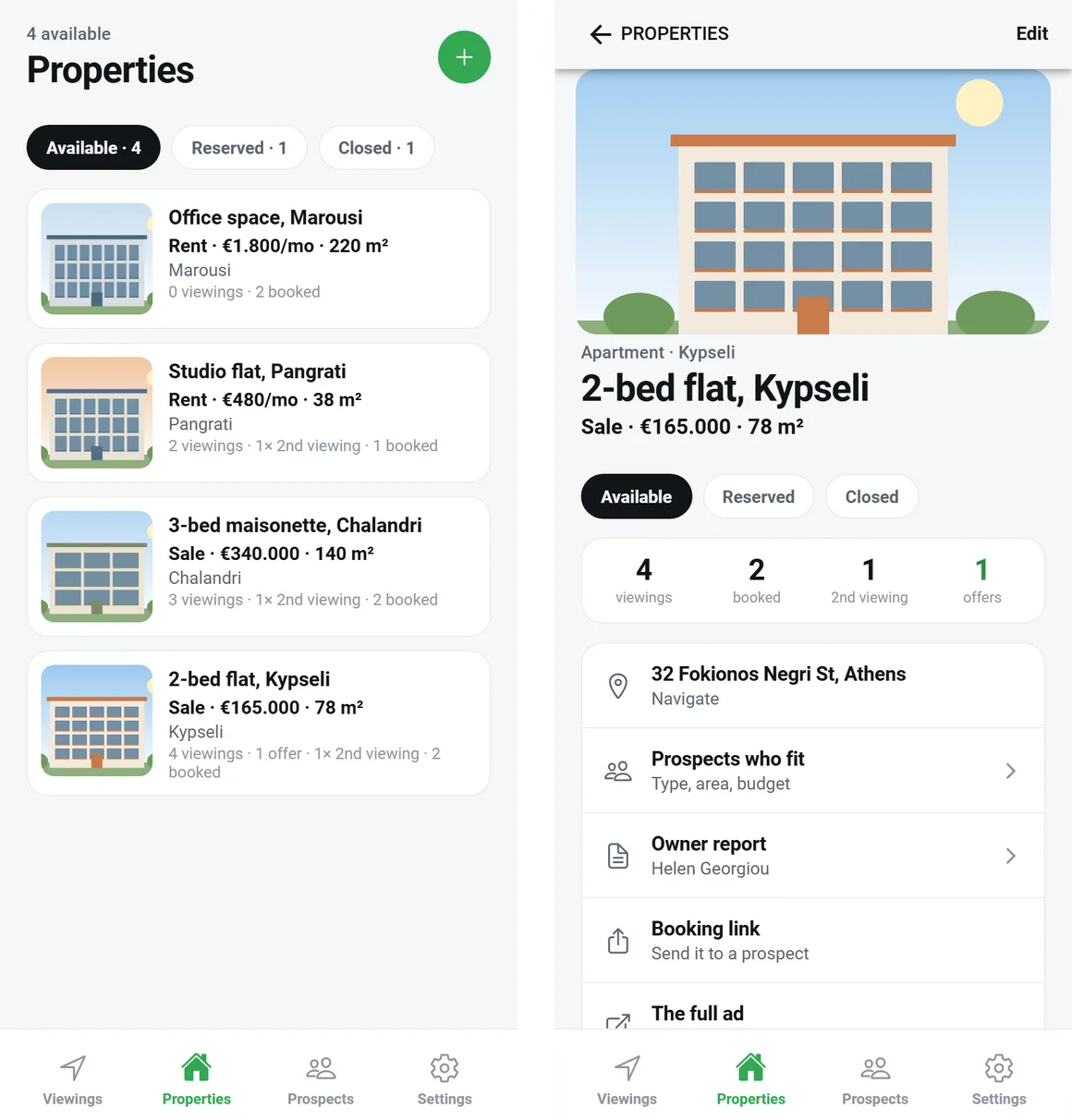
At the top pick Available, Reserved or Closed, each with its count. Each property shows its photo, sale or rent, price, size, area and how many viewings, offers and booked viewings it has. With more than six properties, a search by title or area appears too.
Tap a property to see:
- its status, which you change with one tap: Reserved when an offer is accepted, Closed when it is signed. A closed property no longer shows on the booking page,
- viewings, booked viewings, second viewings and offers,
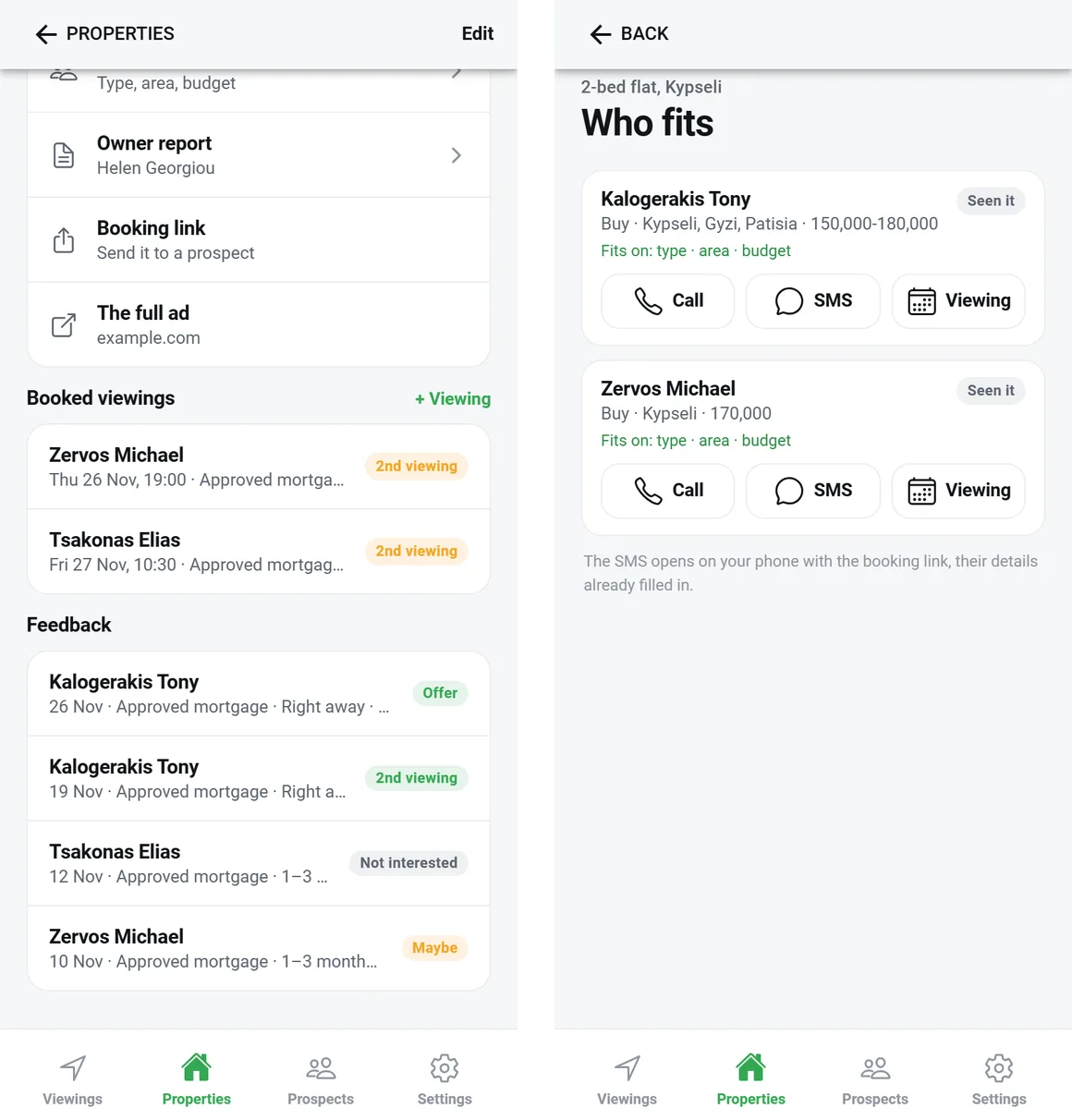
- the address, Prospects who fit, the Owner report, the Booking link to send to someone, and The full ad,
- the Booked viewings and, under Feedback, what each prospect answered.
Prospects who fit
The app finds the prospects who fit a property from three fields on their page: Interested in (buy or rent), the Areas they want and their Budget. For each one you see what fits and whether they have already seen it. From there you call them, send an SMS from your phone with the booking link and their details already filled in, or book a Viewing.
A new property from your phone
- On the Properties tab tap +.
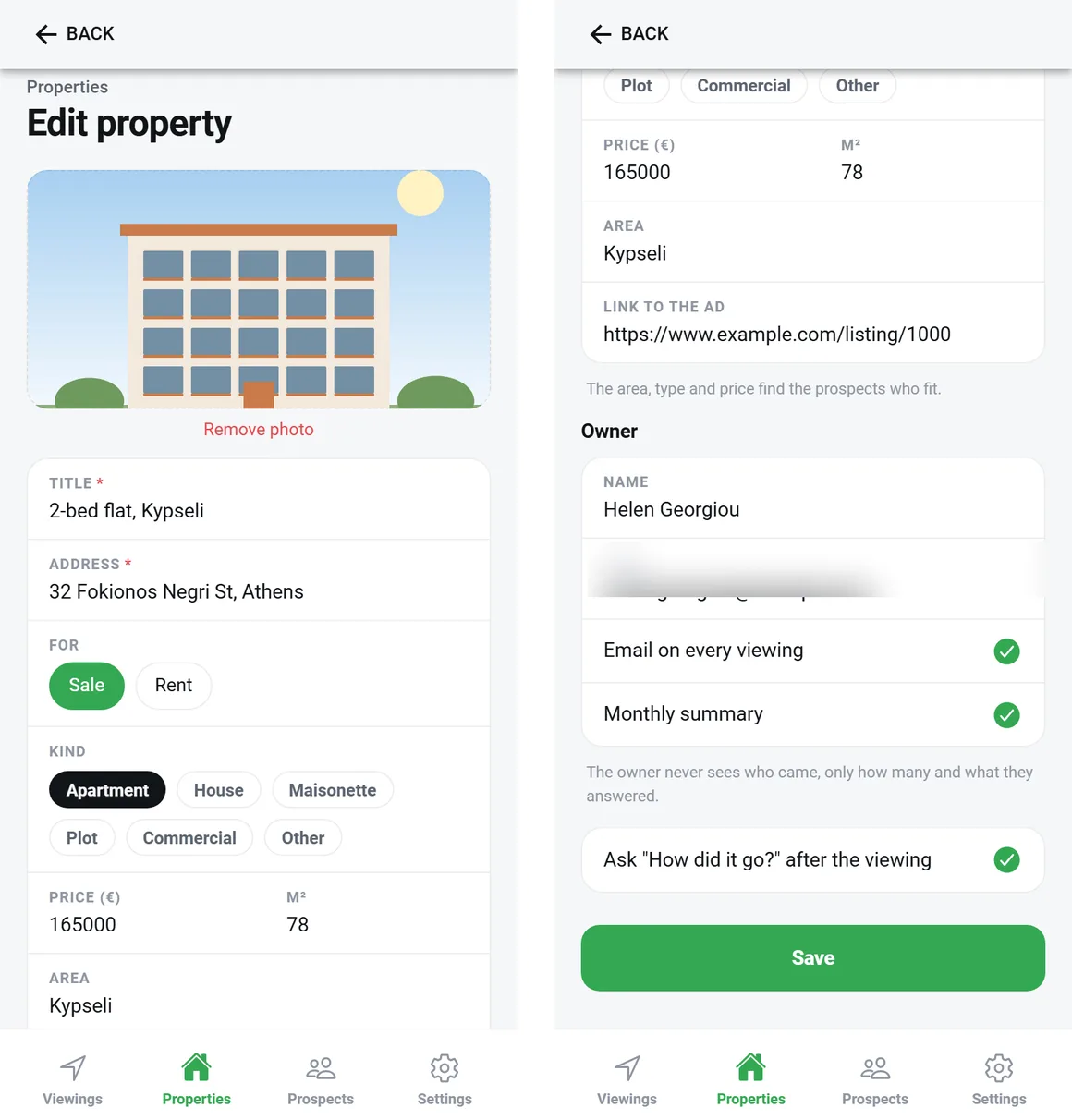
- Add a Photo, the Title and the Address.
- Pick Sale or Rent and the Kind, and enter the price or rent, the m², the Area and the Link to the ad.
- Under Owner enter their name and email and choose whether they get an Email on every viewing and a Monthly summary.
- Under Settings from pick the property whose hours, agents, booking questions and agreement are copied.
- Tap Save.
To change a property, tap Edit at the top right. The title cannot be the same as another property or service. Every property counts as an event type towards your plan's limit.
The owner
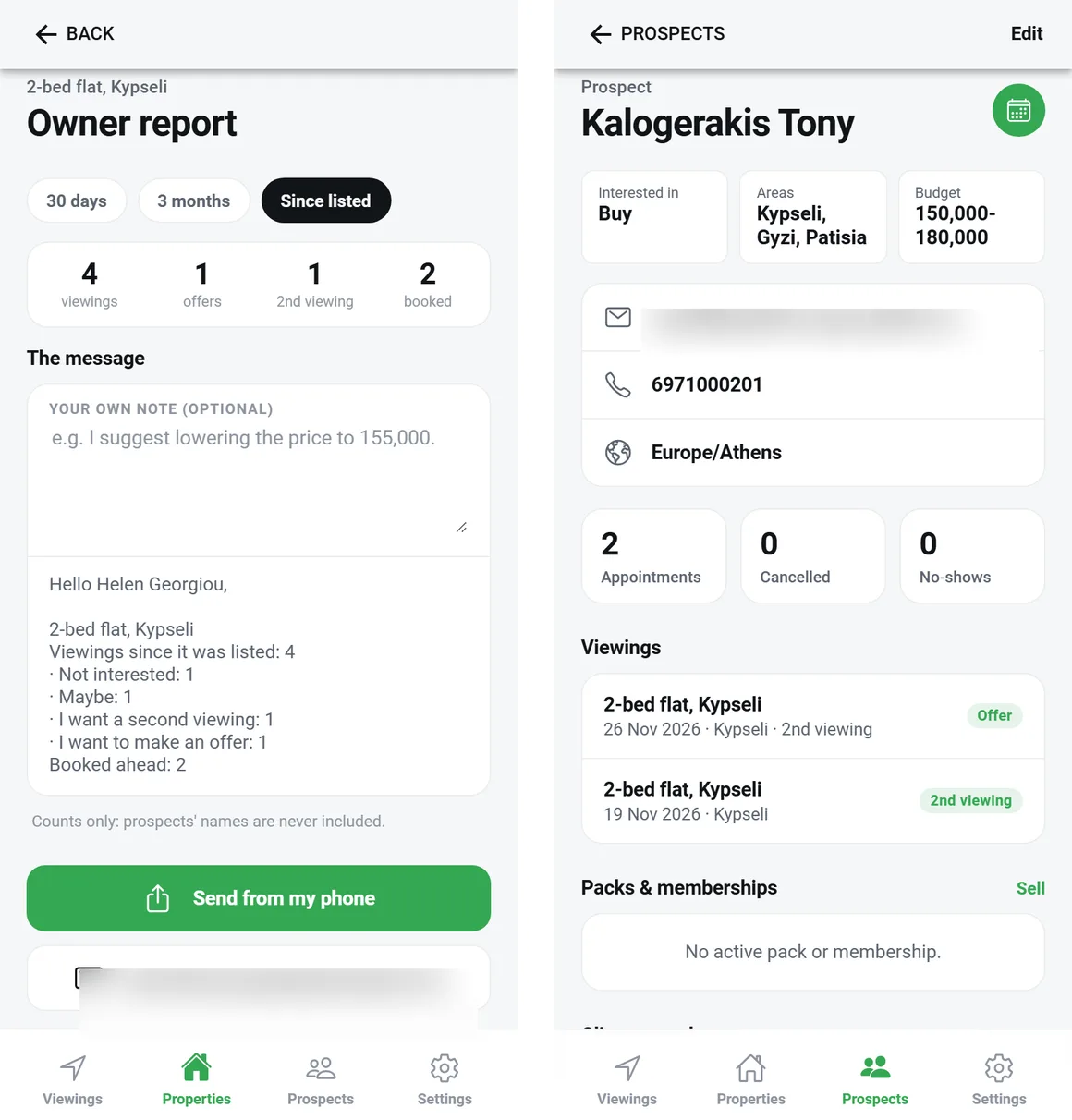
The owner never sees who came, only how many and what they answered. They get:
- an email for every new viewing, if you switched it on,
- a monthly summary on the 1st, with last month's viewings and answers, if you switched it on. It is not sent for a property nobody viewed,
- the Owner report whenever you send it.
In the Owner report pick 30 days, 3 months or Since listed, add your own note if you like, and send it with Send from my phone, for example on Viber, or by email to the owner's address.
The prospect's page
On top of what Clients on your phone describes, an agency's client page shows:
- at the top, what they are after: Interested in, Areas, Budget,
- Viewings: the properties they have seen or will see, with what they answered,
- Properties that fit: available properties that match what they want, with a button to send one by SMS.
The booking page
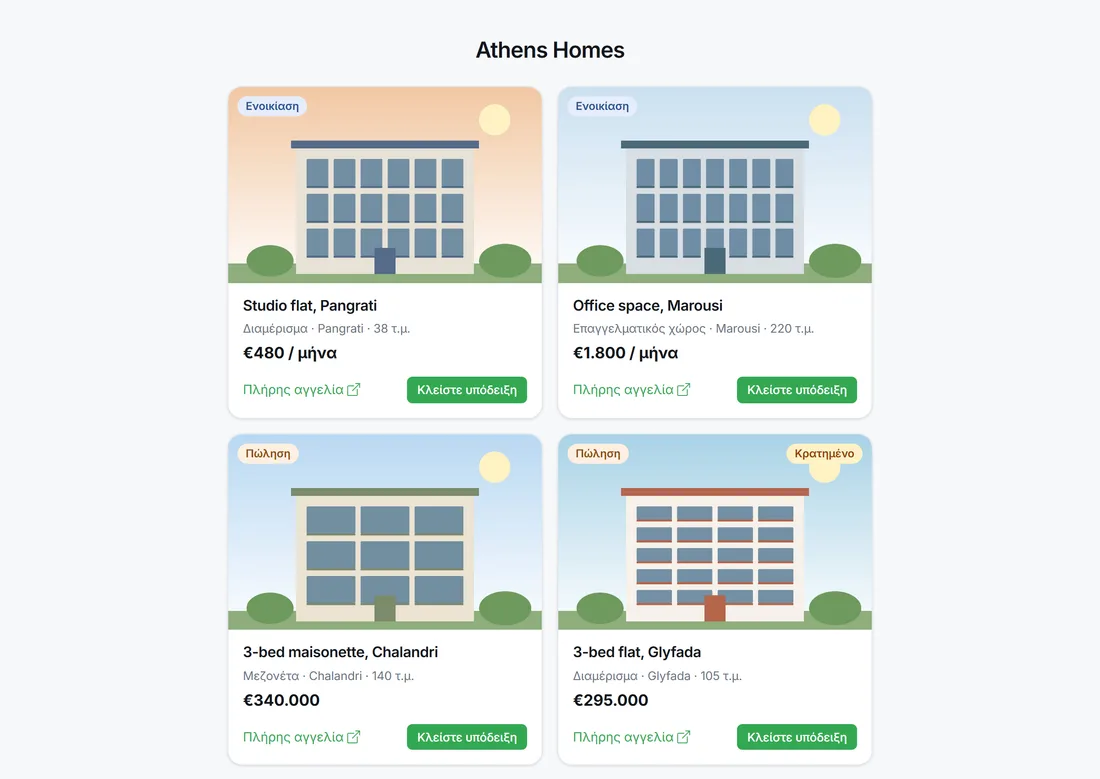
On the booking page the properties show as cards with a photo, sale or rent, category, area, size and price, with Full listing and Book a viewing. A reserved property is tagged Reserved. From nine properties up, filters for sale or rent, category and area appear too. How a client books is described in How clients book an appointment. To have the mobile number confirmed with a texted code before booking, see Send SMS to your clients.
Who can do what
- Anyone who can see appointments sees the Viewings tab. Recording how a viewing went needs permission to manage appointments.
- Anyone who can see event types sees the Properties tab. New properties, changes, the status and emailing the owner need permission to manage event types.
- Prospects who fit are shown to anyone with access to clients.