Personal trainer
The mobile app for a personal trainer.
When your business type is Personal trainer, the mobile app gives your clients' packs a tab of their own and keeps each client's workouts, records and body measurements. Start with the overview of the screens by business type.
The tabs
- Events: your sessions, as described in Appointments on your phone.
- Packs: every pack in use, across all your clients.
- Clients: your client list.
- Settings: this is also where your Services (event types) are.
The Packs tab
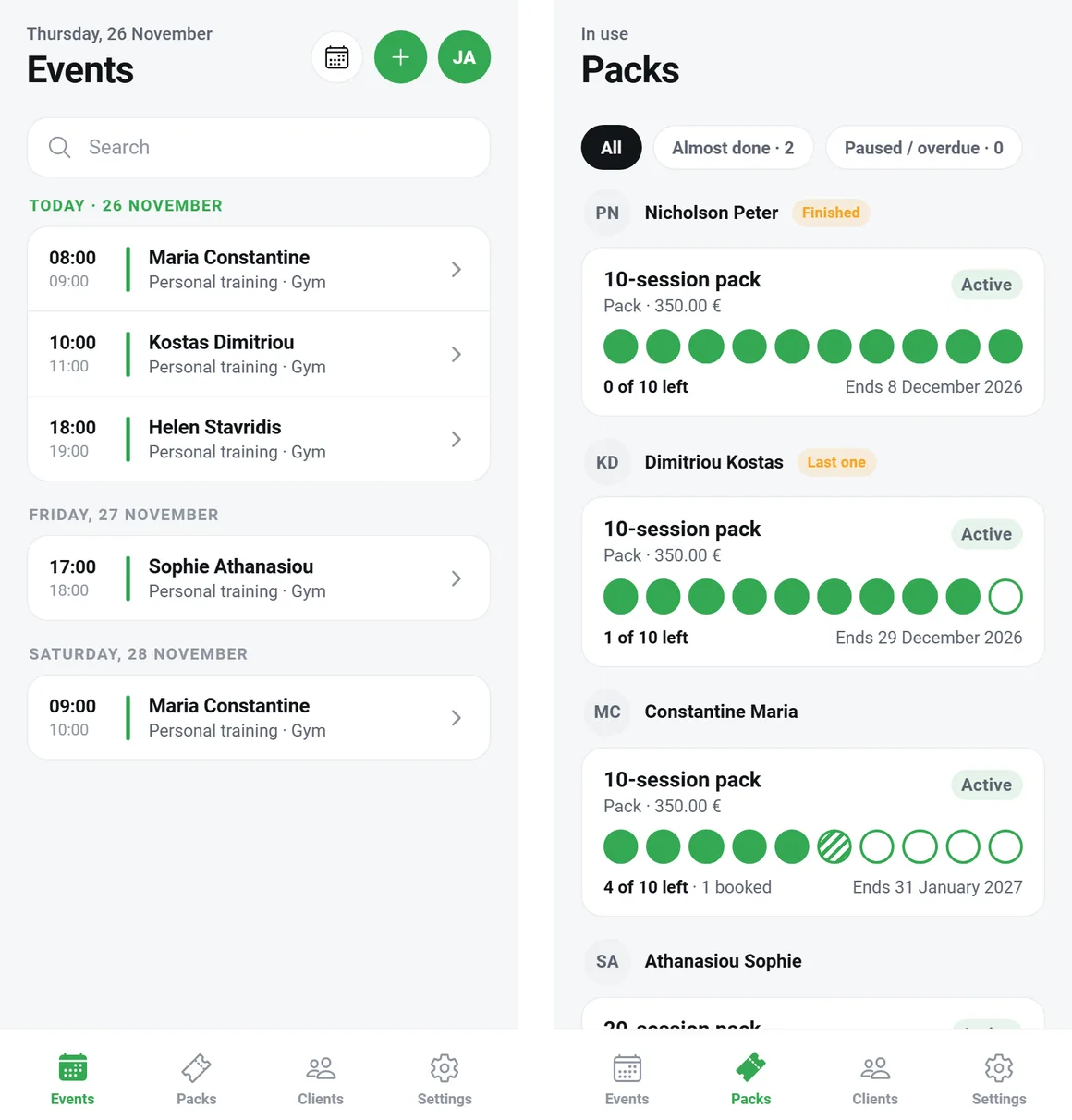
Each pack is shown under the client's name. The circles are the sessions: filled for the ones done, striped for the ones booked, empty for the ones left. Underneath you see how many are left and when the pack ends.
- All: every pack in use.
- Almost done: packs with one session left or none. The name is marked Last one or Finished, so you know whom to talk to about the next pack.
- Paused / overdue: packs that are paused or have a payment that did not go through.
Tap the name to open the client, or the pack for its details. You sell a new pack from the client's page, as described in Sell and manage client packs. Packs come with the plans that include memberships; on other plans the tab says they are not included in your plan.
The client's page
On top of what Clients on your phone describes, a personal trainer's client page has:
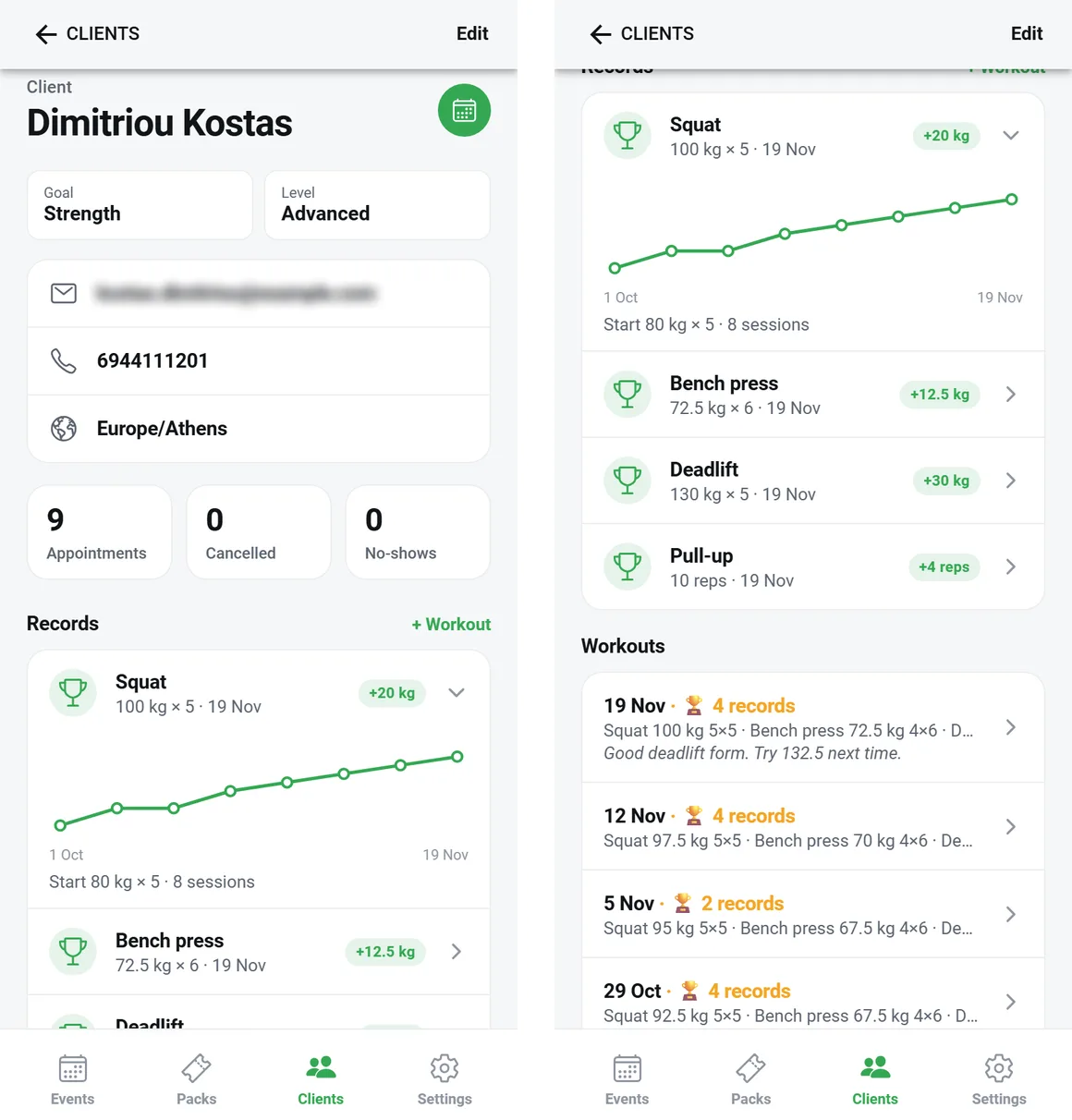
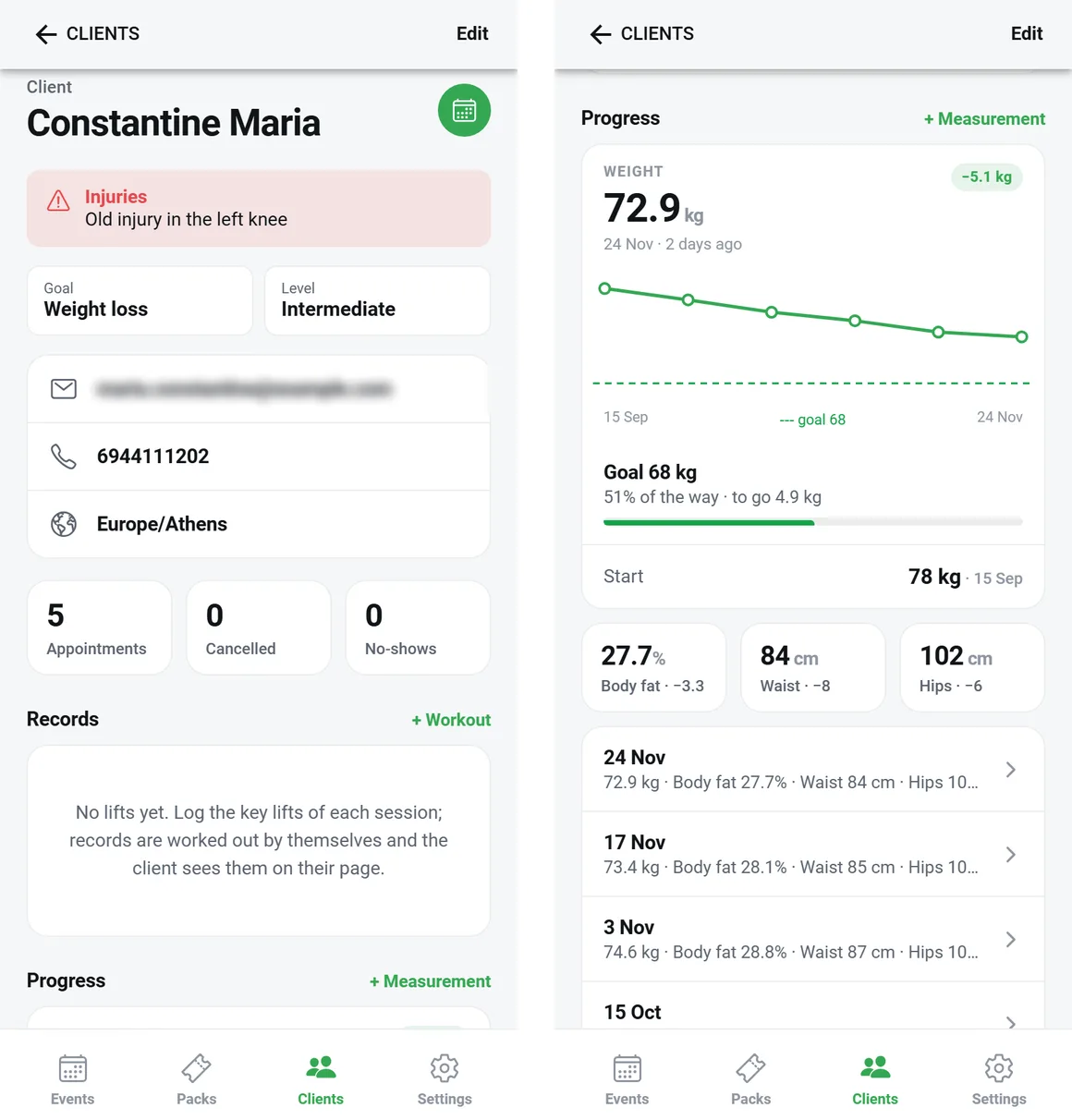
- Injuries in red: anything in the Injuries field shows in a red box at the very top.
- Goal and level: the Goal and Level fields show right under the name.
- Records: the client's best lift in each exercise, with how much it has gone up since the first time. Tap an exercise to see its line over the sessions.
- Workouts: the recent workouts, their lifts and how many records each one set.
- Progress: their body measurements, described below.
Logging a workout
You log a workout from the session or from the client's page:
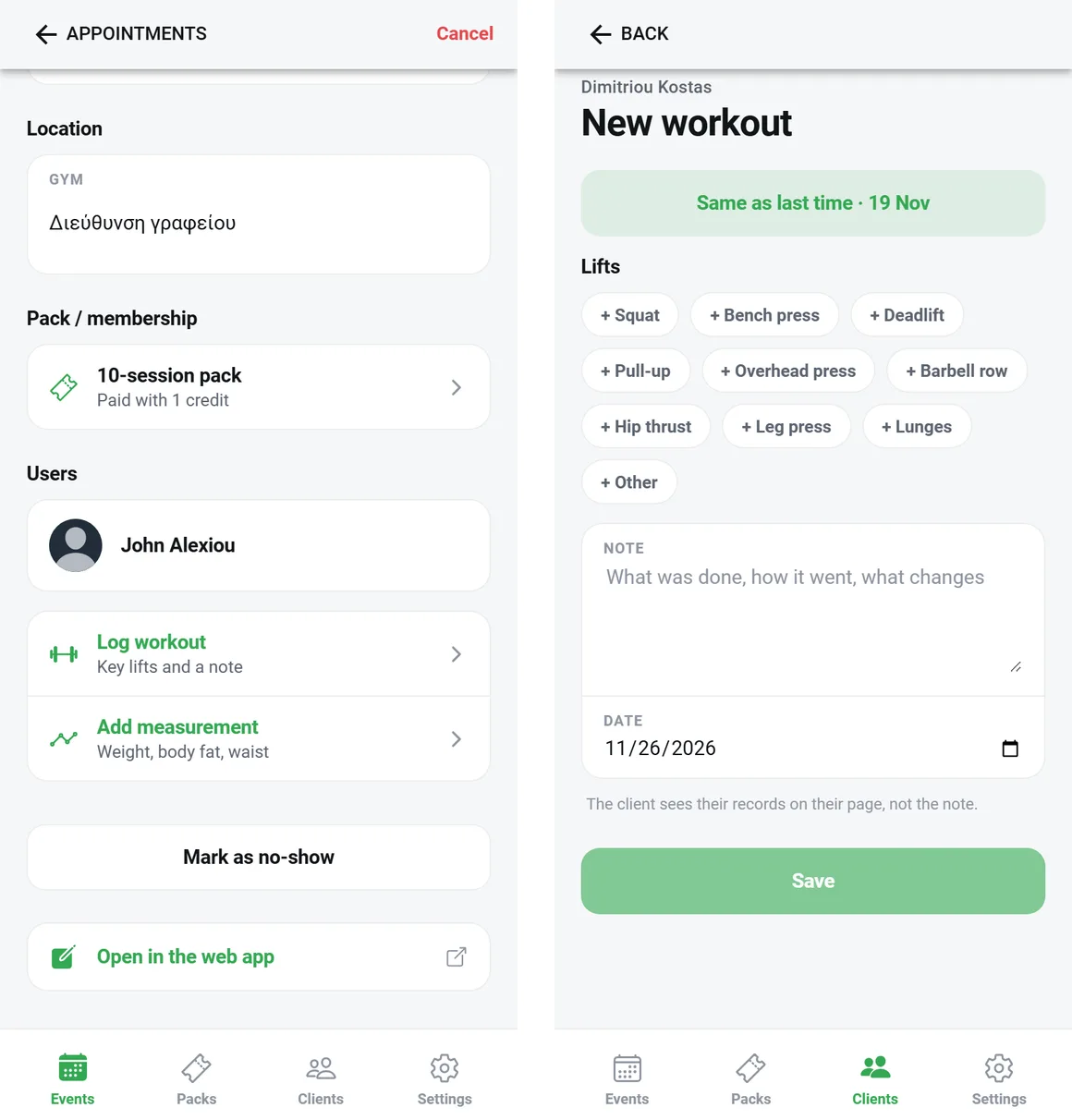
- Open the session and tap Log workout. Or, on the client's page, tap + Workout next to the records.
- Same as last time fills in last session's lifts and weights, so you only change what changed. Otherwise tap one of the ready exercises, such as + Squat, or + Other for your own.
- For each lift enter kg, Sets and Reps. Leave the weight empty for bodyweight exercises such as pull-ups.
- Optionally add a Note and change the Date.
- Tap Save.
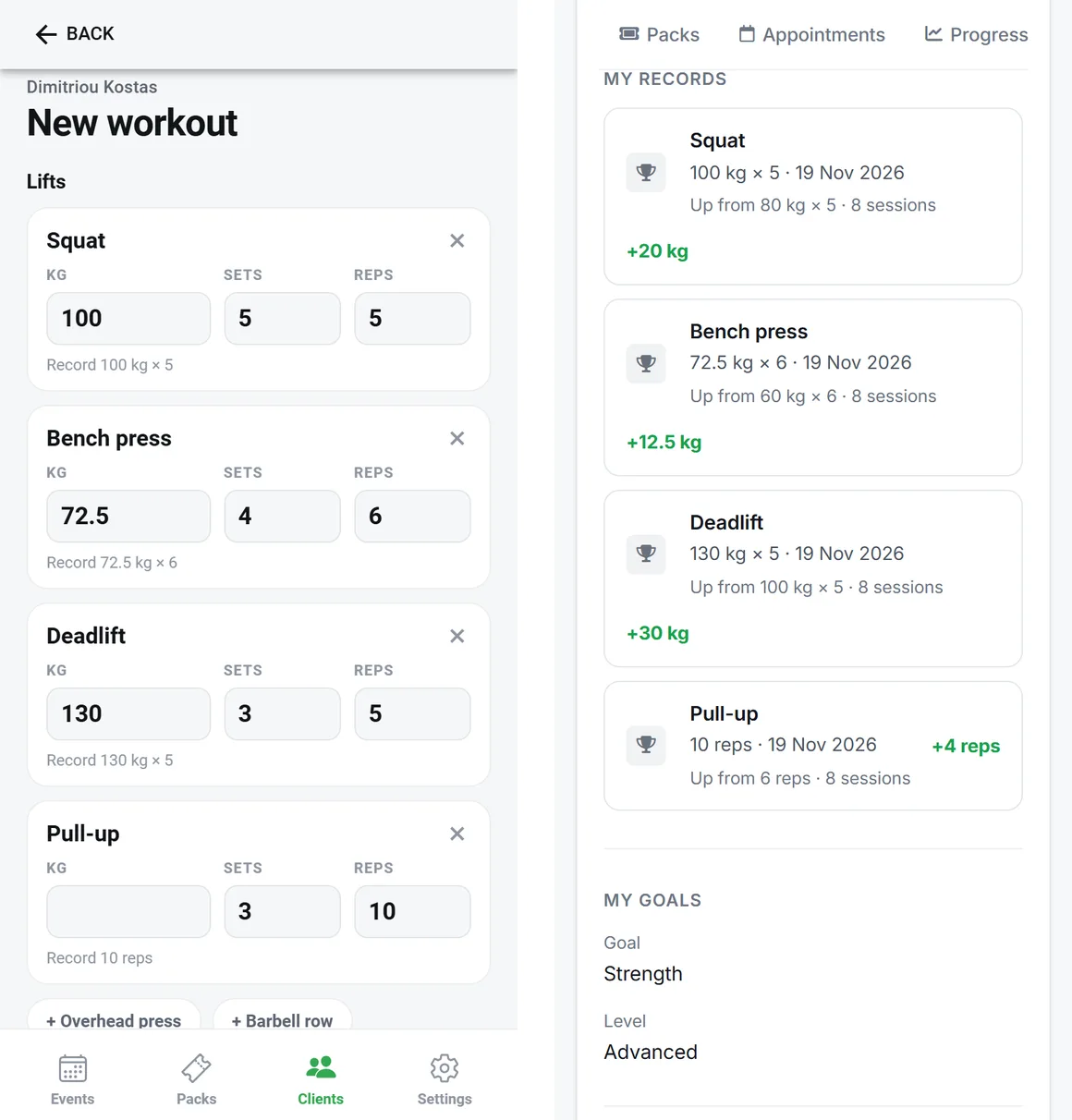
Each lift shows the client's record underneath, and New record when the weight beats it. Records are worked out from the workouts by themselves. A session has one workout: opening it again from the same session corrects that workout.
Measurements and a goal weight
- Tap + Measurement in the Progress section, or Add measurement on the session.
- Enter weight, body fat, waist or hips. Leave empty whatever you did not measure.
- Tap Save.
The Progress section shows the latest weight, the change since the start, the weight line and the other measurements. Tap Set a goal weight to draw the goal on the line, with how far along the client is and how many kilos are left.
What the client sees
On their client page the client sees their packs, their appointments, their progress and My records. They never see the workout notes.
Who can do what
Anyone with access to clients can see records, workouts and measurements. Anyone who can manage appointments can add and change them. The Packs tab shows for users who can see memberships.