Barber shop
The mobile app for a barber shop.
When your business type is Barber shop, the mobile app adds a queue for walk-in clients alongside your booked appointments. This guide covers what changes compared with the standard screens. To see how the business type is set, read Screens by business type.
The tabs
- Queue: who is waiting and who is in the chair. It is the first screen after you sign in.
- Events: the list and the calendar, as described in Appointments on your phone.
- Clients: the client list and each client's record, with the barber extras described below.
- Settings: this is also where Services (your event types) now live.
The queue
The Queue tab shows the shop's walk-ins for the day. It refreshes itself every minute, so you see what colleagues do on their own phones. Pull down to refresh straight away.
- The top line says how many are waiting and roughly how long a new walk-in would wait.
- In the chair: who is being served, by which barber, and how many minutes have passed against the length of the service.
- Waiting: clients in the order they arrived, with the service, the barber they asked for or Anyone free, and how long they have been there. On the right is the estimated wait, or Now if they can sit down straight away.
- At the bottom, how many were served and how many left today.
The estimate takes into account who is already in a chair, the order of the queue and each barber's booked appointments. Treat it as a guide.
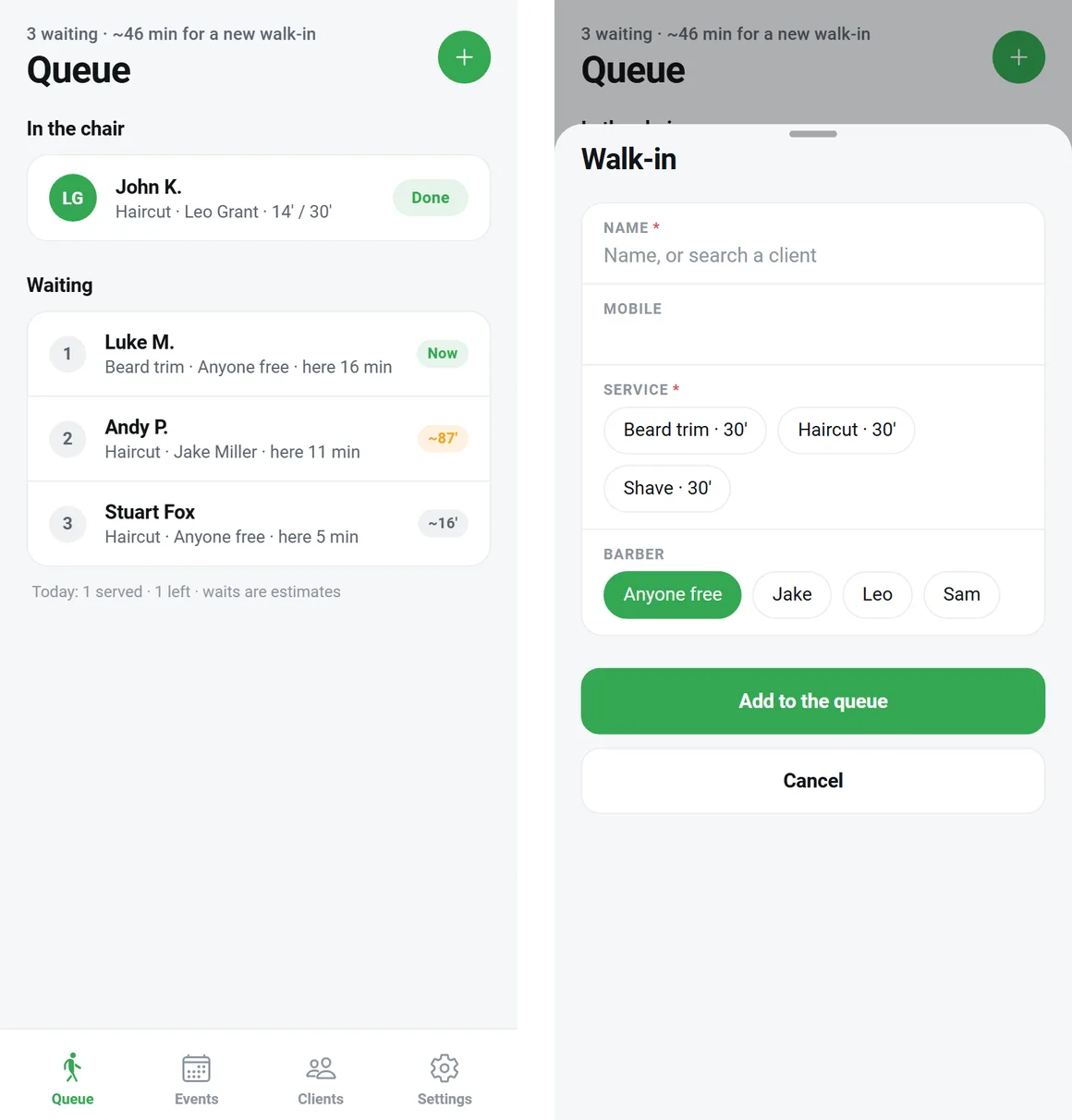
Adding a walk-in
- Tap + at the top right.
- In Name, type the client's name. If they are already one of your clients, they appear underneath: tap them to link the visit to their record. For a new client you can also enter their Mobile.
- Pick a Service. Each one shows its length.
- Under Barber, leave Anyone free or pick the barber they asked for.
- Tap Add to the queue.
In the chair, and done
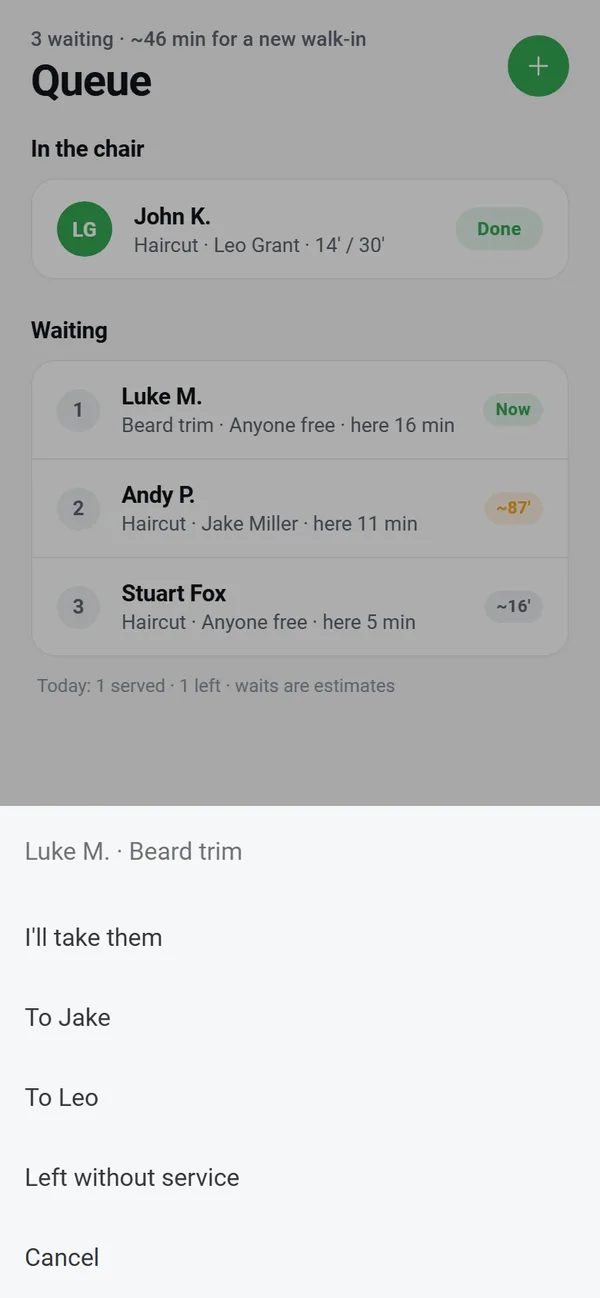
Tap a waiting client to see the options:
- I'll take them, or To and a colleague's name: the client moves into the chair.
- Open client: opens their record, if they are already one of your clients.
- Left without service: for someone who left before being served. It counts towards today's "left".
As soon as a client moves into the chair, the visit is recorded as an appointment with that barber, from that moment for the length of the service. It then shows under Events and in the client's history, marked "Walk-in".
When you finish, tap Done. If you finished early, the appointment ends at the time you tapped.
Anyone who can see appointments sees the queue. Adding clients or moving them into a chair needs permission to manage appointments.
The client record
As well as everything in Clients on your phone, a barber client's record has:
- Same as last time: under the button you see the service, the barber and the date of the last visit. Tap it to open a new appointment with the client, the service and the same barber already picked. All that is left is to choose the day and time.
- The cut: what was done at each visit, so whichever barber takes the client next time can repeat it.
- An allergy alert: any filled-in client field with "allergies" in its name appears in a red box at the top. A barber shop doesn't have such a field to begin with; you can add one as shown in Create or edit a client field.
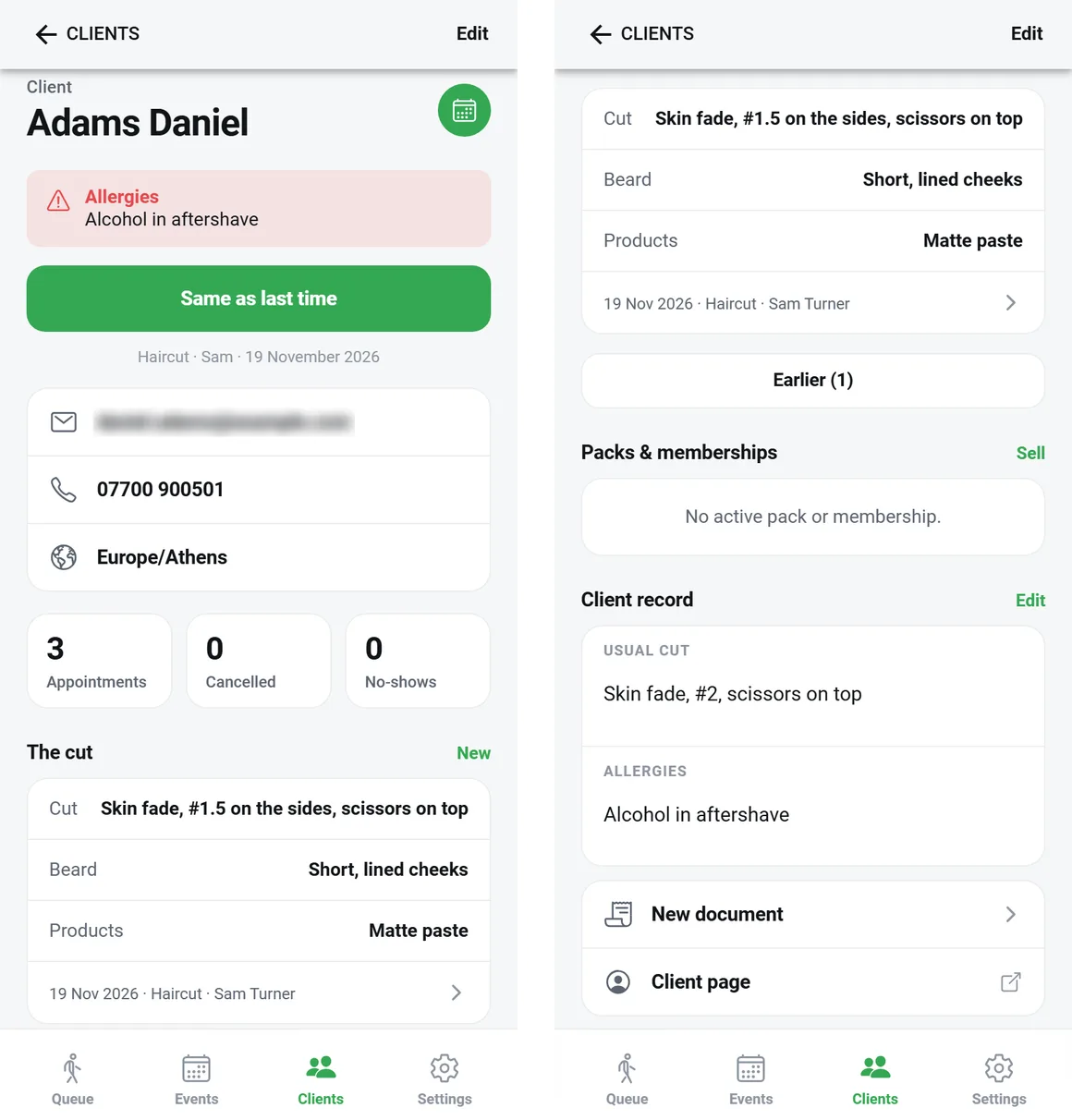
Recording the cut
- Open the appointment. In the The cut section, tap Record it. From the client's record, tap New.
- The form starts filled in from last time. Change whatever is different in Cut, Beard, Products and Notes.
- Tap Save.
These notes are for staff only; the client never sees them. Anyone who can manage appointments can write them. They can be changed or deleted by whoever wrote them, or by anyone who manages clients.