Hair salon
The mobile app for a hair salon.
When your business type is Hair salon, the mobile app is built around each stylist's day. This guide covers what changes compared with the standard screens. To see how the business type is set, read Screens by business type.
The tabs
The bar at the bottom of the screen has four tabs:
- Chairs: the salon's day, with a column for each stylist. It is the first screen after you sign in.
- Events: the list and the calendar, as described in Appointments on your phone.
- Clients: the client list and each client's record, with the salon extras described below.
- Settings: this is also where Services (your event types) now live, since you set them up once and don't need them every day.
Chairs: the day by stylist
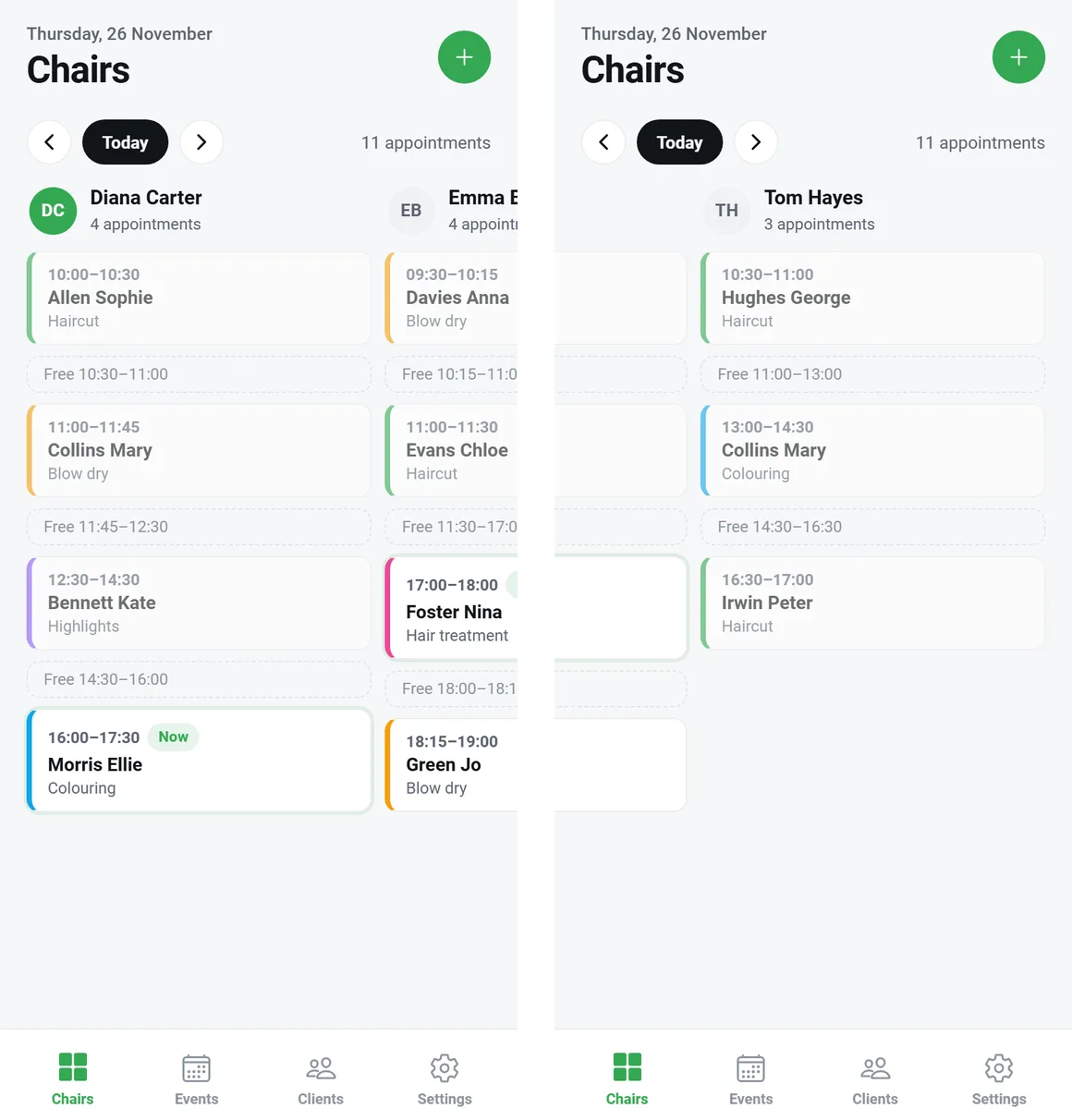
The Chairs tab shows one day, with a column for each team member. If the columns don't fit, swipe sideways.
- Use the arrows at the top to change day. Today takes you back to today. Next to them you see how many appointments the day has.
- Each appointment shows the time, the client and the service, with the service colour on the left. The one happening right now is marked Now, and a missed one is marked No-show.
- Gaps of 15 minutes or more appear between appointments as Free, so you can see at a glance where another client fits. A column with nothing booked says Free all day.
- Tap an appointment to open it. The + at the top right books a new one, as described in New appointment from your phone.
The owner and admins see everyone's column. Other users see only their own.
Colour formula
After each visit you can keep the colour formula, so it is ready next time.
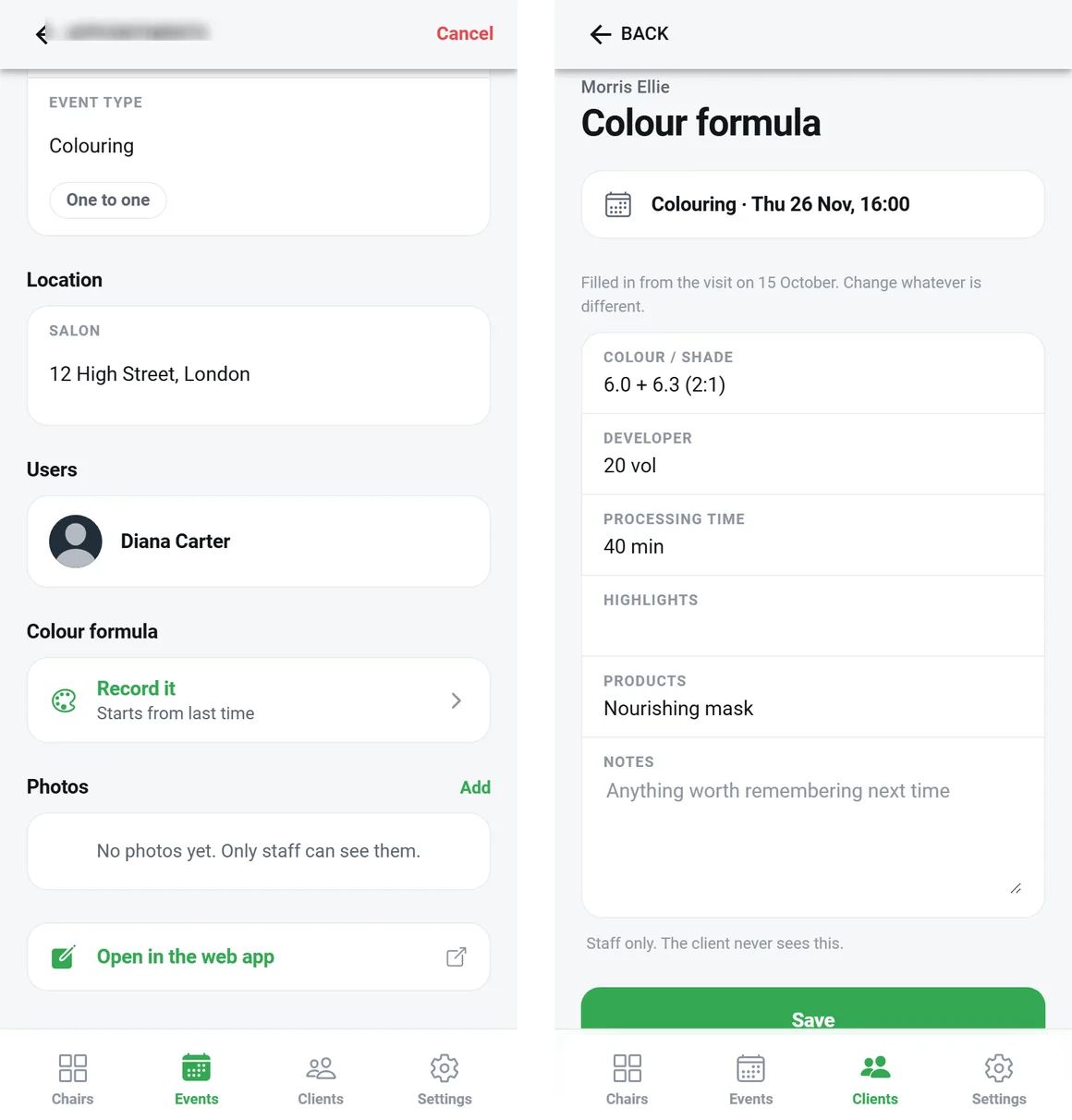
- Open the appointment. In the Colour formula section, tap Record it.
- The form starts filled in from the client's last formula. Change only what is different: Colour / shade, Developer, Processing time, Highlights, Products and free-text Notes.
- Tap Save.
The formula shows on the appointment and on the client's record. There the latest one is open and older ones are under Earlier. New lets you write a formula without opening an appointment.
Formulas are for staff only; the client never sees them. Anyone who can manage appointments can write one. It can be changed or deleted by whoever wrote it, or by anyone who manages clients.
The client record
As well as everything in Clients on your phone, a salon client's record has:
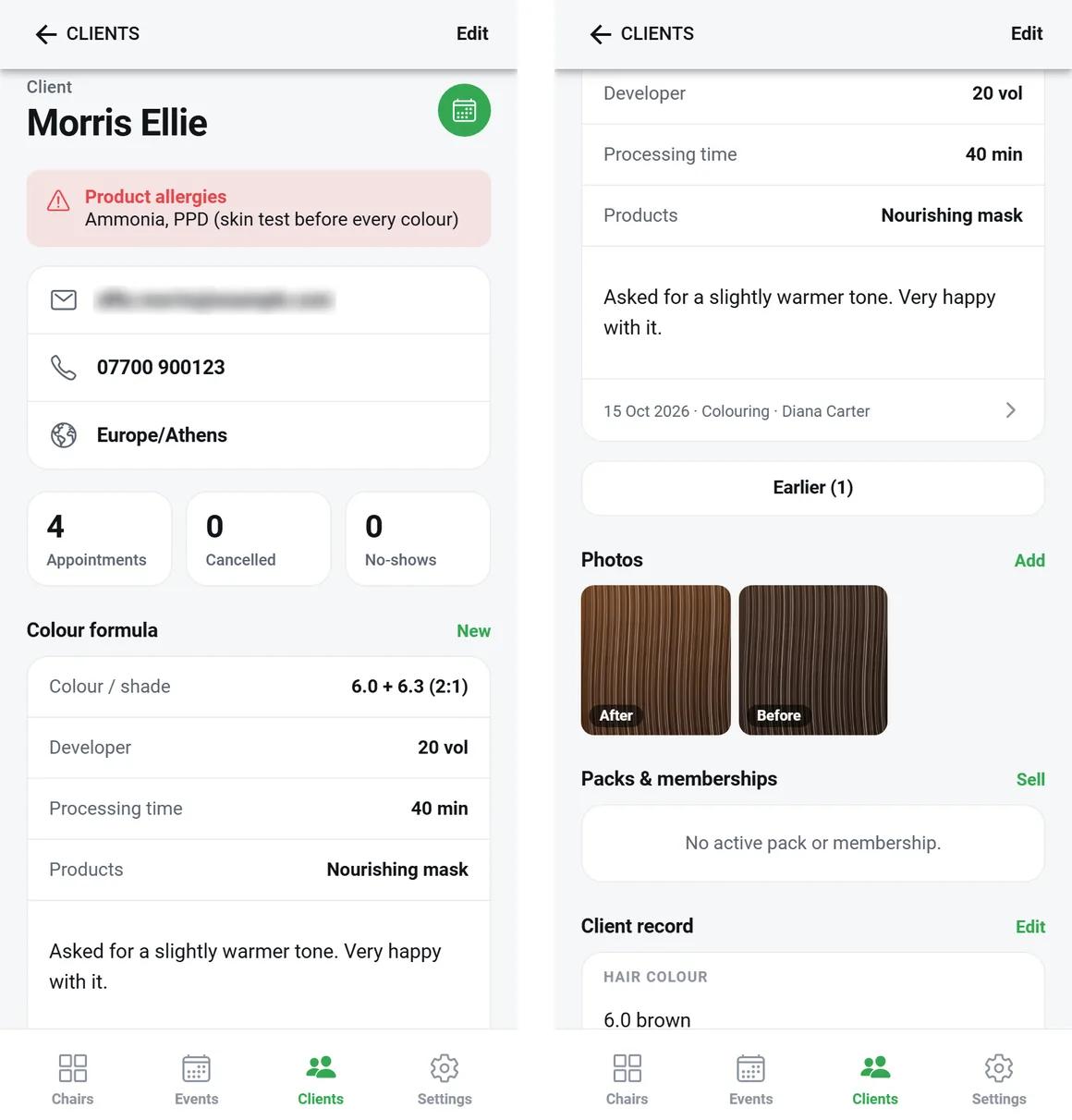
- An allergy alert: if a client field about allergies has been filled in, it appears in a red box at the top. This works for any field with "allergies" in its name.
- Colour formula: the client's formulas, latest first.
- Photos: before and after photos from their visits.
Before and after photos
- In the Photos section of an appointment or a client record, tap Add.
- Choose Before, After or Other, then take or pick the photo.
An appointment shows the photos from that visit; the client record shows them all. Tap a photo to Open or Delete it.
Photos are saved as the client's private files. Only staff see them, and they never appear on the client page. You need a plan that includes client files. If yours doesn't, tapping Add explains what is missing.
Clients due for colour
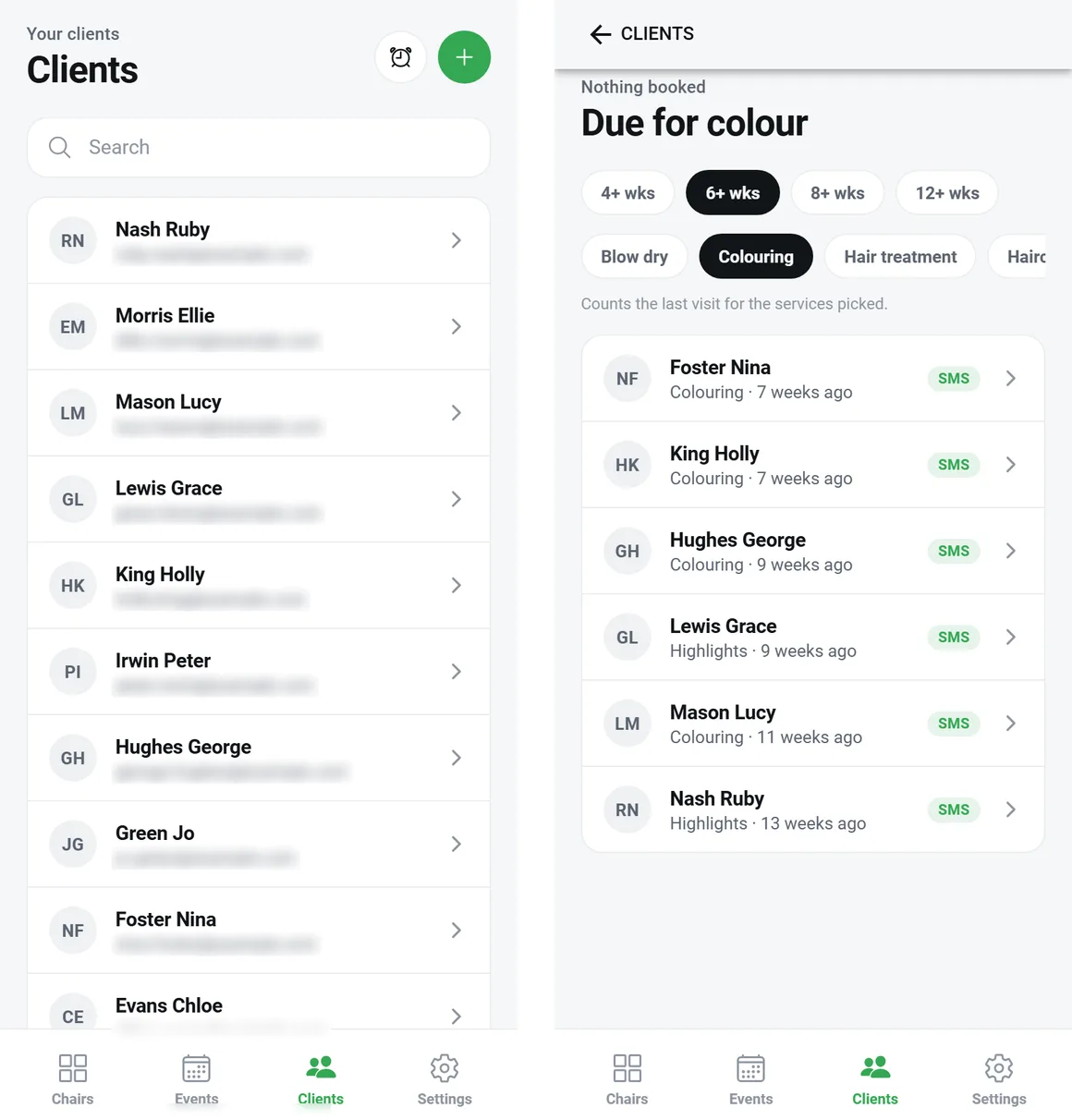
On the Clients tab, the alarm clock icon at the top right opens Due for colour. It lists clients whose last visit was a number of weeks ago and who have nothing booked.
- Choose how long ago the last visit was: 4+, 6+, 8+ or 12+ wks. The default is 6 weeks.
- The services underneath choose which visits count. By default the ones with colour or highlights in their name are picked, so a blow dry in between doesn't hide a client who is due for colour. With none picked, any visit counts.
- Each row shows the last service and how many weeks ago it was. Clients whose last visit was more than a year ago are not listed.
The SMS button opens your phone's messaging app with a ready-made text and your booking link. The message goes from your own phone, not through Kalendar's SMS. Afterwards the row says Texted with the date.
Tap a client to Send SMS, Call, Book an appointment with the client and service already picked, or Open client. If you didn't send the message after all, tap Mark as not texted.