Beauty salon
The mobile app for a beauty salon.
When your business type is Beauty salon, the mobile app has the tabs Events, Courses, Clients and Settings. Your services (event types) are under Settings, in Services. For the app in general, see The mobile app and Screens by business type.
Courses in progress
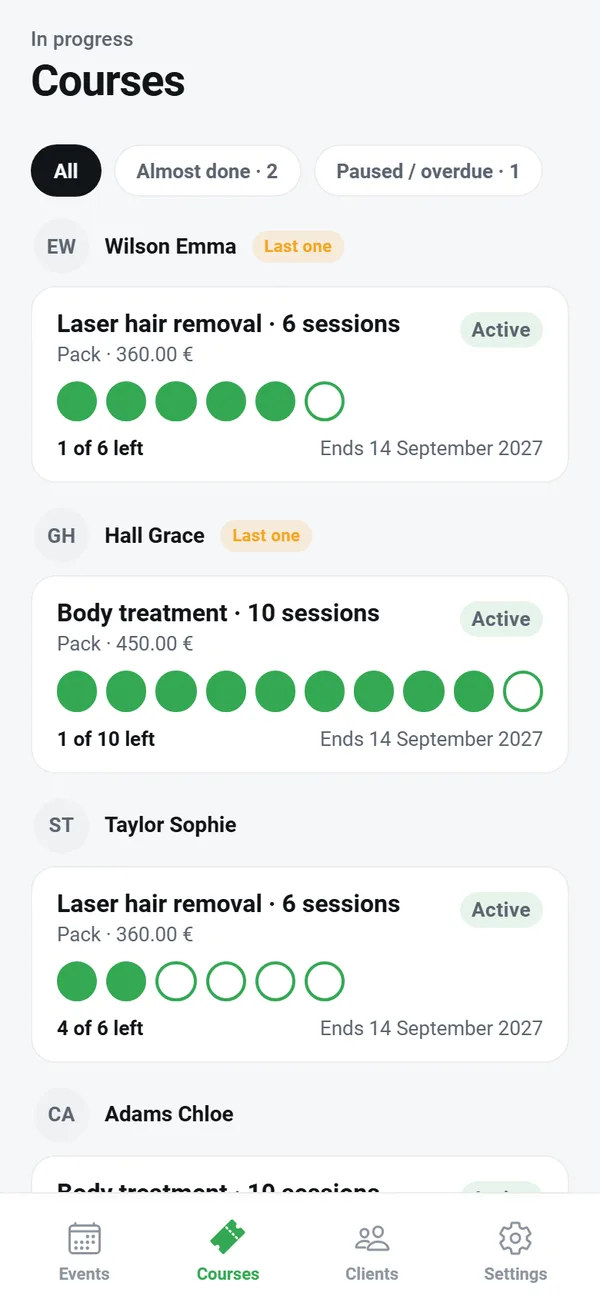
The Courses tab shows every course of sessions your clients have bought, such as 6 laser hair removal sessions or 10 body treatments. The ones about to finish come first.
- The client's name is above each course. Tap the name to open their page, or the course for its details.
- The circles are the sessions: filled ones are done or booked, empty ones are still to use.
- Last one means one session or none is left. That is the moment to offer the next course.
- The filters All, Almost done and Paused / overdue show one group at a time.
You set the courses up in the web app, see Create or edit a pack or membership. You sell them from the client's page, with Sell. See also Sell and manage client packs. The Courses tab needs a plan with memberships.
Consents to sign
When a service asks for terms or a consent, such as a laser consent, the app shows you which clients have not signed before their appointment.
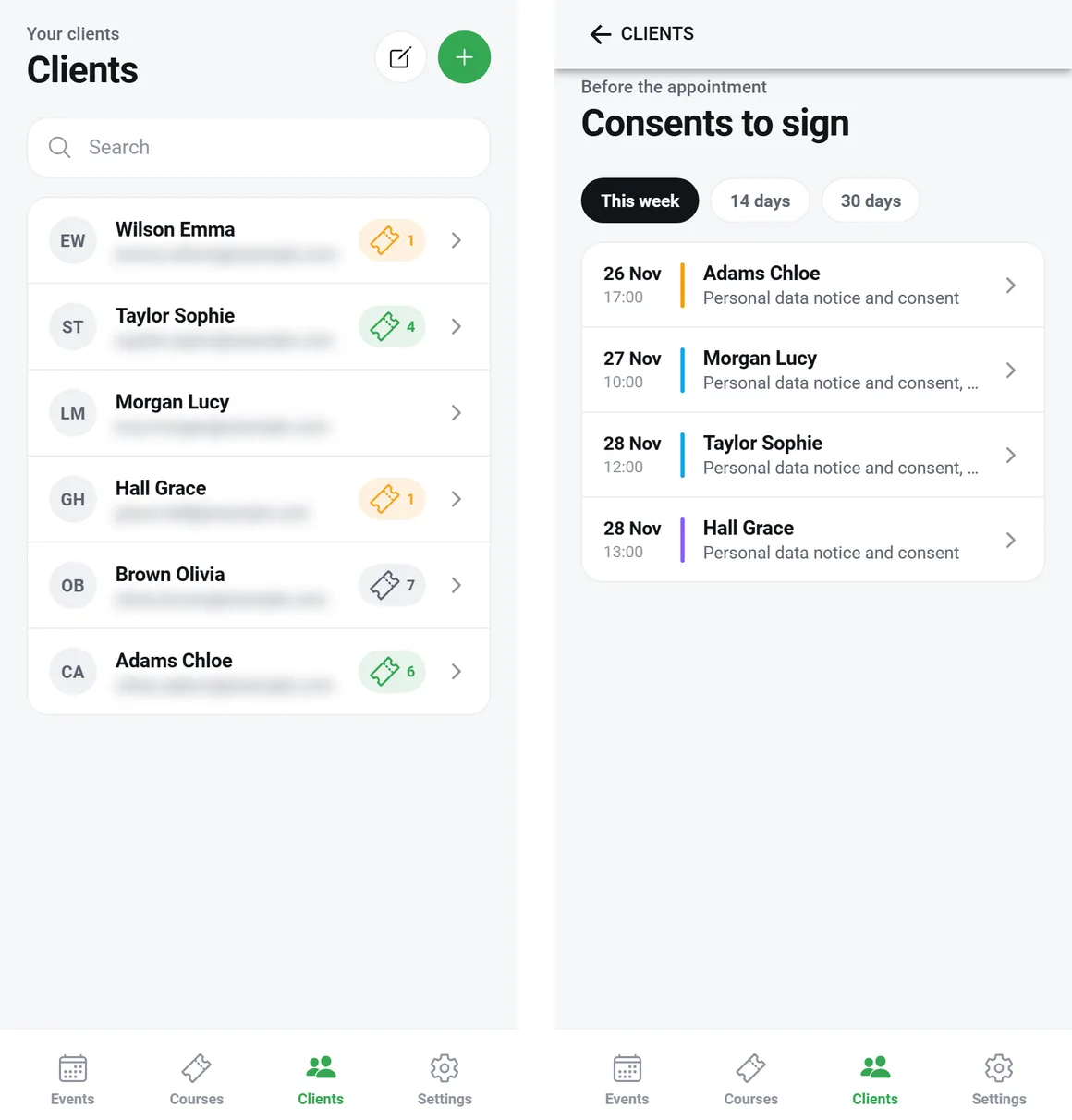
- In the Clients tab, tap the pencil icon at the top right.
- The Consents to sign list opens: the upcoming appointments still waiting for a signature, with the client and the forms missing. Choose This week, 14 days or 30 days.
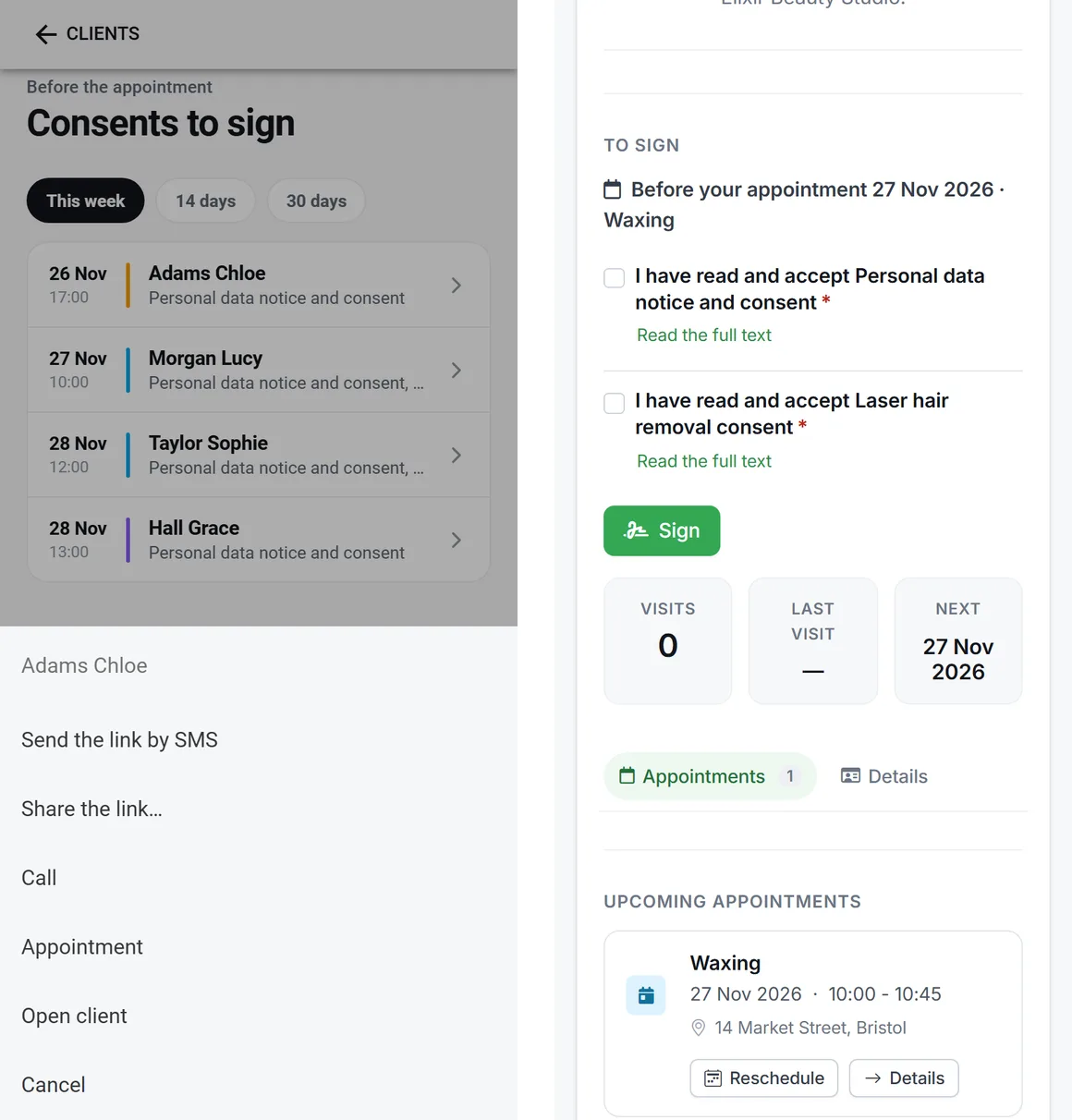
- Tap an appointment and choose Send the link by SMS or Share the link… (email, Viber, WhatsApp). The same menu has Call, and opens the appointment or the client.
The message gives the day and time of the appointment, what to sign and the link. The link opens the client page, where the client reads the texts, accepts them and signs. Once they have signed, the appointment leaves the list.
The link is there on plans with the client page. Without it, the list still shows who has not signed, and the client signs at their next online booking. You write the terms and consents in the web app, see Terms & consent.
The client's page
Besides what Clients on your phone describes, a client's page in a beauty salon has:
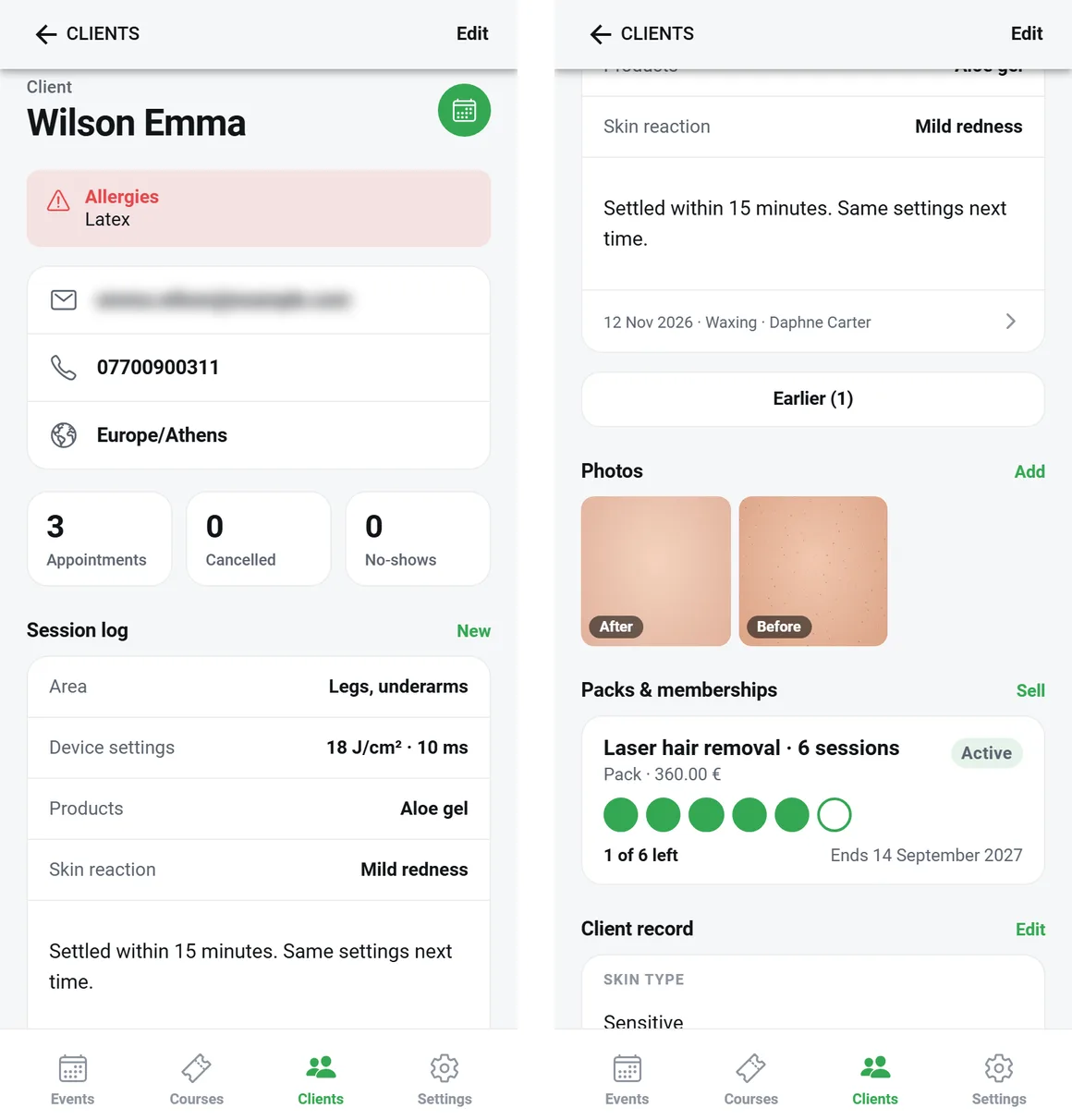
- A red alert at the very top when one of the fields Allergies or Ongoing treatment, or a medication field, is filled in. You see it before you start, for example a latex allergy or isotretinoin treatment.
- Session log: what was done at each visit. The latest is shown open, earlier ones under Earlier.
- Before and after Photos.
- Their courses, under Packs & memberships.
Session log
After each session, keep the settings you used:
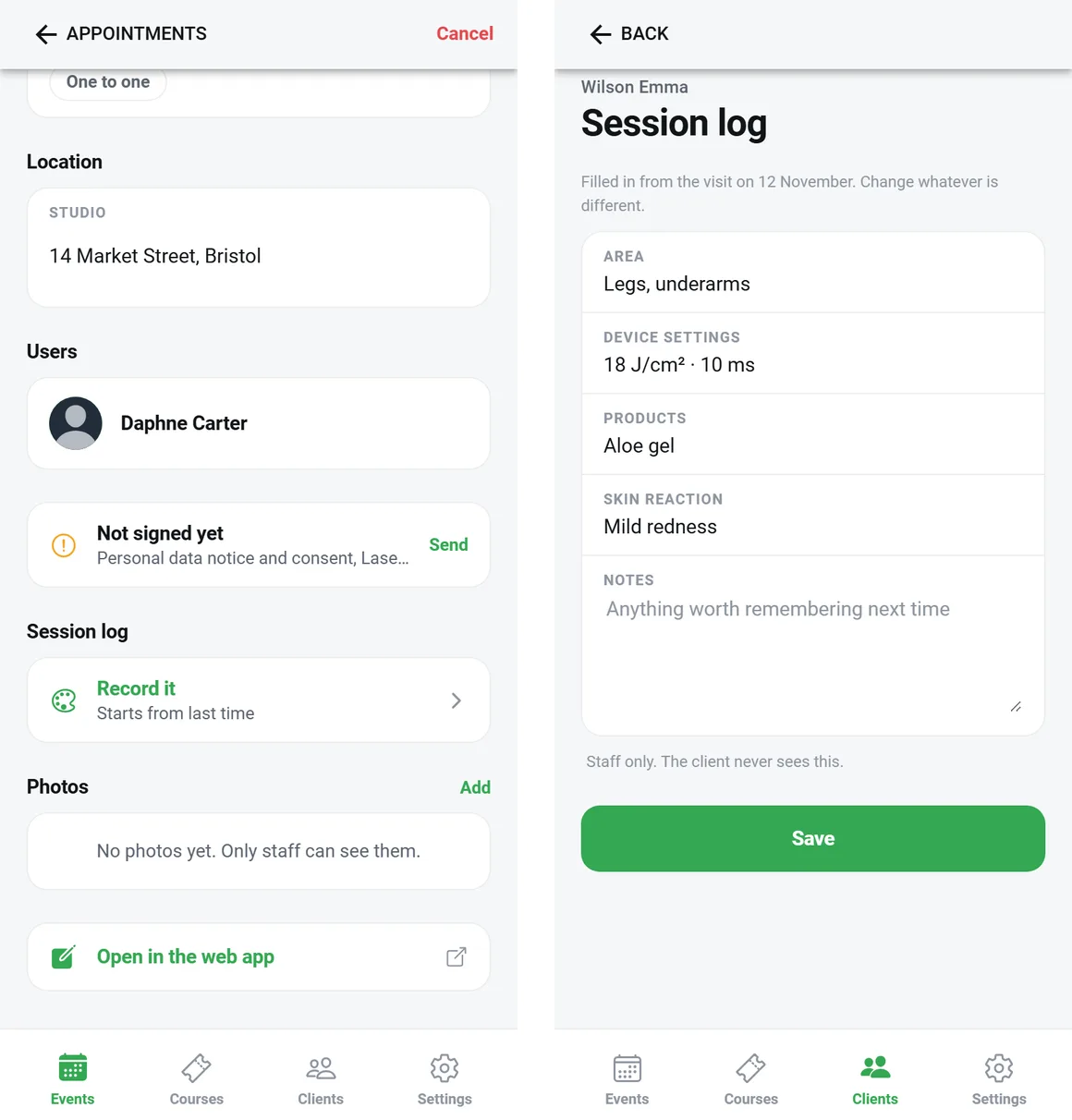
- Open the appointment and tap Record it, under Session log. Or tap New on the client's page.
- Fill in Area, Device settings, Products, Skin reaction and, if you like, Notes.
- Tap Save.
A new log starts filled in from the last visit, because the settings usually repeat. Change only what is different. Logs are for staff only; the client never sees them. A log can be changed by whoever wrote it, or by someone who manages clients.
On the same appointment, under Photos, tap Add, choose Before, After or Other, and take or pick the photo. Photos stay on the client's page for staff only, and need a plan with client files.
When the appointment is still waiting for a signed consent, it shows Not signed yet. Tap it to send the link by SMS or share it.
For appointments in general, see Appointments on your phone and New appointment from your phone.